Public Apps
A public app is open to anyone on the internet without signing in: a marketing site with a waitlist form, a public calculator, a status page. It is its own website, on the platform's apps domain, a domain separate from your Strongly address:
https://<slug>.<apps domain>/
The URL name (the slug) is the app's one URL name. Your platform's administrator sets the apps domain; on a platform without one, the Public choice does not appear. You can also serve the app at your own domain.
Every other app is served only to people who are signed in (to Strongly, or through the app's branded sign-in). On a platform with an apps domain they open it at the same kind of address, https://<slug>.<apps domain>/ (Where an app opens). Making an app public is a deliberate step with a risk you acknowledge; only the app's owner or an admin can take it, and it is recorded in the audit log.
Make an app public
- Open the app and choose the Permissions tab (Permissions).
- Optionally, in its Domains section, set the URL name and Save: 1 to 40 lowercase letters, digits or hyphens, unique among apps. It starts as one made from the app's name.
- In the Access section, under How app users get in, choose Public. Read the risk, tick the box and confirm.
- Optionally, in the Public site card that appears under Access, set the Largest request body (1 MiB by default, up to 25 MiB) and choose Save settings.
Public is unavailable while the app uses branded sign-in, native sign-in, Home App or paid access, or holds workflows, feature stores or agents; Access names what stands in the way. The Sign-in, Native apps and Connected apps sections do not apply while the app is public, and say so.
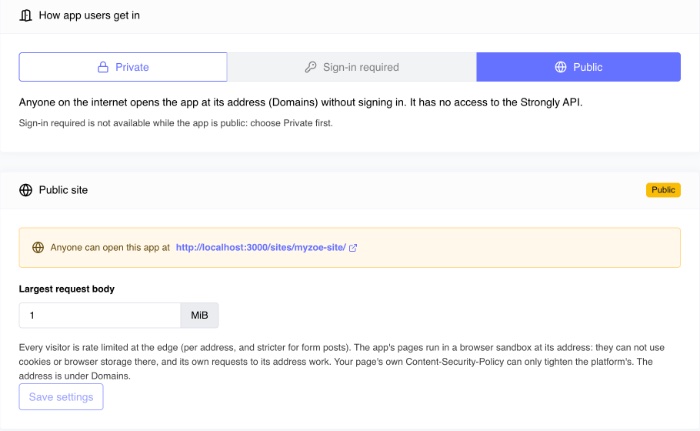
The Public site card shows Preparing while the app's instances restart without access to the Strongly API (a rolling restart, no downtime), then Public with the address. A stopped app is served once you start it.
To close it, choose Private under Access and confirm. The address stops serving the app on the next request.
Public apps carry a Public badge (in the top-right corner of their card) on the Apps page, and the status filter has a Public apps entry. An admin can list every organization's public apps (GET /api/v1/apps?publicAccess=enabled).
Where an app opens
On a platform with an apps domain, every app is its own website, served at the root of its own host, https://<slug>.<apps domain>/, never on your Strongly address. Paths pass through unchanged (https://<slug>.<apps domain>/about reaches the app as /about):
- a public app, to anyone;
- any other app, to the people who may open it. Opening it from Strongly (its card, View App, a Home App, or its link) opens the app as the page itself at its own address, in the same tab (Back returns to Strongly), and signs them in to it: their browser passes through Strongly once and comes back to the app. Strongly never shows it inside its own page, so it works in every browser, Safari included. A link to the app's address opened elsewhere does the same while they are signed in to Strongly, and sends them to sign in when they are not. Whoever loses access (sharing removed, account deactivated, signed out of Strongly) is refused on their next request.
The app's address is in its Domains section (and is address in GET /api/v1/apps/:id). An old link to <your Strongly address>/api/proxy/<app id>/x opened in a browser goes to https://<slug>.<apps domain>/x. Without an apps domain, signed-in apps open inside Strongly, under a bar with Refresh and Open in new tab, served from <your Strongly address>/api/proxy/<app id>/.
A script or the SDK calls an app at its address with its own X-API-Key, and is served as that key's user. A browser's Strongly sign-in is never accepted there: browsers are signed in to the app as above.
Use your own domain
Any app on a platform with an apps domain, public or signed-in, can be served at domains you own, such as www.example.com. The app is served at the root of the domain (https://www.example.com/about reaches it as /about) and visitors see your domain in the address bar; the platform serves it with its own HTTPS certificate. A signed-in app signs its users in through Strongly there, as at its own address.
-
In the Domains section, under Custom domains, choose Add domain and enter the hostname (
www.example.com). Only the app's owner or an admin can add one; an app holds up to 20. -
At your DNS provider, add the records the Domains section shows (each has a copy button):
Record Name Value When CNAME www.example.comthe app's address, <slug>.<apps domain>Always. For a root domain ( example.com), where a CNAME is not allowed, use your provider's ALIAS or ANAME record, or CNAME flattening, to the same valueTXT _strongly-verify.www.example.comstrongly-verify=<token>For a root domain, or when your DNS provider hides the CNAME (a proxied or flattened record). It shows the domain is yours: the token is this domain's alone CNAME the certificate validation name shown the value shown For the automatic certificate (not needed if you upload your own) -
Choose Check now, or wait: the platform checks a new domain every minute until it is active, hourly after. DNS changes usually take minutes, sometimes up to 48 hours, and the certificate is issued a few minutes after its record is in DNS. The domain is served once both are in place, and its status reads Active.
The table shows each domain's DNS status (Points to the app, Not found yet, Not shown to be yours yet: it reaches the platform but its CNAME does not name this app's address and its TXT record is missing, or Points elsewhere), its certificate and when that expires.
A domain serves one app only. A domain pointed at the platform is never served for an app until its CNAME names that app's address or its TXT record carries that domain's token, so no other app can take a domain you set up.
Your own certificate
Instead of the automatic certificate, you can upload one you already have: under Uploaded certificates, choose Upload, paste the certificate, its private key and its chain, and choose the domains it covers. It must be valid for those domains. The private key is sent to the certificate service and never shown again. Switching a domain between the automatic certificate and an uploaded one never leaves it without one. You are warned (in the bell and by email) 30, 14 and 3 days before an uploaded certificate expires; upload its replacement before then.
Remove a domain
Choose Remove next to the domain: it stops being served and its automatic certificate is deleted. Then delete its records at your DNS provider, so the name does not keep pointing at the platform.
What a public app can and cannot do
| A public app | |
|---|---|
| Visitors | Anyone, without signing in. Requests carry no Strongly identity: the app does not know who the visitor is unless it asks them |
| Its add-ons, data sources and models | Reached as granted, like any app (a form can write to the app's own database add-on) |
| The Strongly API | No access: its instances run without the platform token, and the API refuses the app's token |
| Other models | Only the AI Gateway models granted to it |
| Cookies and browser storage | Its own, on its own domain: cookies it sets stay on its host |
| Branded sign-in, native sign-in, Home App, paid access | Not while it is public |
| Workflows, feature stores, agents | Not while it is public |
| Deploys, versions, autoscaling, logs, metrics, analytics, FinOps | As for any app (visits count as anonymous usage) |
The app's own code decides what it shows and accepts: anything it exposes, anyone can reach. Validate form input, and never put secrets in pages.
A public site with a signed-in area
An app is either public or signed-in, never both. Build two apps:
- the public site (this page), with its marketing pages and forms;
- a signed-in app with branded sign-in, which the site links to (its sign-in page is
<your Strongly address>/app/<its url-name>/).
Public paths of a signed-in app
An app whose pages stay signed-in can make only some paths public, for callers that do not sign in to Strongly: an OAuth callback, a provider's webhooks. While the app is Private or Sign-in required, the Access section has a Public paths card: enter one path prefix per line (for example /oura) and choose Make these paths public, then acknowledge the risk. Turn public paths off closes them.
- Only those paths are public, on the app's own domain:
https://<slug>.<apps domain>/oura/...(and on its custom domains). The app keeps its sign-in, at<your Strongly address>/app/<slug>/, and its access to the platform. - They get the same protection as a public site: no Strongly identity either way, rate limits.
- The caller's
Authorizationheader reaches the app, so the app checks its own tokens and signatures. Strongly credentials (a Strongly API key or token) never reach the app.
Security model
- A domain of its own. Apps are served on the apps domain, never on your Strongly address. Their pages can not read or use a Strongly session: the Strongly sign-in cookie is never sent to them and no page script can read it, and a request an app's page makes to Strongly never acts as its visitor.
- No identity. No user identity reaches a public app. A request with a Strongly API key or token is served as anyone, and the credential never reaches the app; any other
X-Strongly-header is refused. - No platform reach. The app's instances run without the platform token, and the Strongly API refuses the app's token, from the moment it is public. It reaches only what you granted it.
- Nothing that reaches past the app. Cookies it sets stay on its own host; it can not change the domain's HTTPS, alternative-service or reporting settings.
- Domains proven, not assumed. A custom domain is served for an app only once DNS shows it is that app's (its CNAME, or its TXT ownership record).
- At the edge. HTTPS only. Per-visitor rate limits: every address is limited, and form posts without a token are limited more tightly; a visitor over the limit gets
429 Too Many Requests. AWS managed rules block known bad inputs and addresses with a bad reputation. Each request body is held to the app's limit (413).
For administrators: the apps domain
One setting, APPS_DOMAIN in the platform's environment (platform-env; for an install, the APPS_DOMAIN input in its .env), decides where apps are served. Empty is the default.
APPS_DOMAIN | Mode | A signed-in app opens at | Public apps and custom domains |
|---|---|---|---|
| empty (default) | Off | https://<your Strongly address>/api/proxy/<app id>/ | None. A public app is not served; opening it answers 409 |
a subdomain of your Strongly address's domain, such as apps.cloud.example.com | Subdomain | https://<slug>.apps.cloud.example.com/ | Served |
a separate domain, such as example-apps.com | Separate | https://<slug>.example-apps.com/ | Served |
Where the app is served differs by mode:
- Without an apps domain: under
/api/proxy/<app id>/, withSTRONGLY_URLset to/api/proxy/<app id>. - With an apps domain: at the root of its own host (
https://<slug>.<apps domain>/and each active custom domain). Paths pass through unchanged,STRONGLY_URLis''(empty), and<base href="/">is added to HTML pages that have no<base>. The platform's own pages for the app are/_strongly/sign-out,/_strongly/sign-out.jsand/_strongly/sessionon that host. On the app's host,/api/proxy/<app id>/xstill names the app path/x: a page load is redirected (308) to/x, any other request is served at/x, so an app built with the old prefix keeps loading its assets until it is rebuilt.
Use STRONGLY_URL; the platform sets it for the install. An app that builds every link, asset path and API base from STRONGLY_URL only works in both modes. Never hard-code /api/proxy/<app id>, and treat an empty STRONGLY_URL as the root, not as missing (STRONGLY_URL).
With an apps domain, each app is its own website, so its code can not reach a viewer's Strongly session, and requests to Strongly from another site do not act as the viewer. An administrator who opens another person's app is treated in it as the role its sharing gives them, never as an administrator. That holds in every mode.
With an apps domain, your Strongly address serves no app content to callers outside Strongly. A browser's page load of <your Strongly address>/api/proxy/<app id>/x is redirected (303) to https://<slug>.<apps domain>/x. Every other request from outside answers 409 with JSON naming the app's address (appUrl), and a websocket upgrade answers 403. How callers reach an app:
- Scripts, the SDK,
curlfrom outside: the app'saddress(fromGET /api/v1/apps/:id) with the caller's ownX-API-Key. - Your workloads (jobs, workspaces, apps calling other apps):
$STRONGLY_API_URL/api/proxy/<app id>/...with no auth header, the same in every mode. The call is made as the workload's owner, and the app is served to that owner by its sharing (403for an owner it is not shared with). - Workflows and agents: the REST API node and the API Caller with the Strongly app target make that same call (Calling a Strongly app from a workflow).
A browser's Strongly sign-in cookie is never accepted at an app's address; browsers are signed in to each app through Strongly. A public app serves a caller with a credential as anyone.
From the API, the SDK or STAN
- Public access:
GETandPATCH /api/v1/apps/:id/public-access(Apps API). Python SDK:client.apps.public_access(app_id)andclient.apps.update_public_access(app_id, enabled=True, risk_acknowledged=True, slug="my-site"). - Custom domains:
GETandPOST /api/v1/apps/:id/domains,GET,PATCHandDELETE /api/v1/apps/:appId/domains/:id,POST /api/v1/apps/:appId/domains/:id/refresh; certificates:GETandPOST /api/v1/apps/:id/certificates,GET,PUTandDELETE /api/v1/apps/:appId/certificates/:id. Each domain answers itsdnsRecords(routing, ownership and certificate records). - STAN: ask it to make an app public, or to add, check or remove a custom domain; it quotes the risk and waits for your yes. A private key never goes through a conversation: upload certificates in the Domains section or through the API.