Getting Started
This guide walks you through getting access to Strongly.AI, creating your account, and your first steps on the platform.
Step 1: Get Access to Strongly.AI
Strongly.AI is available through three deployment options:
- Strongly Cloud -- fully managed service hosted and operated by Strongly
- Customer Cloud -- deployed into your own AWS, Google Cloud, or Azure tenant
- On-Premise -- deployed on your own infrastructure
To get started, contact sales@strongly.ai to discuss which deployment option is right for your organization.
Step 2: Create Your Account
Registration
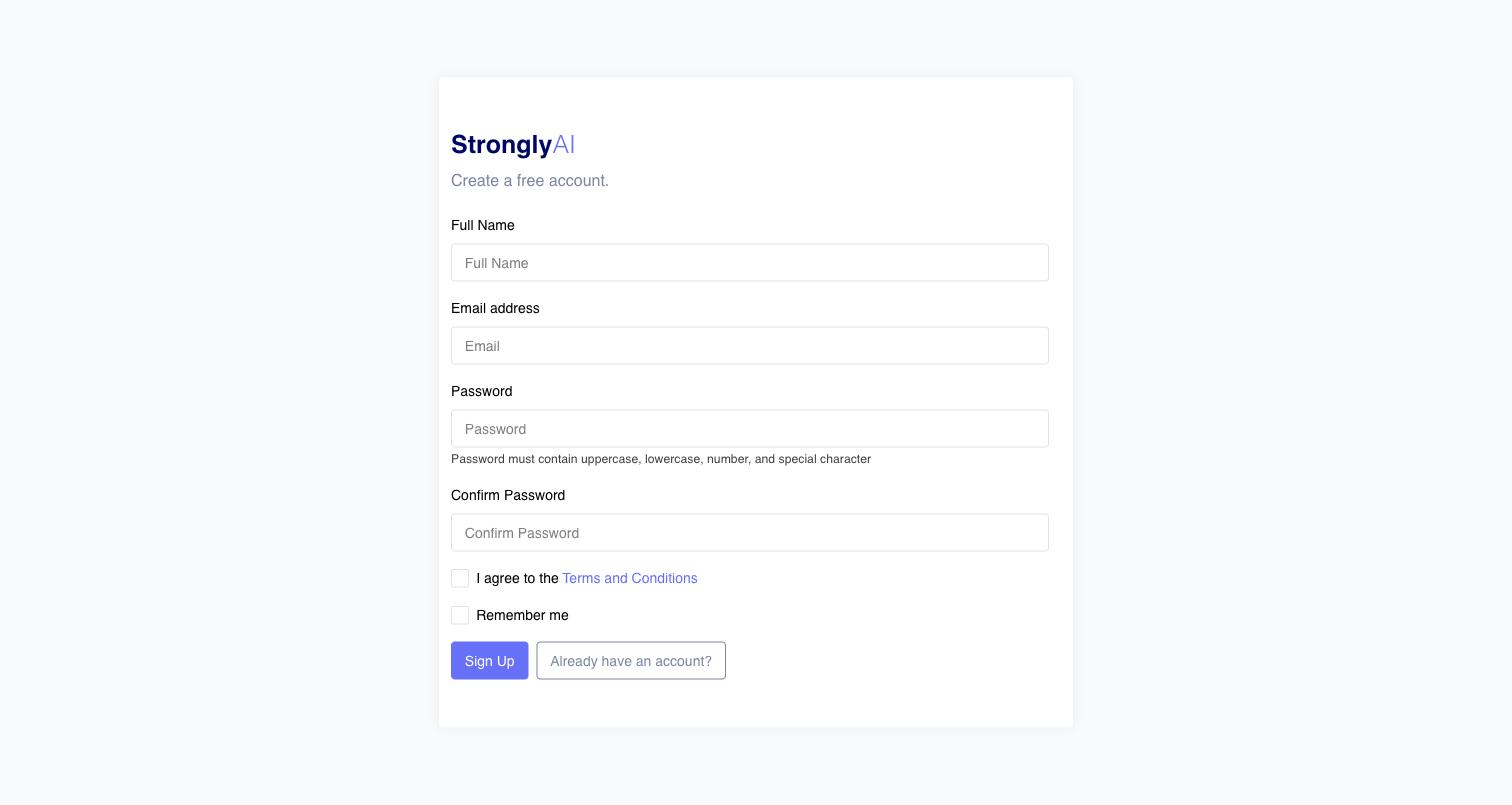
- Navigate to
/registeron your Strongly.AI instance - Fill in the registration form:
- Full Name -- your display name on the platform
- Email -- a valid email address (used for login)
- Password -- must contain at least one uppercase letter, one lowercase letter, one number, and one special character
- Confirm Password -- re-enter your password
- Terms and Conditions -- check "I agree to the Terms and Conditions"
- Click Sign Up
If Google sign-in is configured on your instance, a Sign up with Google button also appears, letting you register with your Google account instead.
Account Activation
What happens next depends on how your instance is configured:
- Strongly Cloud (SaaS) -- your account is activated immediately and you can log in right away.
- Customer Cloud / On-Premise -- new accounts start inactive. You will be redirected to a pending-approval page, and an administrator must activate your account before you can log in.
All new accounts start with the app role, which provides a focused end-user experience (see Roles below). An administrator can upgrade your role to developer or admin to unlock the full platform.
Step 3: Log In
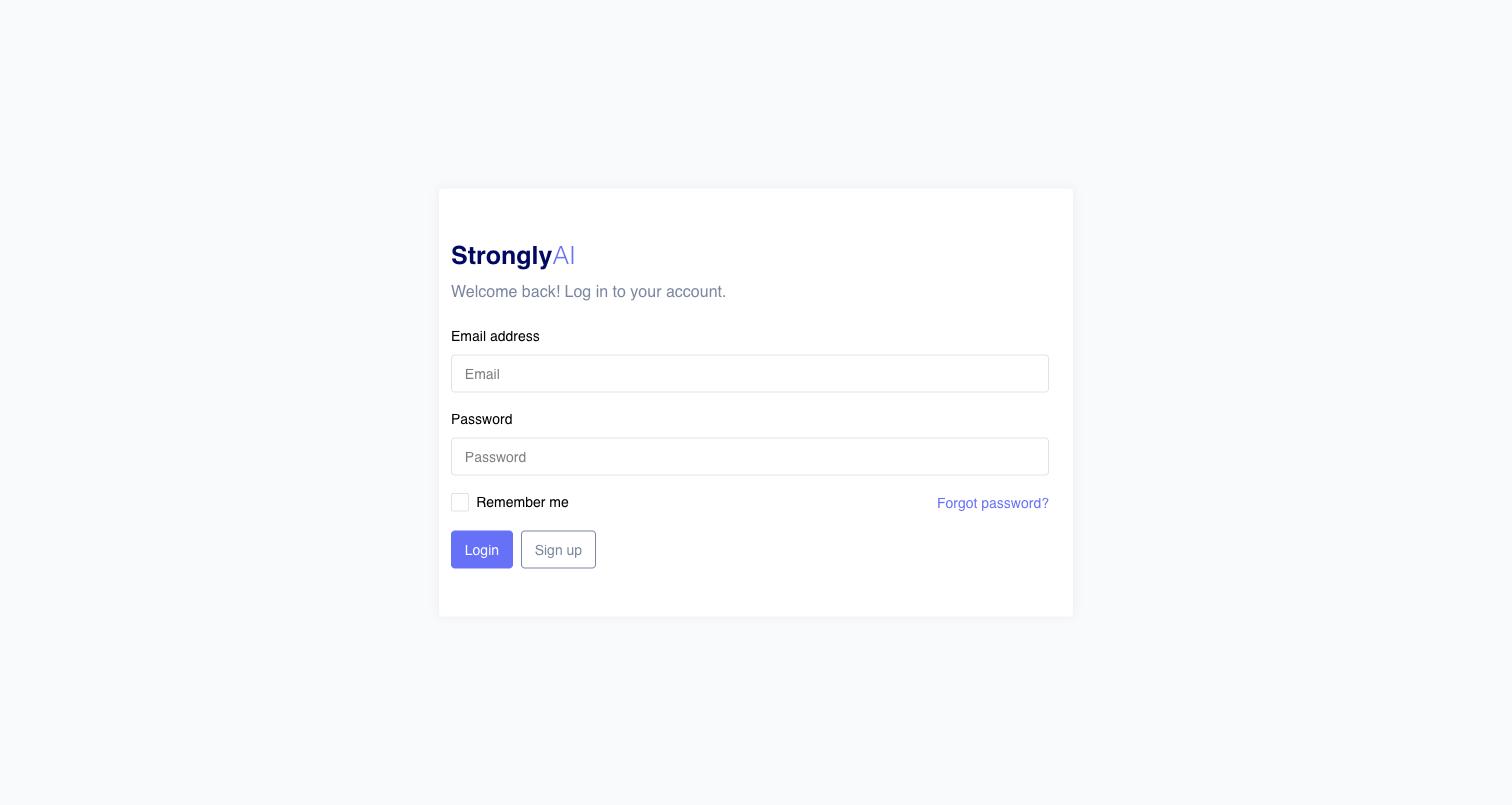
- Navigate to the login page
- Enter your email and password and click Login. If configured on your instance, a Continue with Google button or your organization's SSO (SAML / Active Directory) sign-in appears as well. Some organizations run SSO-only instances, where the email/password form is hidden entirely.
- If Multi-Factor Authentication (MFA) is enabled on your account, you will be prompted to verify using one of:
- Authenticator app (TOTP) -- a rotating code from an app such as Google Authenticator or Authy
- Email verification code -- a one-time code sent to your registered email
- Backup code -- a single-use recovery code saved when you set up MFA
For security, you are automatically logged out after 60 minutes of inactivity.
Step 4: Find Your Way Around
After logging in you land on Home -- a STAN-first page where you can ask the built-in AI assistant to do things for you ("Show my workflows", "Show my apps", "How do I track costs?") or attach a file and start from there. The sidebar on the left is your map to the rest of the platform.
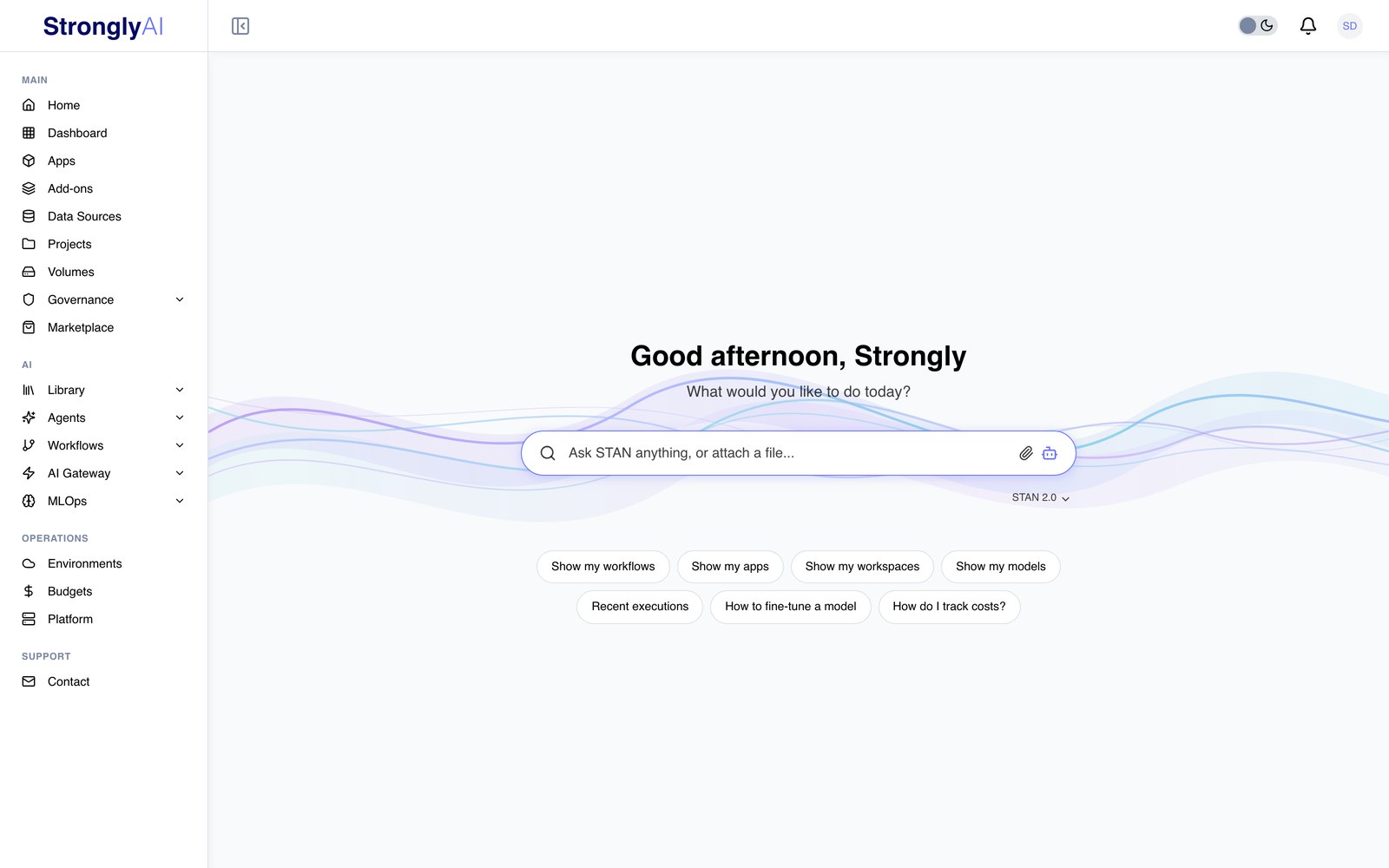
Roles and what you will see
The sidebar adapts to your role. Strongly.AI has three roles, and every user has exactly one:
| Role | What you get |
|---|---|
| app | A locked, simplified experience: My Apps -- the applications shared with you. This is the default for new accounts and is intended for business end-users. |
| developer | Everything below except the Admin section. |
| admin | Full platform access, including user management, FinOps, and compute administration. |
Some sections are feature-flagged and may be hidden on your instance. Contact your administrator if you don't see a feature described here.
Navigation overview (developer and admin)
Main:
- Home and Dashboard: health, use, spend and changes of your workloads (admins see every workload)
- Apps -- deploy and manage containerized applications
- Add-ons -- provision managed databases and services (PostgreSQL, MongoDB, Redis, and others)
- Data Sources -- connect to external databases, storage, and message queues
- Projects -- organize work and create development workspaces
- Governance -- Solutions, Policies, and Reviews
- Marketplace -- browse and deploy pre-built apps and agents
AI:
- Library -- reusable assets: Prompts, Skills, Imprints, Artifacts
- Agents -- Overview, Sessions, Playground, Primitives (Memory, Rules, Preferences, Tasks), Avatars
- Workflows -- Builder, Monitor, Nodes, Tools
- AI Gateway -- Models, Routers, Fine-tuning, Analytics, Guardrails, Data Forge
- MLOps -- Feature Store, Model Registry, AutoML, Experiments
Operations:
- Environments -- manage deployment environments
- Platform -- Kubernetes cluster management (opens the platform console with workloads, networking, config, and monitoring)
Admin (admin role only):
- Users -- user management and role assignments
- FinOps -- Dashboard, Cost Explorer, Budgets, Schedules, Executions
- Compute -- compute governance: which instance categories (CPU, memory, GPU) are available for workloads
Support:
- Contact -- reach the Strongly.AI team
STAN, the built-in AI assistant, is available throughout the platform for contextual help, building workflows, and answering questions.
Step 5: Deploy Your First Application
Option A: Deploy from the Marketplace
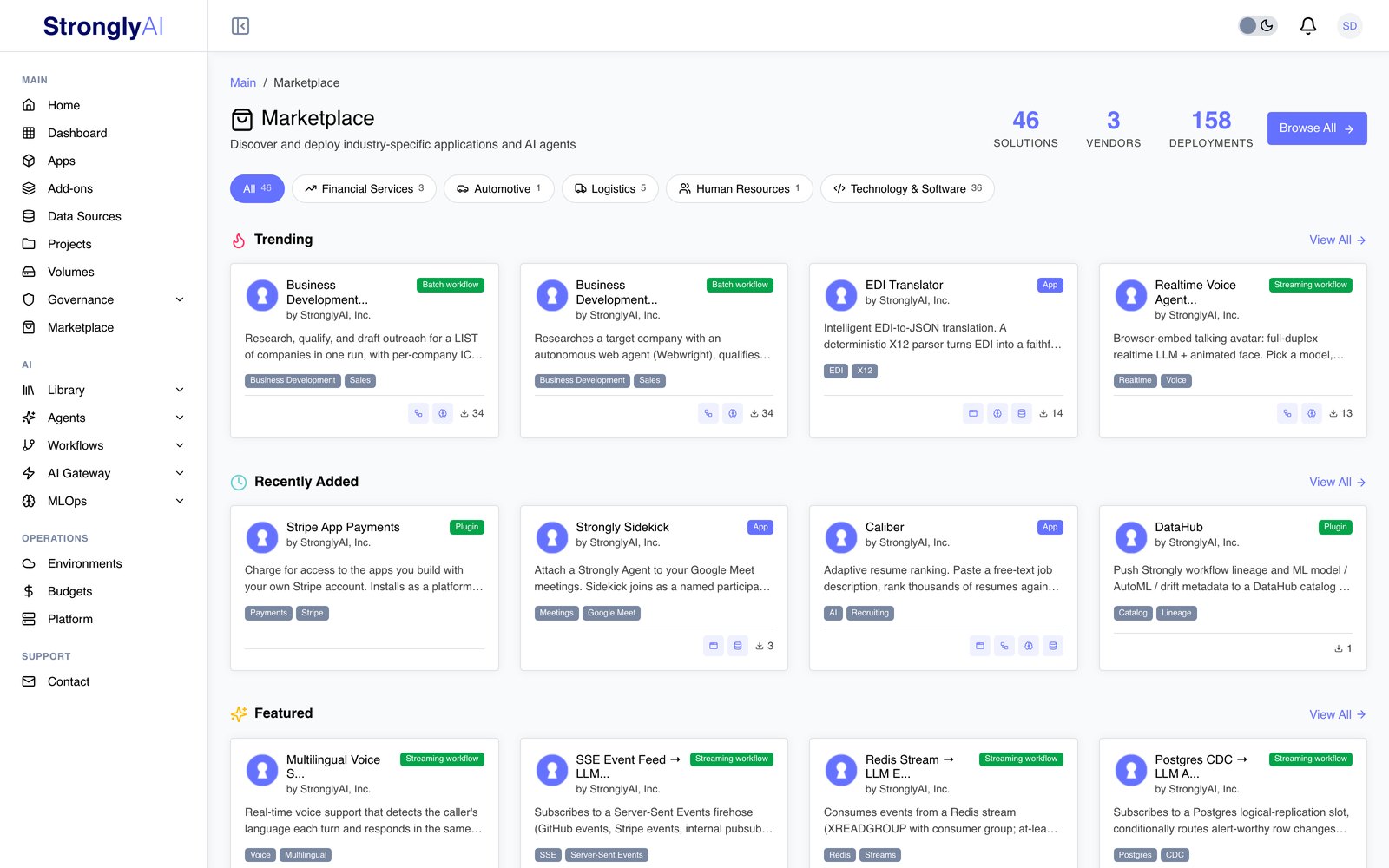
- Click Marketplace in the sidebar
- Browse available apps and agents, or search for a specific one
- Open an offering to see its detail page, then click Deploy Solution
- Configure the deployment in the dialog and confirm
- Wait for the build and deployment to complete
- Access your running application from the Apps page
Option B: Deploy Your Own Code
The Apps page lists your deployed applications with their status at a glance:
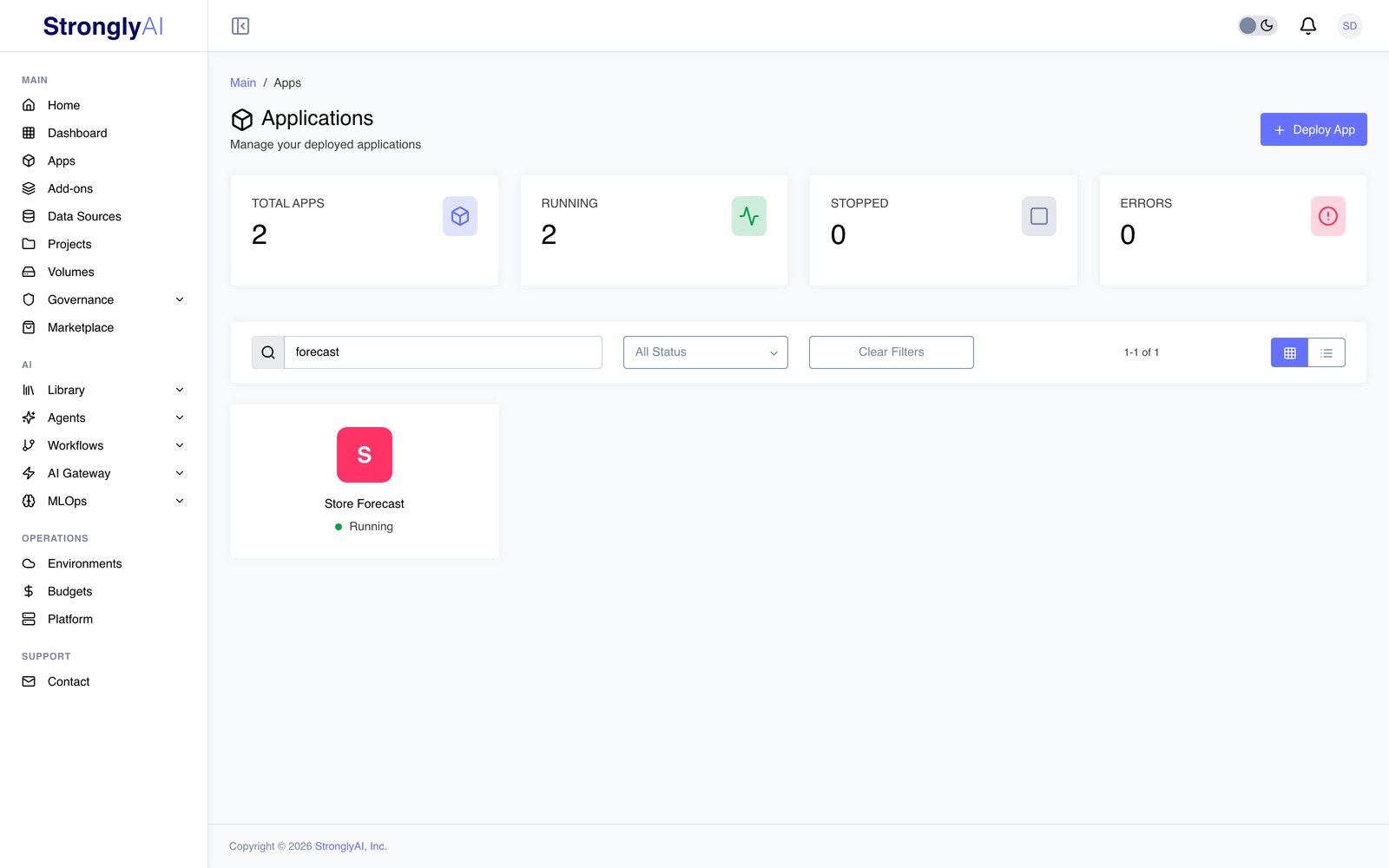
The Deploy App button opens the deployment form:
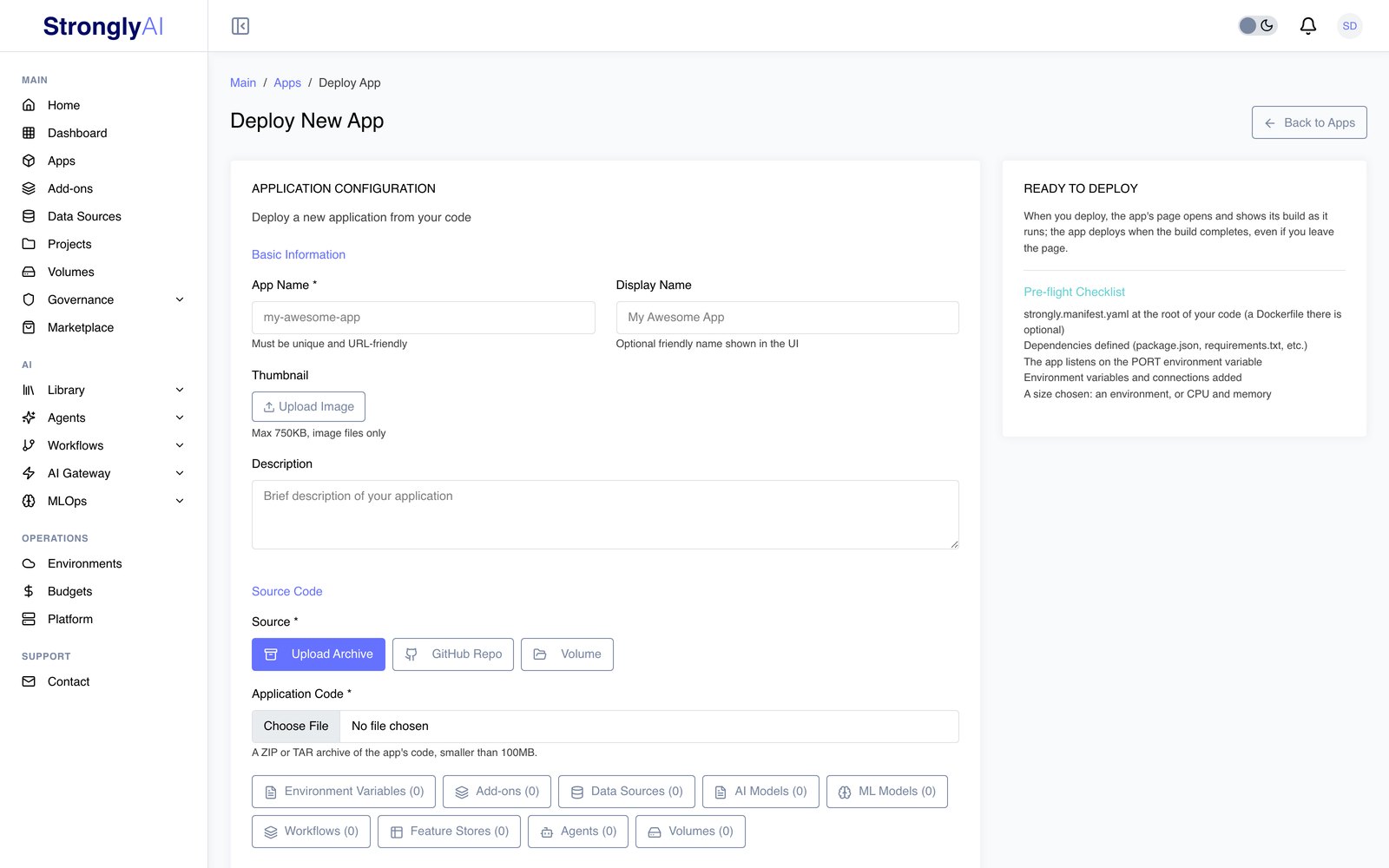
- Go to Apps and click Deploy App
- Fill in Basic Information -- app name (unique, URL-friendly), display name, optional thumbnail and description
- Choose one of three source types:
- Upload Archive -- upload a
.zip,.tar, or.tar.gzof your project (up to 100MB) - GitHub Repo -- provide an SSH repository URL, branch, and an SSH key from your profile integrations; optionally a subdirectory
- Volume -- deploy a folder of a volume's code (kept on the Strongly filesystem) containing a
strongly.manifest.yaml
- Upload Archive -- upload a
- Optionally attach Environment Variables, Add-ons, Data Sources, AI Models, ML Models, Workflows, Feature Stores, and Agents -- attached services are injected into your app via
STRONGLY_SERVICES-- and pick Volumes to mount their files in the app (an app with volumes needs a disk: choose Custom Configuration and set Disk Space) - Under Resources, pick a predefined Environment or choose Custom Configuration to set CPU, memory, disk, and GPU directly; set the number of instances (1-10)
- Optionally enable Autoscaling with min/max replicas and CPU/memory thresholds
- Click Deploy App and watch the build progress
See AI Applications for the full manifest reference and deployment options.
Step 6: Create an Add-on (Optional)
Add-ons are managed database and service instances provisioned directly on the platform. Eleven types are available: Apache Kafka, Greenplum, Milvus, MongoDB, MQTT (Mosquitto), MySQL, Neo4j, PostgreSQL, RabbitMQ, Redis, and SurrealDB.
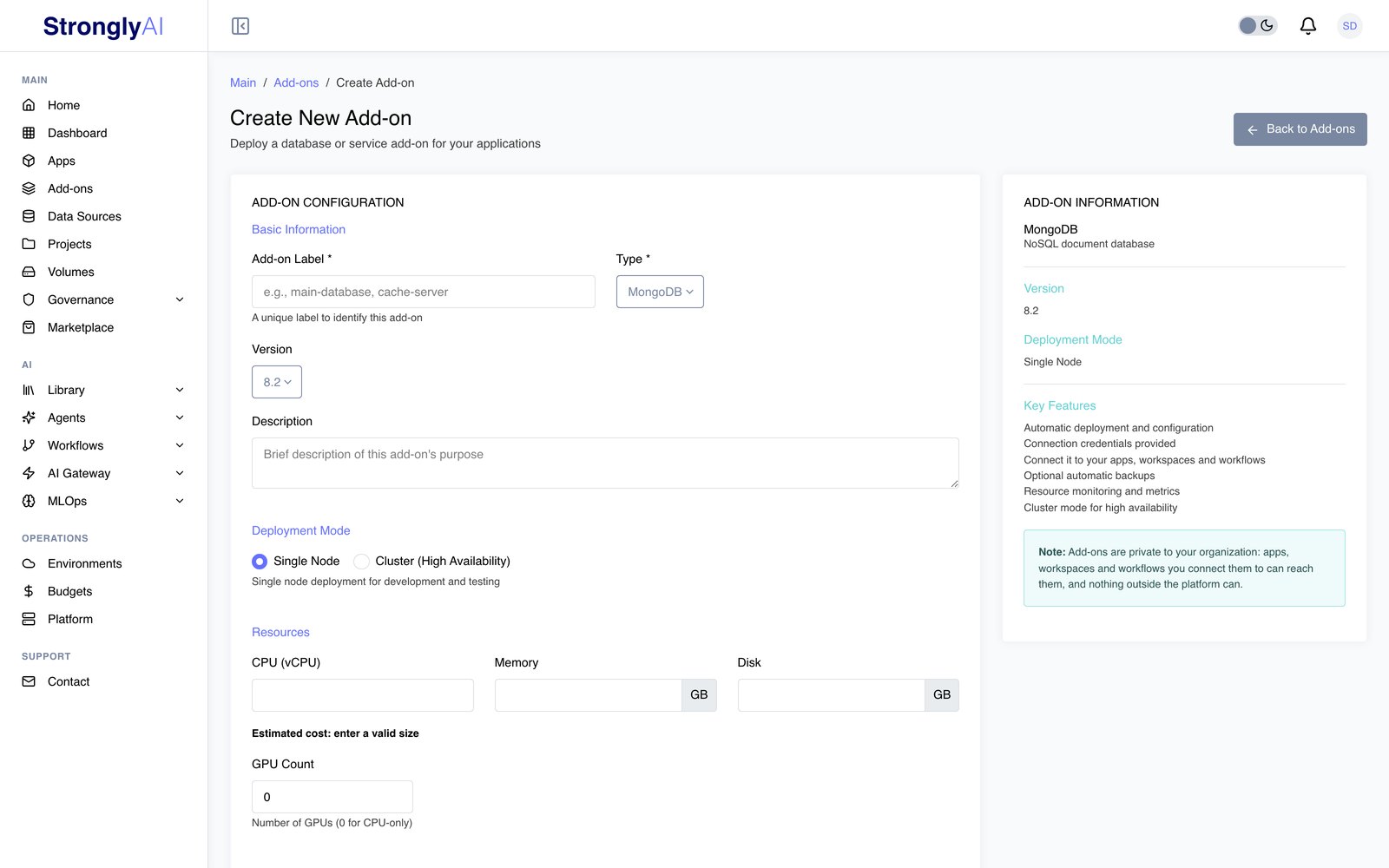
- Go to Add-ons and click Create Add-on
- Give the add-on a label, pick its Type and version, and choose a Deployment Mode -- Single Node for development, or Cluster (High Availability) where supported
- Set the resources (CPU, memory, disk) and click Create Add-on
- Once provisioned, connection details are available on the add-on detail page
- Reference the add-on in your apps and workflows via
STRONGLY_SERVICES
An add-on's address is private to the platform: apps, workspaces and workflows in your organization can reach it. It is yours until you share it with people or allow all users of your organization.
See Add-ons for full documentation.
Step 7: Connect a Data Source (Optional)
Data sources are connections to systems that live outside the platform. Strongly.AI supports 52 types across nine categories: relational databases (PostgreSQL, MySQL, SQL Server, Oracle, Snowflake, BigQuery, and more), document stores (MongoDB, Elasticsearch, DynamoDB), key-value caches, graph databases, vector databases (Milvus, Pinecone, Weaviate, Qdrant, and more), multi-model databases, spreadsheets (Airtable, Google Sheets), cloud storage (S3, GCS, MinIO, Azure Blob), and message queues (RabbitMQ, Kafka, SQS, Pulsar, MQTT).
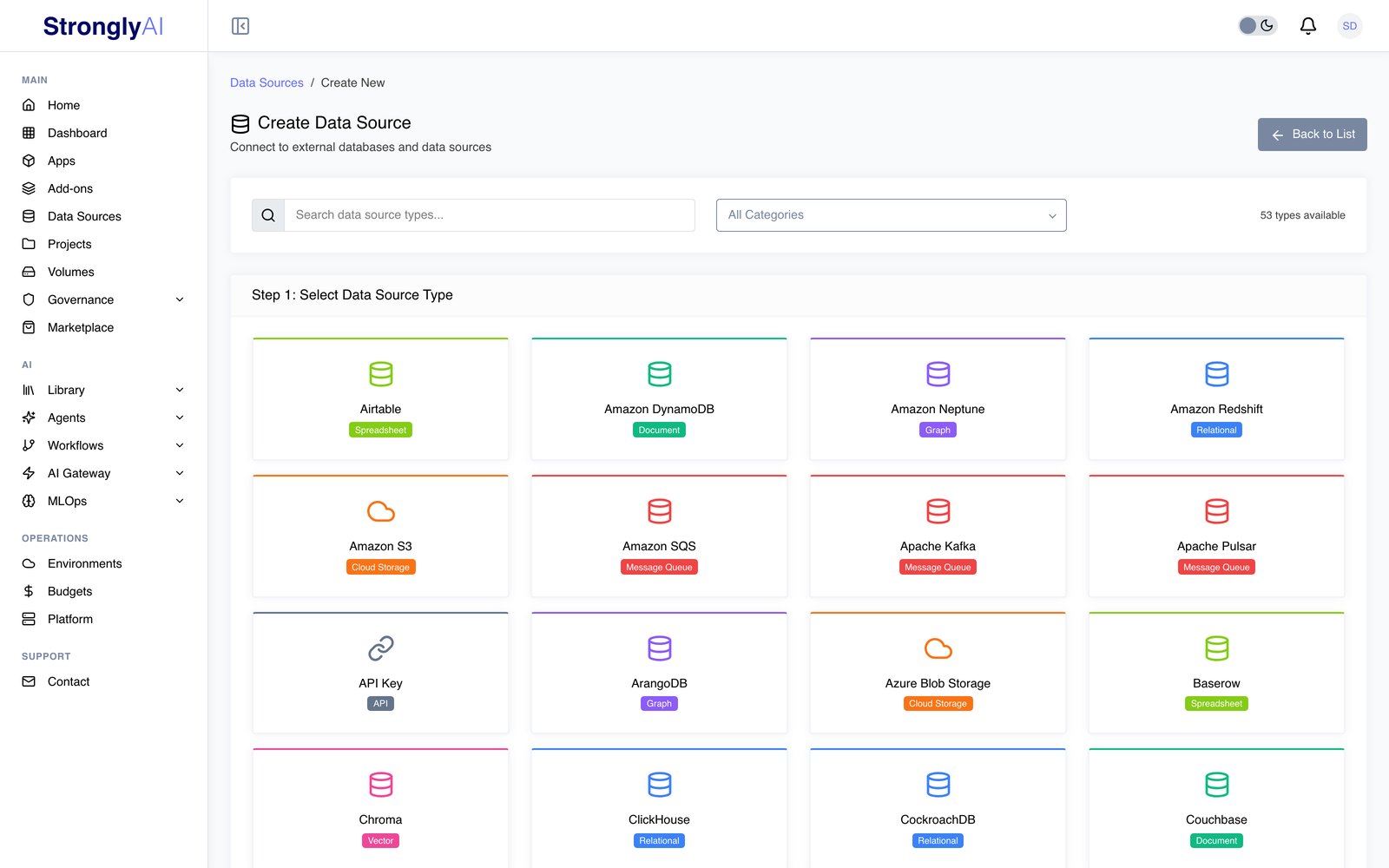
- Go to Data Sources and click Create Data Source
- Pick a type -- use the category filters or search to find it
- Enter the connection details (host, port, database, credentials)
- Click Test Connection to verify connectivity
- Click Create Data Source
- The data source is now available to your workflows and apps via
STRONGLY_SERVICES
See Data Sources for full documentation.
Step 8: Build a Workflow (Optional)
Workflows are automation pipelines that connect data sources, APIs, AI models, and processing logic.
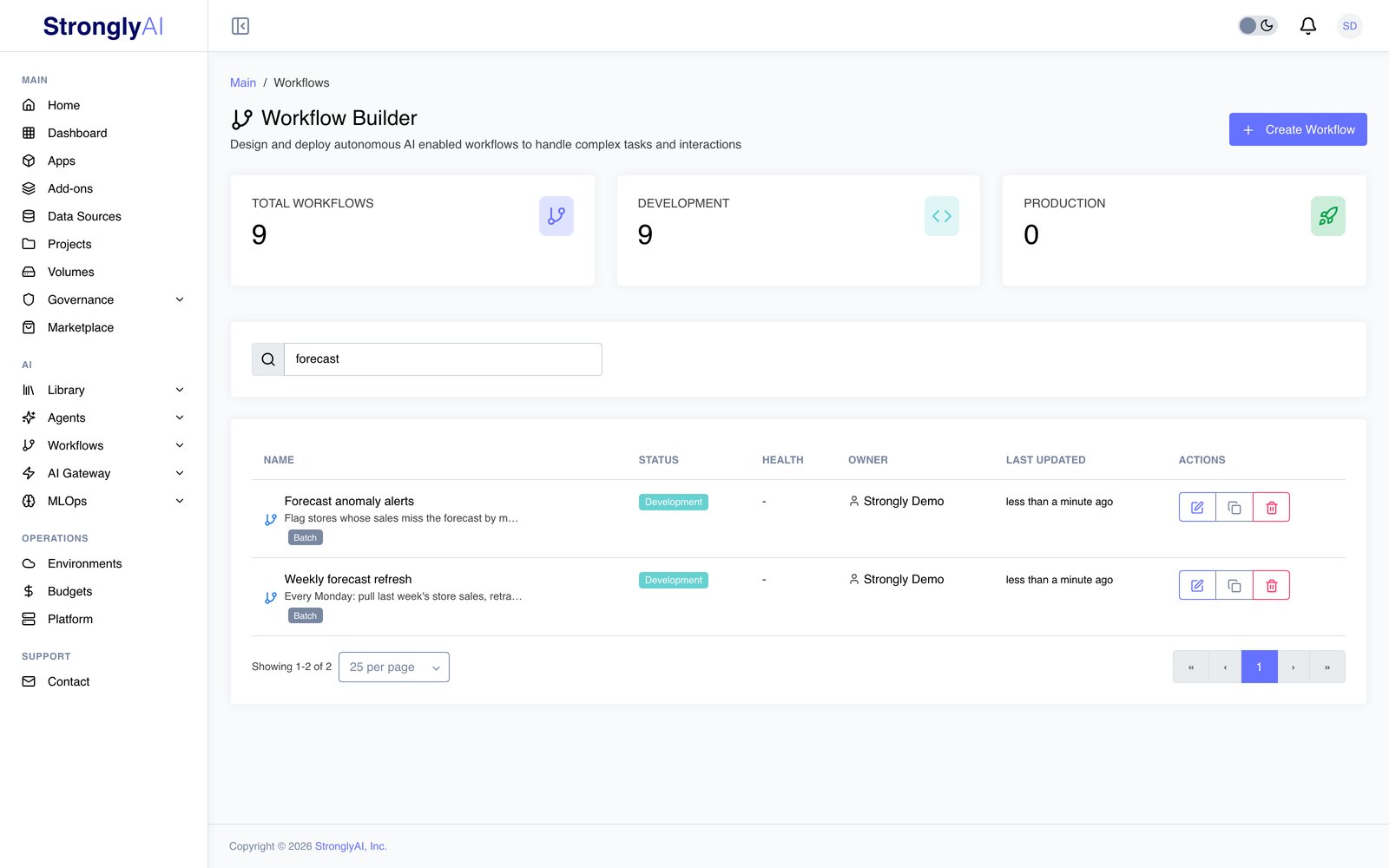
- Click Workflows in the sidebar, then go to Builder
- Click Create Workflow to open a new workflow canvas
- Use STAN to describe what you want to build -- STAN will generate the workflow structure, configure nodes, and set up connections for you
- Alternatively, use the visual builder to manually add and connect nodes
- Configure each node with the required settings (data source connections, API endpoints, model selections)
- Save and deploy your workflow from the Builder
See Workflows for full documentation on nodes, triggers, and deployment.
Next Steps
For Developers
- Review AI Applications for detailed deployment options
- Explore Workflows for automation pipelines
- Set up Projects for development workspaces
- Connect to the AI Gateway for LLM access
- Browse the Marketplace for pre-built apps and agents
- Provision Add-ons for managed databases
- Learn about MLOps for model management
For Administrators
- Configure Users and Roles and activate new accounts
- Set up Governance policies and compliance
- Monitor costs with FinOps
- Manage infrastructure with Platform
- Configure MFA enforcement policies
Ask STAN, the built-in AI assistant, for guided help with building workflows and navigating the platform. You can also visit the FAQs or contact support@strongly.ai.