Permissions: who can open an app
Everything about who can open an app is on its Permissions tab. Open the app from the Apps page and choose Permissions. A list of sections runs down the left (a menu on a narrow screen):
| Section | What it holds |
|---|---|
| Access | Whether every signed-in user may open the app, and how the app's own users get in: Private, Sign-in required or Public |
| Users | One table of everyone who can open the app by name, each app user's role, invitations, the Home App switch, Add User and Reassign owner |
| Sign-in | The app's branded sign-in and sign-up pages, and Paid access when your organization charges for apps (Branded Sign-in & Sign-up, Charging for Access) |
| Native apps | Sign-in for your own iPhone app (Native App Sign-in) |
| Connected apps (MCP) | AI clients your users connect to the app (Remote MCP for Your Users) |
| Domains | The app's address (https://<slug>.<apps domain>/), its URL name and its custom domains, on a platform with an apps domain (Public Apps) |
Each section has its own address (?tab=permissions§ion=users), so you can link straight to it.
Access
Allow all users
The top card is the same Access Control card every shareable resource has:
- Private Access: only the people named under Users (and administrators) can open the app.
- Allow all users: every signed-in user of the platform can open it (on Strongly Cloud, every user of its organization), including app users. They still sign in first. Make Private turns it off again.
Allowing all users never lets anyone change the app: only its owner, the users it is shared with to edit and administrators can.
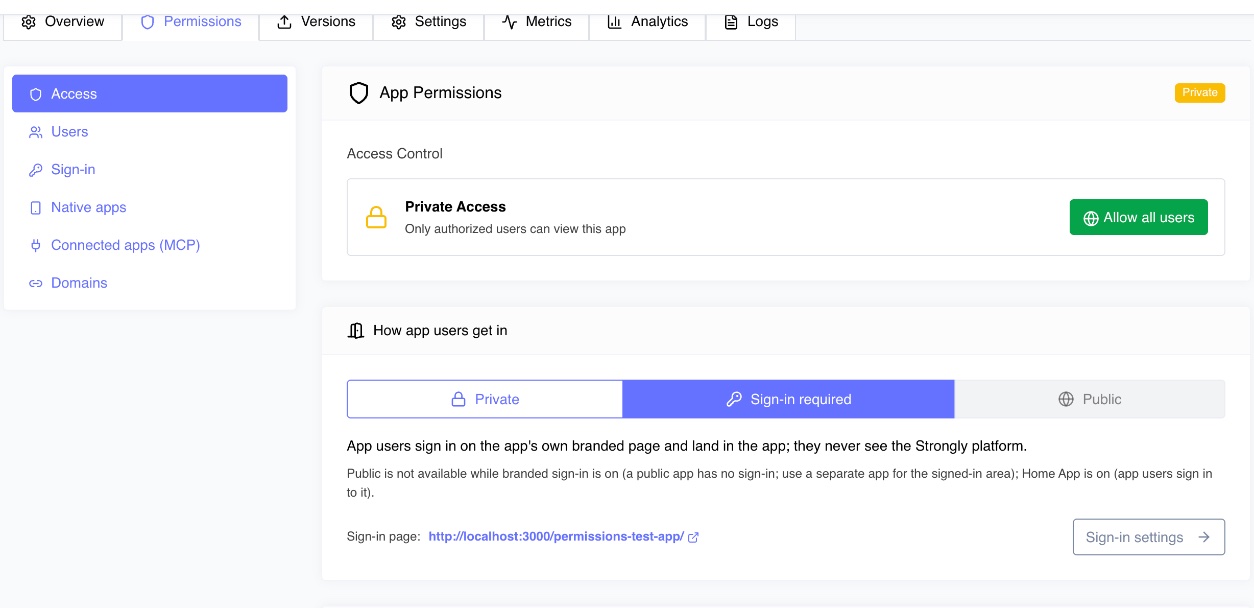
How app users get in
Below it, choose how the app's own users reach it:
| Choice | What happens |
|---|---|
| Private | Only signed-in Strongly users it is shared with (under Users) open it, inside the platform. |
| Sign-in required | App users sign in on the app's own branded page and land in the app; they never see the Strongly platform. Set the page up under Sign-in (Branded Sign-in & Sign-up). Turning it on also turns on Home App. |
| Public | Anyone on the internet opens the app at its own address without signing in. It has no access to the Strongly API. Only the app's owner or an administrator makes an app public, after acknowledging the risk (Public Apps). |
Below them, Public paths makes only listed path prefixes of a signed-in app public (an MCP server at /mcp and its OAuth endpoints, for callers that bring their own token); the app's own pages stay signed-in (Public paths).
Public and sign-in exclude each other: a public app has no signed-in users, so the Sign-in, Native apps and Connected apps sections say why they do not apply until you choose Private again. A product with a public site and a signed-in area is two apps. The Domains section sets the app's public address (https://<subdomain>.<your platform's apps domain>/) and its custom domains, with the DNS records each needs; they serve the app only while it is public or has public paths.
Users
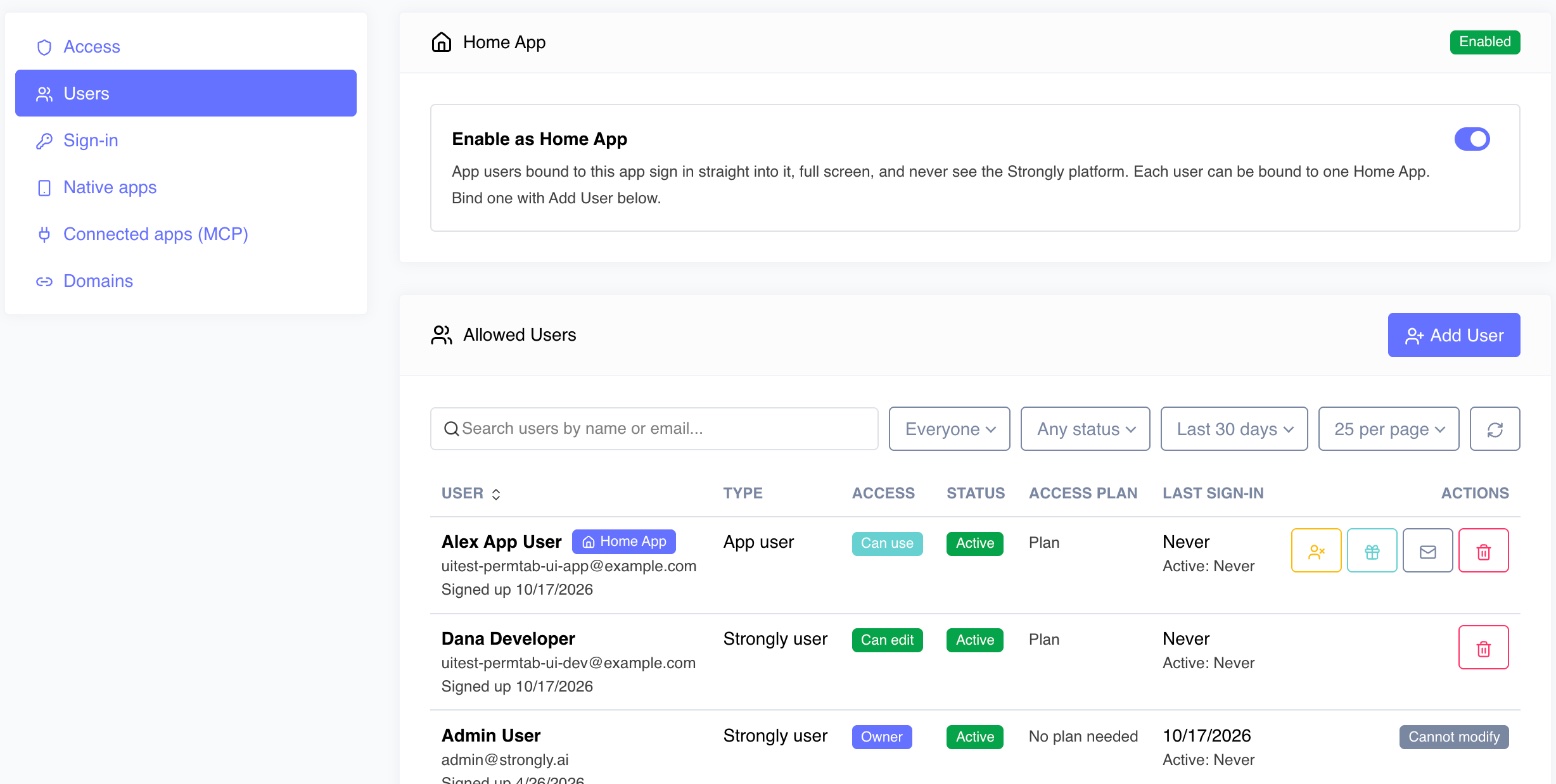
The Allowed Users table lists everyone who can open the app by name, in one place:
| Column | Shows |
|---|---|
| User | Name and email; Home App when this app is their Home App (hover it for when and by whom they were bound) |
| Type | Strongly user (a developer or administrator account of the platform) or App user (an account that uses apps and nothing else) |
| Access | Owner, Can edit (use it and change it) or Can use (use it, not change it) |
| Role | For app users, their role in the app: Admin (an app admin) or User. The owner's role is Owner (never Admin) |
| Status | Active, Waiting for approval (or deactivated) or Archived |
| Access plan | When the app charges for access: whether the user needs a plan, has Free access, or needs none |
| Last sign-in | When they last signed in, and when they were last active in the app over the chosen range |
Search by name or email, filter to Strongly users or App users, filter by status, and choose the range for the activity figures.
The table names other people, so only those who manage the app see it: its owner, the users it is shared with to edit (Can edit), its app admins and administrators (on Strongly Cloud, also the admins of its organization). Anyone who only uses the app (Can use, an app user, a Home App user) sees a note instead, and the API answers them 403: a user of your app never learns who else uses it. Status, sign-in and activity are shown to the app's owner, its app admins and administrators; Can edit users see who is on it and their access.
Add User
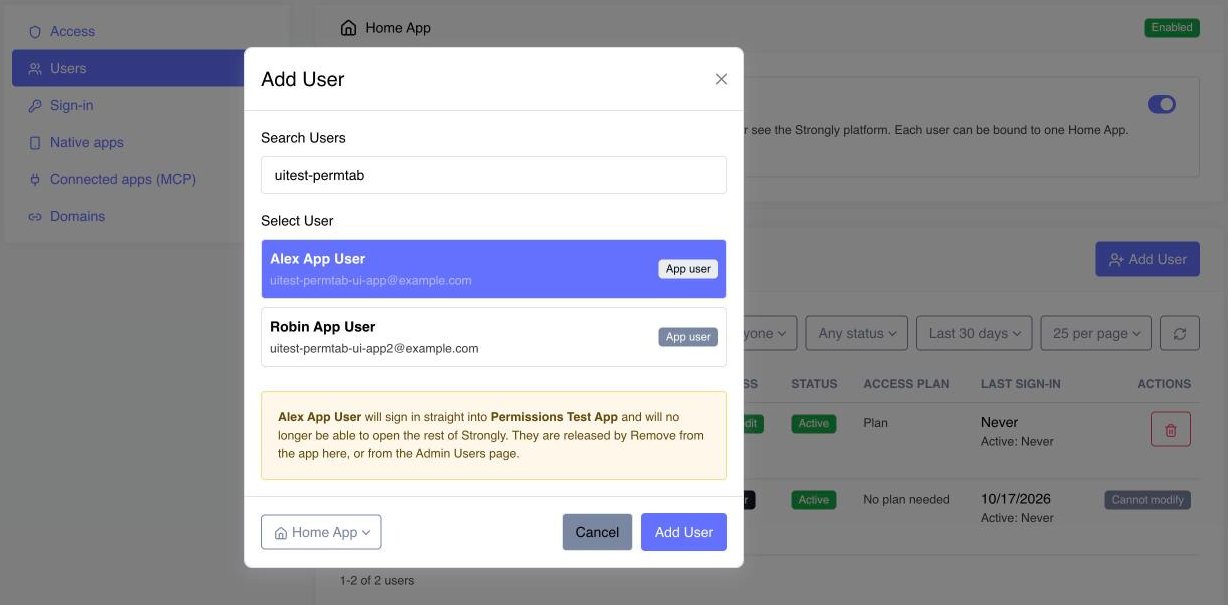
Add User offers every user you may give the app to, each marked Strongly user or App user. Pick one, then what they get:
- a Strongly user: Can edit or Can use;
- an app user: Home App (they sign in straight into this app, full screen, and no longer see the rest of Strongly) or Can use (they open it from their list of apps, beside the other apps shared with them).
Home App needs Enable as Home App on. A Home App is an app user's only app: making this app someone's Home App removes them from every other app they had (the message after adding names those apps). An app user whose Home App is another app (they signed up on it, accepted its invitation, or were made its Home App user) is never offered here and cannot be given this app.
App users added through the platform (Users > create user) with no Home App can be given any app (on Strongly Cloud, any app of their organization). The same holds for the users offered when you deploy an app from the Marketplace.
App admins
An app admin is a user whose role in the app is Admin. The app's owner is always one. Change a user's role with the role selector in their row, or invite someone as an admin.
The owner, app admins and platform administrators (on Strongly Cloud, also the admins of the app's organization) manage the app's users: they invite people, resend and revoke invitations, approve waiting accounts, change roles, add existing users and send password resets. The app itself sees the role as appRole (owner for its owner, admin for an app admin) and opens its own admin pages to it (Reading the user).
Invitations
Invite someone by email, with an optional name and their role (User or Admin). They get an email with the app's name and logo and a link to choose a password; they are then signed straight into the app, active at once, with this app as their Home App. Invitations work with sign-up off, follow the app's allowed email domains, and last 7 days. Each pending invitation can be resent (a new link with a fresh 7 days; the old one stops working) or revoked (its link stops working). An address that already has an account is added with Add User instead. See Invitations.
Actions on each user
| Action | For | Effect |
|---|---|---|
| Remove access | Strongly users | They can no longer open the app. |
| Activate | App users waiting for approval | The account becomes usable. |
| Role | App users | Admin makes them an app admin; User makes them an ordinary user of the app. |
| Deactivate (signs them out) | Active app users | The account can no longer sign in and any session ends. Activate it again at any time. |
| Give free access | App users, when the app charges | They are never asked for a plan; click again to ask them for one. |
| Email a password reset code | Home App users | Sends a code to choose a new password on the app's reset page or in its iPhone app. |
| Remove from the app | App users | They are signed out and lose the app, which is no longer their Home App. The agents the app gave them (Agent Clones) are deleted, with their tasks. Their account is kept. |
| Delete their account | Home App users | Their account is archived and can never sign in again, and everything it holds is deleted: the agents the app gave them with their conversations, memory and tasks, their conversations on any agent, and everything else they own, the same way archiving a user with Delete all resources does. Use it when a user of your app asks for their data to be deleted. It cannot be undone. |
The owner's row cannot be changed here: use Reassign owner below the table. The new owner owns the app and it runs as them; the previous owner keeps working on it with Can edit. FinOps books its cost to the new owner from that moment; what it cost before stays with the previous owner.
Home App
Enable as Home App lets app users be bound to the app: they sign in straight into it, full screen, and never see the Strongly platform. Each user can have one Home App. Turning on branded or native sign-in turns it on too. It can be turned off only once no user is bound to it, and a public app cannot be a Home App.
With the API
| Task | Endpoint |
|---|---|
| Who can open the app, by name (those who manage it only) | GET /api/v1/apps/:id/users (type=platform or type=app to filter) |
| Allow all users, or make it private | PATCH /api/v1/apps/:id/permissions with visibility |
| Share with a Strongly user | POST /api/v1/apps/:id/permissions/members with role editor (Can edit) or user (Can use) |
| Add an app user as their Home App | POST /api/v1/apps/:id/users |
Change or remove an app user (role admin or user sets their role) | PATCH / DELETE /api/v1/apps/:appId/users/:id |
| Invite someone by email | POST /api/v1/apps/:id/users/invitations |
| List invitations | GET /api/v1/apps/:id/users/invitations (status to filter) |
| Resend or revoke an invitation | POST /api/v1/apps/:appId/users/invitations/:id/resend / DELETE /api/v1/apps/:appId/users/invitations/:id |