Logs, Metrics & Monitoring
Monitor your application's health, performance, and resource usage in real-time.
Overview
The Strongly platform provides:
- Resource Metrics: CPU, memory, network, and response time, measured live, plus every container's usage
- Logs: Application stdout/stderr logs
- Health Checks: Liveness and readiness probes
Viewing Logs
Real-time Log Streaming
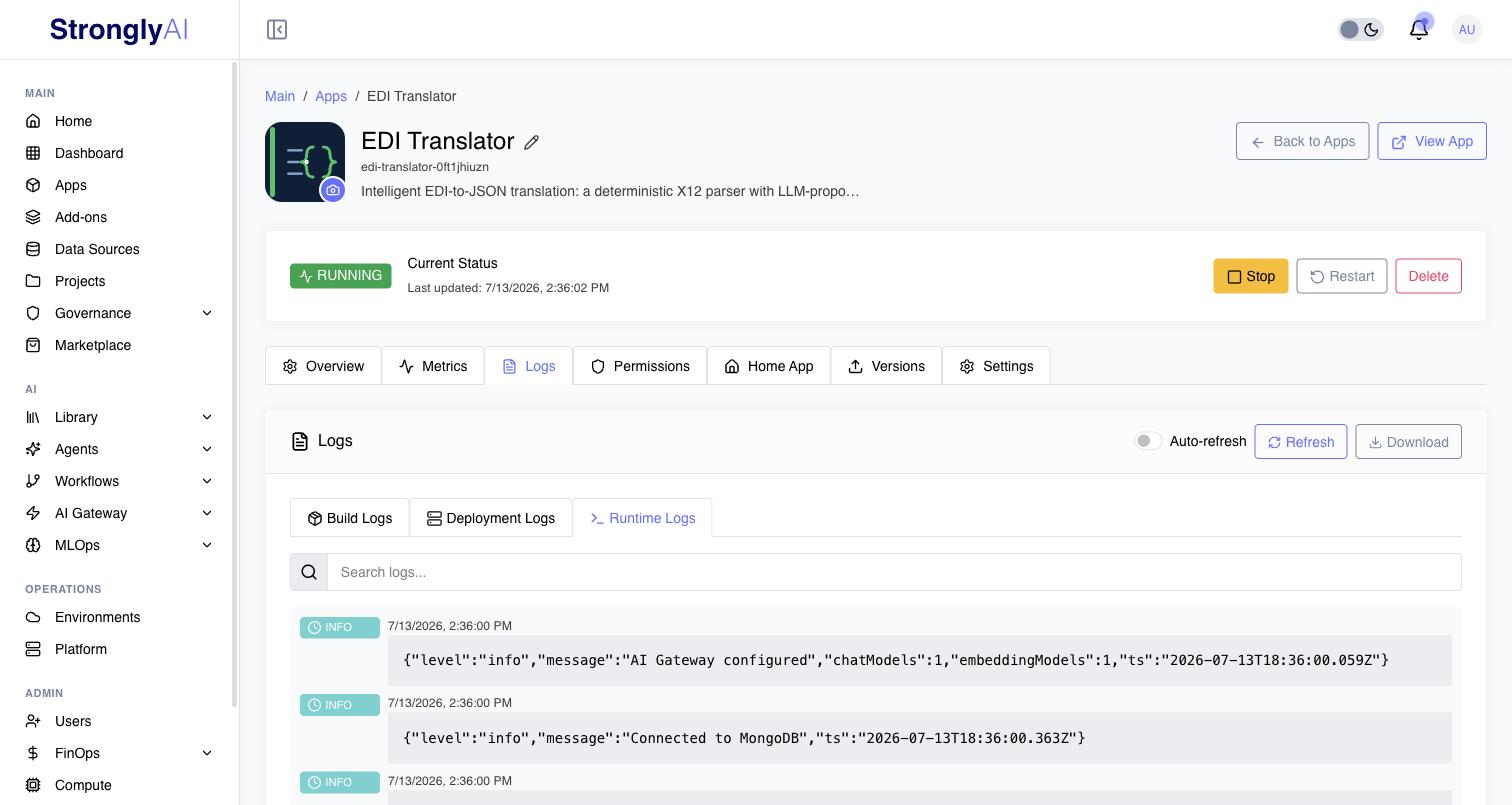
- Navigate to your app details page
- Click the Logs tab
- Choose which logs to view:
- Build Logs -- output from the Docker image build
- Deployment Logs -- Kubernetes deployment events
- Runtime Logs -- your application's own output
Features:
- Auto-refresh toggle for live tailing, plus a manual Refresh button
- Multi-instance aggregation
- Search box to filter log lines
- Download button to save logs for analysis
Log Levels
Applications should implement structured logging with levels:
Node.js Example:
const winston = require('winston');

const logger = winston.createLogger({
  level: process.env.LOG_LEVEL || 'info',
  format: winston.format.json(),
  transports: [
    new winston.transports.Console({
      format: winston.format.simple()
    })
  ]
});

logger.error('Database connection failed', { error: err.message });
logger.warn('High memory usage detected', { usage: '85%' });
logger.info('User logged in', { userId: 123 });
logger.debug('Processing request', { requestId: 'abc123' });
Python Example:
import logging
import os

# Configure logging
logging.basicConfig(
    level=os.environ.get('LOG_LEVEL', 'INFO'),
    format='%(asctime)s - %(name)s - %(levelname)s - %(message)s'
)

logger = logging.getLogger(__name__)

logger.error(f'Database connection failed: {err}')
logger.warning(f'High memory usage: 85%')
logger.info(f'User logged in: {user_id}')
logger.debug(f'Processing request: {request_id}')
Best Practices for Logging
- Use Structured Logging: JSON format for easy parsing
- Include Context: Request IDs, user IDs, timestamps
- Appropriate Levels: DEBUG for development, INFO for production
- Avoid Sensitive Data: Never log passwords, tokens, or PII
- Log Errors with Stack Traces: Include full error details
Good Logging:
logger.info('User login successful', {
  userId: user.id,
  email: user.email,
  ip: req.ip,
  timestamp: new Date().toISOString()
});

logger.error('Payment processing failed', {
  orderId: order.id,
  amount: order.amount,
  error: err.message,
  stack: err.stack
});
Bad Logging:
console.log('User logged in');  // No context
console.log(user);  // Too much data, potential PII
console.log('Error: ' + err);  // No stack trace
Available Resource Metrics
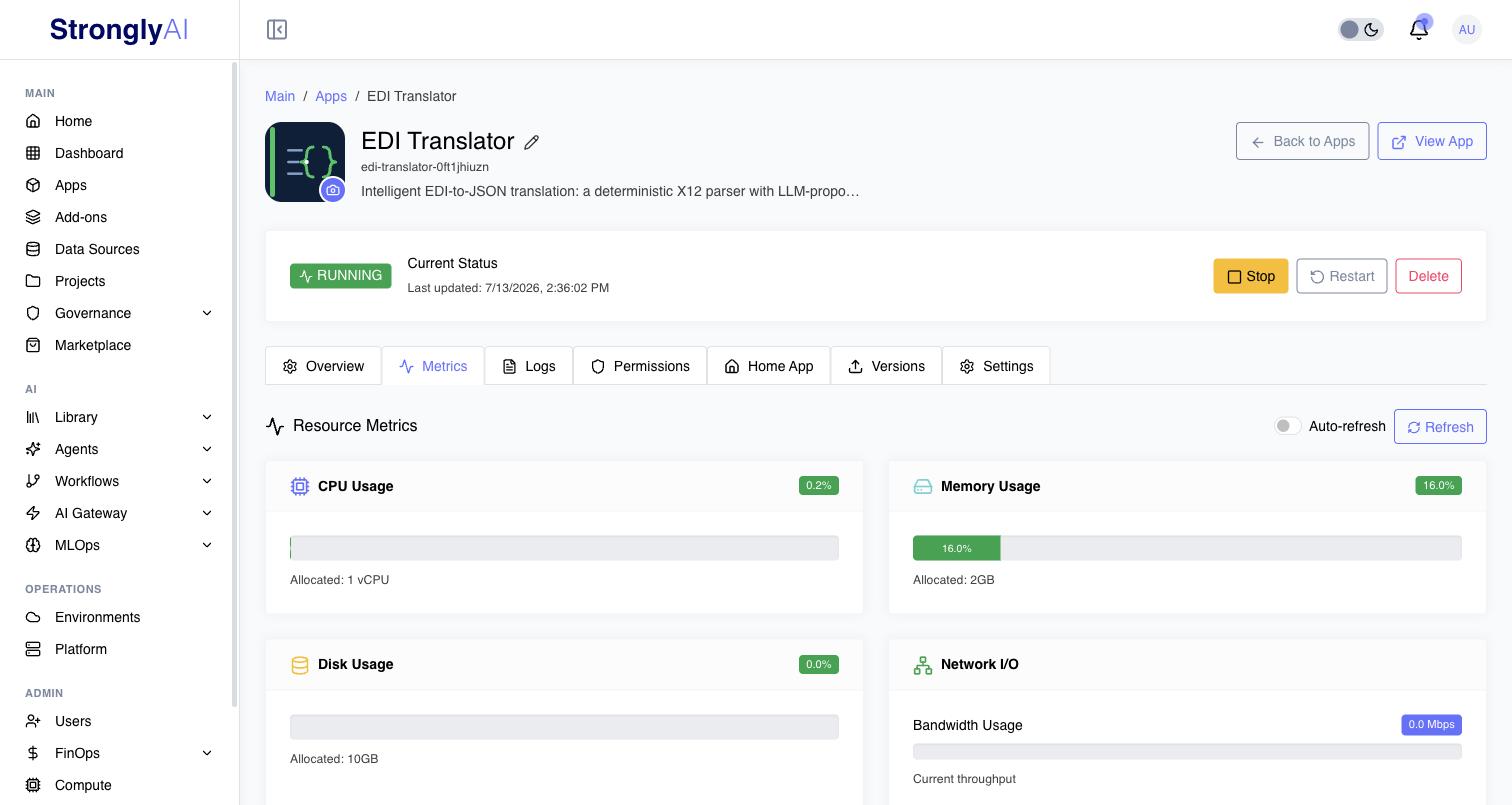
The Metrics tab measures the running app when you open it (and every 15 seconds with auto-refresh on; each measurement takes about 6 seconds):
- CPU and Memory: your app's usage, summed over its running replicas, against the size you set.
- Network I/O: receive and transmit throughput of the app's pods over a 5 second sample.
- Response Time: how long the app takes to answer an HTTP request from the platform.
- Replicas: how many replicas are ready out of how many are wanted, and the app's uptime.
- Containers: every container of every replica with its usage and size, including the platform containers that run beside your app.
If a measurement cannot be taken, the tab shows the error and its reason instead of numbers. Request counts and per-request latency inside your app are not measured by the platform; for those, collect metrics within your application (see below).
Health Checks
Kubernetes uses health checks to monitor application health:
Liveness Probe
Determines if the application is running. If it fails, Kubernetes restarts the container.
Configuration (from manifest):
health_check:
  path: /health
  port: 3000
  initial_delay: 10  # Wait before first check
  period: 30  # Check every 30 seconds
  timeout: 3  # Timeout after 3 seconds
  failure_threshold: 3  # Restart after 3 failures
Implementation:
// Express.js
app.get('/health', (req, res) => {
  res.status(200).json({
    status: 'ok',
    timestamp: new Date().toISOString()
  });
});
Readiness Probe
Determines if the application is ready to receive traffic. If it fails, Kubernetes stops sending requests.
Configure via the manifest's runtime.readiness_check_path field (defaults to the health check path if not specified).
Use for:
- Database connection checks
- External dependency checks
- Startup tasks completion
Implementation:
// Express.js
app.get('/ready', async (req, res) => {
  try {
    // Check database connection
    await db.ping();

    // Check external API
    await fetch('https://api.example.com/health');

    res.status(200).json({
      status: 'ready',
      checks: {
        database: 'ok',
        externalApi: 'ok'
      }
    });
  } catch (err) {
    res.status(503).json({
      status: 'not ready',
      error: err.message
    });
  }
});
Health Check Status
View health check results:
- Healthy: All checks passing
- Unhealthy: Some checks failing
- Unknown: No data or probes not configured
Monitoring Dashboard
App Details Page
View monitoring data:
-
Overview Tab:
- Current status (Running, Stopped, Failed)
- Instance count and health
- Quick metrics summary
-
Metrics Tab:
- CPU usage percentage
- Memory usage percentage
- Ready vs total replicas
-
Logs Tab:
- Real-time log streaming
- Search and filter
- Download logs
-
Scaling Tab (if autoscaling enabled):
- Current vs desired replicas
- CPU/memory thresholds
Application-Level Metrics
For detailed application-level metrics beyond what the platform provides, implement metrics collection within your application:
Node.js Example
// Track custom metrics in your application
const metrics = {
  requestCount: 0,
  errorCount: 0,
  responseTimesMs: []
};

// Instrument requests
app.use((req, res, next) => {
  const start = Date.now();
  metrics.requestCount++;

  res.on('finish', () => {
    const duration = Date.now() - start;
    metrics.responseTimesMs.push(duration);

    if (res.statusCode >= 500) {
      metrics.errorCount++;
    }

    // Keep only last 1000 response times
    if (metrics.responseTimesMs.length > 1000) {
      metrics.responseTimesMs = metrics.responseTimesMs.slice(-1000);
    }
  });

  next();
});

// Expose metrics endpoint
app.get('/app-metrics', (req, res) => {
  const avgResponseTime = metrics.responseTimesMs.length > 0
    ? metrics.responseTimesMs.reduce((a, b) => a + b, 0) / metrics.responseTimesMs.length
    : 0;

  res.json({
    request_count: metrics.requestCount,
    error_count: metrics.errorCount,
    avg_response_time_ms: Math.round(avgResponseTime),
    timestamp: new Date().toISOString()
  });
});
Python Example
import time
from functools import wraps

# Simple metrics collector
metrics = {
    'request_count': 0,
    'error_count': 0,
    'response_times': []
}

@app.before_request
def before_request():
    request.start_time = time.time()
    metrics['request_count'] += 1

@app.after_request
def after_request(response):
    duration = time.time() - request.start_time
    metrics['response_times'].append(duration)

    if response.status_code >= 500:
        metrics['error_count'] += 1

    # Keep only last 1000
    if len(metrics['response_times']) > 1000:
        metrics['response_times'] = metrics['response_times'][-1000:]

    return response

@app.route('/app-metrics')
def app_metrics():
    avg_time = sum(metrics['response_times']) / len(metrics['response_times']) if metrics['response_times'] else 0
    return {
        'request_count': metrics['request_count'],
        'error_count': metrics['error_count'],
        'avg_response_time_ms': round(avg_time * 1000),
    }
Troubleshooting with Logs
Common Patterns
Application Crashes:
# Search for error logs
Error: Cannot read property 'id' of undefined
  at /app/server.js:45:23

# Check stack trace for root cause
# Fix code and redeploy
High Memory Usage:
# Look for memory-related warnings
FATAL ERROR: Reached heap limit
Allocation failed - JavaScript heap out of memory

# Increase memory limit in manifest
# Or optimize application code
Connection Issues:
# Search for connection errors
Error: connect ECONNREFUSED 10.0.2.15:5432
# Check STRONGLY_SERVICES configuration
# Verify service is running
Performance Optimization
Identifying Bottlenecks
-
High CPU:
- Check slow endpoints
- Optimize algorithms
- Add caching
- Scale horizontally
-
High Memory:
- Check for memory leaks
- Optimize data structures
- Implement pagination
- Increase memory limit
-
Slow Response:
- Add database indexes
- Implement caching
- Optimize queries
- Use connection pooling
Monitoring Checklist
- Health check endpoint implemented
- Structured logging in place
- Resource limits configured appropriately
- Autoscaling configured (if needed)
- Regular log review process
Best Practices
- Log Everything Important: Request IDs, user actions, errors
- Monitor Proactively: Review metrics regularly
- Optimize Based on Data: Use CPU/memory metrics to guide optimization
- Test Health Checks: Ensure health endpoints work correctly
- Implement App-Level Metrics: For detailed insights beyond platform metrics
- Secure Metrics: Don't expose sensitive data in metrics endpoints