Native App Sign-in
Build your own iPhone app for the users of an app you deployed on Strongly. The iPhone app has its own native sign-in screens (no web pages): people sign up, confirm their email with a code, sign in, reset a forgotten password and delete their account without leaving it. Once signed in, they open your deployed app inside the iPhone app, and the agent your app gives each user acts for them, exactly as on the web.
The people who sign in this way are app users of that one app: it is their Home App, they never see the Strongly platform, and they hold no API keys. Each gets their own organization and belongs to no other (on Strongly Cloud, they join the app's organization as a member), the same rule as the branded pages. A developer or administrator account of the platform cannot sign in through an app's native sign-in.
Native sign-in follows the same rules as the app's Branded Sign-in & Sign-up pages and shares their implementation: whether sign-up is open, whether new accounts wait for an administrator, the allowed email domains, the users table. The web pages and the iPhone app call the same platform methods.
How it works
 iPhone app (StronglyAppAuth)                 Strongly platform                     Your deployed app
 ----------------------------                 -----------------                     -----------------
 Create account  ── appSignIn.signUp ───────▶ creates the app user (inactive),
                                              binds the Home App, emails a
                                              6-digit code
 Enter code      ── appSignIn.verifyEmail ──▶ confirms the email: active
                                              (or waiting for approval)
 Sign in         ── login {appSignIn} ──────▶ checks the password and the app
                 ◀─ login token ────────────  records the session and device
 (Keychain)         stored, resumes every
                    new connection
 Open the app    ── apps.getProxyUrl ───────▶ /api/proxy/<app id> (with an apps domain: https://<slug>.<apps domain>/)
                 ── HTTPS + cookie ─────────▶ app proxy (meteor_login_token) ──▶ X-Strongly-User-Token
                                                                                 your app calls the
                                                                                 user's agent with it
 Sign out        ── logout ─────────────────▶ the token stops working
Every call above goes over DDP (Meteor's WebSocket protocol) to the platform. There is no REST route that signs anyone up or in: the app proxy and the agent your app gives each user run on the Meteor login token the sign-in gives.
The session belongs to this install of your app (its installId, made once and kept in the Keychain), never to the user or the device: signing in never signs the user out of the Strongly app, another install of yours or a browser, and signing in again on the same install replaces only that install's earlier session. It is not a browser session: the browser idle timeout (60 minutes) and the browser session limit (5) do not apply. It signs out after 30 days without use (each use renews it), or at once on signOut(), a password reset, removal from the user's list of signed-in apps, or the account's deactivation or archive.
Turn it on
- Open your app and choose the Permissions tab (Permissions).
- In its Sign-in section, set who may sign up and how new accounts are activated (see Who may sign up) and Save. The app may stay Private under Access (the branded web pages closed): native sign-in uses these settings either way. A public app has no sign-in, so native sign-in is not available while the app is public.
- In the Native apps section, switch on Enable native app sign-in for this app.
- Enter your iPhone app's iOS bundle IDs (for example
com.example.portal). They are recorded for audit: a sign-in from an app whose bundle ID is not listed is logged in the audit log (app_sign_in_unlisted_client), never refused, because a bundle ID is not a secret. - Save. Turning it on also turns on Home App.
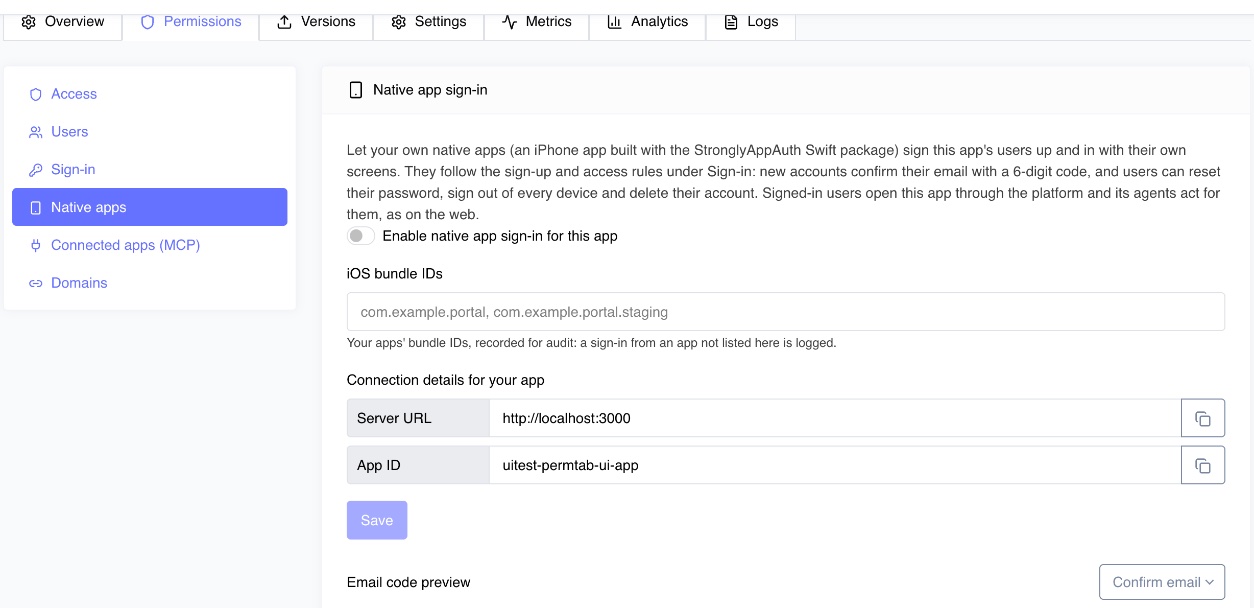
The section shows the Server URL and App ID your iPhone app needs, with copy buttons, and a preview of the email your users receive with their code (choose Confirm email or Reset password). The email carries your app's name and logo, never Strongly's.
With the REST API (settings only):
curl -s -X PATCH "$STRONGLY_URL/api/v1/apps/$APP_ID/native-sign-in" \
  -H "X-API-Key: $KEY" -H 'Content-Type: application/json' \
  -d '{ "enabled": true, "iosBundleIds": ["com.example.portal"] }'
client.apps.update_native_sign_in(app_id, enabled=True, ios_bundle_ids=["com.example.portal"])
client.apps.native_sign_in(app_id)  # AppNativeSignIn(app_id=..., native_sign_in=AppNativeSignInSettings(...))
STAN does the same with update_app_native_sign_in and get_app_native_sign_in.
Email
Codes go out through the platform's mail service. A platform without mail configured (MAIL_URL, and the sender address MAIL_FROM) cannot take sign-ups or password resets: the call answers mail-not-configured naming what is missing. Ask your platform administrator to configure it.
The Swift package
StronglyAppAuth is a Swift package for iOS 17 and later (Swift 6). It holds the DDP connection, every call below, the login token in the Keychain, resuming the session on every reconnect, opening your app through the platform, and calls to the platform's REST API as the user. It sits in the Packages/StronglyAppAuth folder of the Strongly iPhone app's repository, with an example app (Example/) that has plain native screens for every step; ask your Strongly contact for access.
Add it to your Xcode project as a local package (File > Add Package Dependencies > Add Local), then:
import StronglyAppAuth
import SwiftUI

@main
struct PortalApp: App {
    @State private var auth = AppAuth(configuration: AppAuthConfiguration(
        serverURL: URL(string: "https://strongly.example.com")!,   // Server URL in the Native apps section
        appId: "app-1h24rysai0k4"                                  // App ID in the Native apps section
    ))

    var body: some Scene {
        WindowGroup {
            Group {
                switch auth.state {
                case .starting: ProgressView()
                case .signedOut: SignInScreens()        // your own screens
                case .signedIn(let user): HomeScreen(user: user)
                }
            }
            .environment(auth)
            .task { await auth.start() }               // connects and resumes the stored session
        }
    }
}
AppAuth | What it does |
|---|---|
start() | Connect, and sign the session stored in the Keychain in again. Call once at launch |
state | .starting, .signedOut or .signedIn(SignedInUser) (observable) |
isConnected | Whether the connection is up; it reconnects by itself and signs in again first |
sessionEndedReason | Why a stored session ended on its own (idle, signed out elsewhere, password reset) |
app() | The app's name, logo, whether sign-up is open, its access mode and domains (AppInfo) |
signUp(name:email:password:acceptTerms:) | Create an account; a code is emailed (CodeDelivery) |
verifyEmail(email:code:) | Confirm the email: .active, .pendingApproval or .deactivated |
sendCode(email:purpose:) | A new code: .verifyEmail or .resetPassword |
resetPassword(email:code:newPassword:) | Set a new password with a reset code (every session ends) |
signIn(email:password:) | Sign in; the login token goes to the Keychain |
signOut() | Sign this device out |
signOutEverywhere() | Sign out of every device, this one included |
sessions() / endSession(id:) | The user's devices and browsers; sign one out |
deleteAccount(password:) | Delete the account after confirming the password |
openApp() | Your app through the platform: an AppProxySession (events(_:body:) streams a call such as an agent chat; urlSession() for ordinary requests) |
rest(_:_:body:) | The platform's REST API as the user |
| enableBiometricSignIn(reason:) | After a sign-in, ask for Face ID (or Touch ID) once and keep the session only under biometric protection |
| signInWithBiometrics(reason:) | At launch, Face ID reads the session and resumes it (the same login resume start() uses) |
| disableBiometricSignIn() | Turn it off; the session goes back to the ordinary Keychain item |
| biometricSignInEnabled | Whether it is on for this app on this device (observable) |
Errors are AppAuthError: .refused(code:reason:details:) carries the platform's stable code (error.code reads it as AppAuthErrorCode), retryAfterSeconds for a throttled or locked-out address, attemptsLeft after a wrong code. Show localizedDescription to people: it is the platform's own sentence.
Face ID sign-in
Your users can open your app with Face ID or Touch ID instead of their email and password. The package keeps the login token in the Keychain under access control .biometryCurrentSet with kSecAttrAccessibleWhenPasscodeSetThisDeviceOnly:
- the token can be read only after a successful Face ID or Touch ID check on this device;
- it never leaves the device and never syncs to iCloud Keychain;
- iOS makes it unreadable for good when the enrolled faces or fingerprints change;
- while biometric sign-in is on, the token is kept only there, so opening the app needs the check;
- signing out, the session ending on the platform, and deleting the account remove it.
Add NSFaceIDUsageDescription to your app's Info.plist. Then:
// After the first email sign-in, offer it in the device's own words.
let biometry = BiometryKind.current()          // (kind: .faceID / .touchID / .opticID / .none, usable, reason)
if biometry.usable && !auth.biometricSignInEnabled {
    try await auth.enableBiometricSignIn(reason: "Sign in to Portal")   // asks once
}

// At launch: start() finds no plain session when biometric sign-in is on (state .signedOut).
await auth.start()
if case .signedOut = auth.state, auth.biometricSignInEnabled {
    do {
        try await auth.signInWithBiometrics(reason: "Sign in to Portal")   // state becomes .signedIn
    } catch let error as BiometricSignInError {
        showSignIn(message: error.localizedDescription)                    // your email sign-in screens
    }
}

// A Settings toggle.
try auth.disableBiometricSignIn()
BiometricSignInError says what happened, in words for people:
| Case | When | What happens to biometric sign-in |
|---|---|---|
.cancelled | The person cancelled the prompt | Stays on; offer it again |
.failed | The face or finger did not match | Stays on; offer it again |
.lockedOut | Too many failed tries (the passcode unlocks biometry) | Stays on |
.notEnrolled, .notAvailable | No biometry set up, or none on this device | Stays on until turned off |
.invalidated | The enrolled faces or fingerprints changed, so iOS made the saved session unreadable | Turned off |
.sessionEnded(reason) | The platform no longer accepts the session (expired after inactivity, signed out elsewhere, password reset) | Turned off |
.notEnabled | It was never turned on on this device | Off |
In each case show your normal email sign-in: it is the one way to sign in when Face ID cannot. In the Simulator, Features > Face ID > Enrolled, then Matching Face or Non-matching Face, exercises each case; toggling Enrolled off and on is an enrolment change.
Opening your app
let proxy = try await auth.openApp()

// In a web view: put the session cookie in its store, then load the app.
let configuration = WKWebViewConfiguration()
configuration.websiteDataStore = .nonPersistent()
let webView = WKWebView(frame: .zero, configuration: configuration)
await proxy.install(in: configuration.websiteDataStore)
webView.load(URLRequest(url: proxy.url(for: "")))

// Your app's own API, as the user:
var request = URLRequest(url: proxy.url(for: "api/ask"))
request.httpMethod = "POST"
request.setValue("application/json", forHTTPHeaderField: "Content-Type")
request.httpBody = try JSONSerialization.data(withJSONObject: ["message": "Hello"])
let (data, _) = try await proxy.urlSession().data(for: request)
Chatting with the user's agent: stream it
An agent that runs on demand sleeps when idle. Signing in wakes the user's agent straight away, so it is usually ready by their first question; a message to an agent still asleep wakes it: it starts, which takes as long as it takes (often 20 to 60 seconds, longer on a fresh node). Don't make that a plain request: URLSession gives up after 60 seconds without an answer, and the user sees "The request timed out" for an agent that was about to answer. Stream it instead. The platform's chat (POST /api/v1/agents/:agentId/threads/:id/runs) answers with Server-Sent Events and says at once that the agent is waking (thread.run.waiting_for_pod), then that it is up (thread.run.pod_ready), then streams the answer (thread.message.delta) and ends (thread.run.completed). Have your app relay that stream to the phone unchanged, and read it with events(_:body:):
let proxy = try await auth.openApp()
for try await event in proxy.events("api/ask/stream", body: ["message": "Hello"]) {
    switch event.run {
    case .waking(let message): status = message          // "Waking up the agent", shown at once
    case .ready: status = "Your agent is answering"
    case .delta(let text): answer += text
    case .toolCall(let name): status = "Using \(name)"
    case .failed(let reason): throw MyError(reason)
    case .completed, .other: break
    }
}
events asks the proxy for a stream (Accept: text/event-stream), so the proxy passes the events through as they come, and it sets no request timeout: it follows the events and ends when the stream does ([DONE] or your app closing it), on a lost connection, or when you stop iterating (cancelling the task stops it). An answer that is not a stream (your app refusing, say) throws AppAuthError.refused with your app's body. Any other event comes through as AppEvent with its name and data, for an app that streams its own events.
Your app's side (Node), relaying the platform's stream:
app.post('/api/ask/stream', async (req, res) => {
  const headers = { 'Content-Type': 'application/json', 'X-Strongly-User-Token': req.headers['x-strongly-user-token'] };
  // The user's clone of the base (BASE_ID, one of the app owner's agents), made on first use.
  let agent = (await (await fetch(`${API}/api/v1/agents`, { headers })).json()).data[0];
  if (!agent) agent = (await (await fetch(`${API}/api/v1/agents/${BASE_ID}/clone`, { method: 'POST', headers })).json()).data;
  if (agent.status !== 'running' && agent.status !== 'idle') {
    await fetch(`${API}/api/v1/agents/${agent._id}/start`, { method: 'POST', headers });   // a clone never started
  }
  const thread = (await (await fetch(`${API}/api/v1/agents/${agent._id}/threads`, { method: 'POST', headers, body: '{}' })).json()).data;
  const run = await fetch(`${API}/api/v1/agents/${agent._id}/threads/${thread._id}/runs`, {
    method: 'POST', headers: { ...headers, Accept: 'text/event-stream' }, body: JSON.stringify({ message: req.body.message }),
  });
  res.writeHead(200, { 'Content-Type': 'text/event-stream', 'Cache-Control': 'no-cache' });
  for await (const chunk of run.body) res.write(chunk);
  res.end();
});
urlSession() is for your app's ordinary requests, which answer at once; use events for anything that waits on an agent.
Your app receives the user exactly as it does from the web: the proxy adds X-Strongly-User-Token to every request (User Identity Headers). To reach the user's own agent, your app forwards that header on its calls to $STRONGLY_API_URL/api/v1/agents... (An agent for each user of an app).
Calling the platform's API
let me = try await auth.rest("GET", "me")
rest sends the login token as X-Strongly-Login-Token. The platform accepts that header only for app users, and with it they reach only their own account: GET /me (who they are) and DELETE /me (deleting their account). Every other route answers 403 app-user-restricted. Everything else goes through your app: open it with openApp() and call your app's own API through the app proxy, where your app acts for the user with their user token.
The methods
Each is a DDP method call ({"msg": "method", "method": ..., "params": [...]}), or Meteor's own login and logout. All but login and logout take the app's id first. A refusal is a DDP error with a stable error code, a reason to show people and, for some, details.
appSignIn.app(appId)
No sign-in needed. Answers what your sign-in screens show:
{ "appId": "app-1h24rysai0k4", "name": "Client Portal", "logo": "data:image/png;base64,...", "slug": "client-portal",
  "signupEnabled": true, "access": "instant", "allowedDomains": [],
  "verification": { "channel": "email", "codeLength": 6, "codeTtlMinutes": 10 } }
Errors: not-found (no such app), sign-in-off (neither branded pages nor native sign-in is on).
appSignIn.signUp(appId, { name, email, password, acceptTerms })
Creates an app user, bound to the app as their Home App, in their own organization, made for them (on Strongly Cloud, in the app's organization), and emails a code. All or nothing: if any step fails (the email cannot be sent, for example), no account is left behind and the error says why. The account cannot sign in until the code is entered.
{ "status": "verification-required", "channel": "email", "destination": "j***@example.com", "expiresAt": { "$date": 1760659800000 } }
Errors: signup-disabled, invalid-email, invalid-name, terms-required, domain-not-allowed, invalid-password (the platform's password rules: 8 characters or more with an uppercase and a lowercase letter, a number and a symbol, not a common password), email-exists, mail-not-configured, mail-failed, code-throttled.
appSignIn.verifyEmail(appId, { email, code })
Confirms the email. Answers { "status": "active" } (sign in now), { "status": "pending-approval" } (an administrator of the app activates it next; they are notified) or { "status": "deactivated" }.
Errors: code-invalid (with details.attemptsLeft), code-expired, code-attempts-exceeded, locked-out.
appSignIn.sendCode(appId, { email, purpose })
purpose is verify-email or reset-password. Sends a new code and answers where it went (channel, destination, expiresAt). It answers the same whether or not the address has an account, so it never tells anyone who has one; only an account of this app that needs the code gets one. Errors: code-throttled (with details.retryAfterSeconds), mail-not-configured, mail-failed.
Signing in: login
Meteor's login method with:
{ "appSignIn": { "appId": "app-1h24rysai0k4", "email": "sample@example.com",
  "password": { "digest": "<SHA-256 of the password, hex>", "algorithm": "sha-256" },
  "device": { "name": "iPhone", "platform": "iOS 26.1", "bundleId": "com.example.portal",
              "installId": "6F1C2D3E-4A5B-4C6D-8E7F-90A1B2C3D4E5" } } }
A native client sends device, with the installId it made once and keeps (StronglyAppAuth does both): the session is that install's (see above). The branded web pages send no device: their session is a browser's, named from its user agent. A device without an installId is refused (400). Answers { "id": "<user id>", "token": "<login token>", "tokenExpires": { "$date": ... }, "type": "appSignIn" }. Keep the token in the Keychain; on every new connection, sign in with login { "resume": "<token>" } before anything else.
| Error | Meaning |
|---|---|
sign-in-failed | Wrong email or password |
locked-out | Too many wrong passwords for this address and app: wait details.retryAfterSeconds |
not-an-app-user | A platform account (developer or admin): it signs in to the platform, not here |
other-app-user | An app user of another app |
email-not-verified | The email is not confirmed yet: offer the code screen and sendCode |
account-inactive | Waiting for an administrator's approval |
account-deactivated | An administrator deactivated it |
account-archived | The account was deleted |
mfa-required | The account has two-factor authentication on (app users normally cannot) |
too-many-requests | The connection's rate limit (see Security below) |
appSignIn.resetPassword(appId, { email, code, newPassword })
Sets a new password with a reset code; the code also confirms the email. Every session of the account ends, on every device. Answers { "status": "password-reset" }; then sign in with the new password. Errors: invalid-password, code-invalid, code-expired, code-attempts-exceeded, locked-out.
appSignIn.invitation(appId, token)
The invitation behind an invitation link (the token is the last part of https://<your-platform>/app/<slug>/invitation/<token>), so the app can show who it is for before they choose a password. Answers { "email": "sample@example.com", "name": "Sample User", "role": "user" } (name may be null; role is admin or user). Error: invitation-invalid (used, revoked or expired: ask for a new one).
appSignIn.acceptInvitation(appId, { token, name, password, acceptTerms })
Accepts the invitation: the invited email becomes an app user with this password, bound to the app as their Home App with the invitation's role, active at once with the email confirmed (no code to enter). It works with sign-up off; the app's allowed email domains still apply. Answers { "status": "active", "email": "sample@example.com" }; then sign in with login as above. Errors: invitation-invalid, terms-required, domain-not-allowed, invalid-password.
Signing out: logout
Meteor's logout: this device's token stops working.
appSignIn.sessions(appId), appSignIn.endSession(appId, sessionId), appSignIn.signOutEverywhere(appId)
Signed in only. sessions lists the user's sessions, most recently active first:
[ { "_id": "s1", "deviceInfo": "iPhone (iOS 26.1)", "appId": "app-1h24rysai0k4", "createdAt": { "$date": ... },
    "lastActivityAt": { "$date": ... }, "isCurrent": true } ]
endSession signs one of them out; signOutEverywhere signs every one out, this one included, and answers { "ended": 3 }. Errors: not-signed-in, not-an-app-user, other-app-user, not-found.
appSignIn.deleteAccount(appId, { password: { digest, algorithm } })
Signed in only. After the password is confirmed, the platform's own account deletion runs: the account is archived, what it owns is deleted (its agents from the app, their memories, tasks, knowledge and conversations included) and every session ends. Answers { "status": "deleted" }. Errors: password-incorrect, locked-out, not-signed-in.
The App Store requires it. An iPhone app that lets people create an account must let them delete it from inside the app (App Store Review Guideline 5.1.1(v)). Put Delete account where people find it (an account or settings screen), confirm it, and call deleteAccount(password:).
Opening the app: apps.getProxyUrl(appId)
Signed in only. Answers { "url": "https://<platform>/api/proxy/<app id>", "appsDomain": false } when the app is running and the user may open it. Load it with the meteor_login_token cookie set to the login token for the platform's host (AppProxySession does it). On a platform with an apps domain it answers the app's own address ("url": "https://<slug>.<apps domain>/", "appsDomain": true, the root of the app's own host): the platform's cookie is then __Host-meteor_login_token (Secure, for the platform's host), and a page load of the address signs in to the app through the platform; openApp() does both and holds the app's session (12 hours at most: open the app again when its API answers 401). Errors: access-denied, app-not-running.
Sessions
A sign-in through the app is a platform session like a browser's, and follows the same rules: at most 5 at once per user (a sixth signs out the least recently used), signed out after 60 minutes without activity (any call, and any request through the app proxy, is activity), ended by a password reset, by deactivation or removal from the app, and by Sign out of all devices. The session records the app and the device. When a stored session has ended, start() (or the next reconnect) reports it in sessionEndedReason and the state becomes .signedOut.
Security
- Codes are 6 digits, sent by email, single-use, valid for 10 minutes, and take at most 5 guesses before they stop working. Only the newest code for an address works. Only a hash of each code is stored.
- Sending codes is limited per address and app: one a minute, five an hour.
- Lockout: 5 wrong passwords, or 10 wrong codes, for an address within 15 minutes lock that address out of the app's sign-in until 15 minutes after the one that reached the limit.
- Rate limits per connection and client address cap sign-up, codes, resets and deletion (5 calls per 30 seconds per connection, 60 an hour per address) and sign-in (3 per 30 seconds per connection).
- Passwords travel as their SHA-256 over TLS, as Meteor's own sign-in sends them, and are stored with the platform's password hashing. Sign-up and reset check the platform's password rules.
- Enumeration:
sendCodeanswers the same for any address. Sign-in names the reason only after the password is right. - The login token is the credential: keep it in the Keychain (
StronglyAppAuthstores it readable after the first unlock, on this device only, or with Face ID sign-in on, readable only after Face ID or Touch ID), never inUserDefaultsor logs. Use HTTPS in production;NSAllowsLocalNetworkingis for testing against a platform on your own machine. - Bundle IDs are recorded, not trusted: any client can claim one.
Branded web pages use the same path
The branded pages at https://<your-platform>/app/<url-name>/ sign people up and in through the same methods. A new account confirms its email with the same code on the page .../<url-name>/verify-email, and Forgot password emails a code that the page .../<url-name>/reset-password takes with the new password. An administrator's Email a password reset code in the Users table sends the same code.