Workspace Port Access
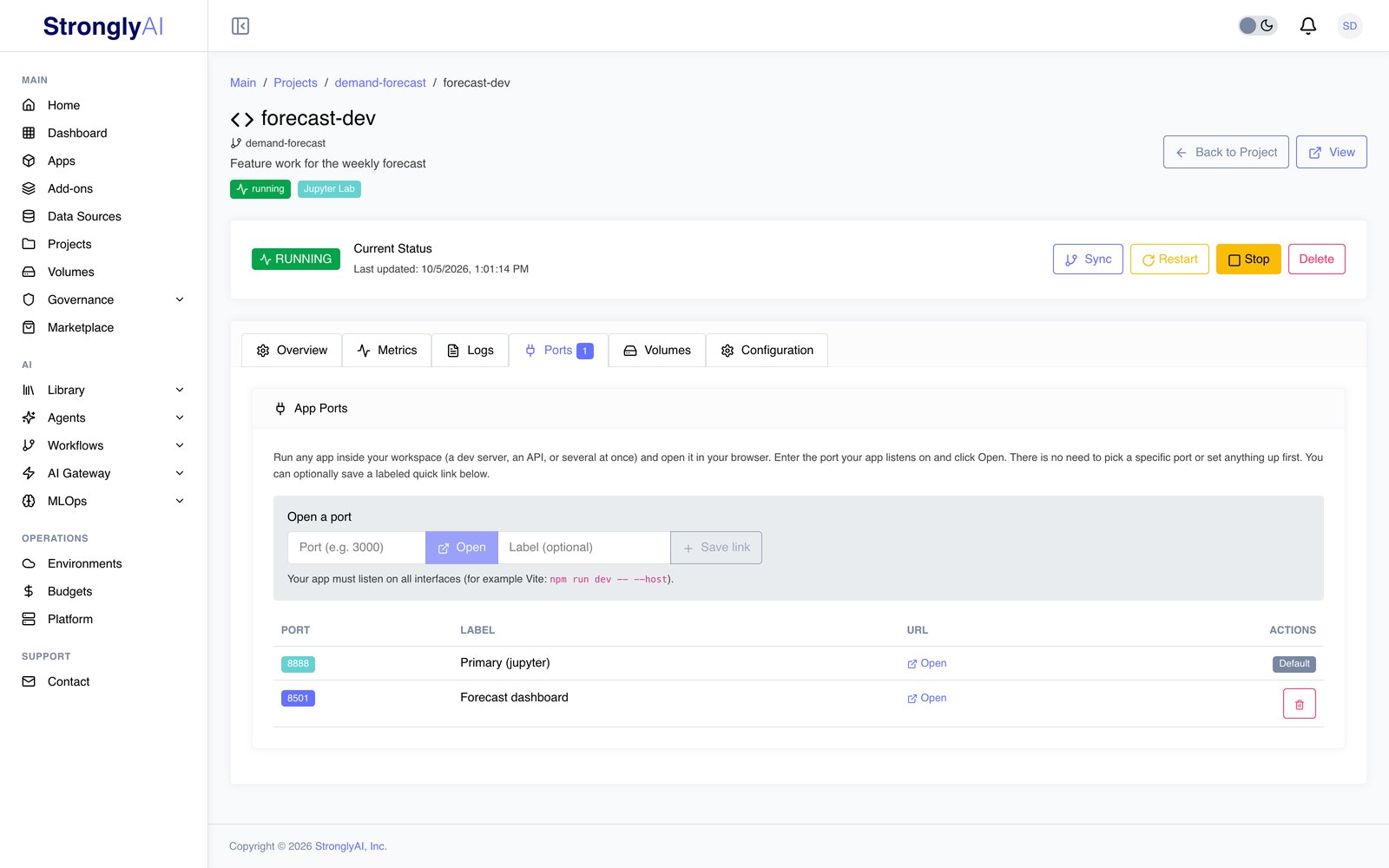
Run any app inside a workspace (a web app, an API, a dev server, or several at once) and open it in your browser by port. This is how you test an app while you build it, before you deploy it to Apps. There is nothing to set up first and no fixed port to use: whatever port your app listens on, you can reach it at your workspace URL.
Quick start
- Start your workspace and open a terminal inside it (VS Code or Jupyter).
- Run your app, making sure it listens on all interfaces (see
Make your app listen on all interfaces
below). For example, a Vite dev server:
npm run dev -- --host - On the workspace detail page, open the Ports tab.
- Under Open a port, type the port your app is listening on (for example
3000) and click Open.
Your app opens in a new browser tab. That is the whole flow. You do not have to register the port anywhere first, and you are not limited to a preset port.
Test the same app you will deploy
An app opened from the workspace is reached at
<workspace URL>/port/<port>/; once deployed, at its app URL. In both places the
platform strips that prefix before the request reaches your app and passes it in
the X-Forwarded-Prefix request header, so an app that builds its links from that
header works unchanged in both. Listen on the port in the PORT environment
variable when it is set (a deployed app gets one), else a port of your own such as
3000: port 8080 is taken by VS Code in a VS Code workspace.
Running several apps at once
You can run as many apps as you like at the same time and open each one independently. A common setup is a frontend and a backend together:
- Start your frontend on port
3000. - Start your API on port
5000. - In the Ports tab, open
3000and5000in separate tabs.
Both are reachable in the browser at the same time, each at its own port.
Make your app listen on all interfaces
This is the one thing to get right. By default many dev servers listen only on
localhost (127.0.0.1), which is reachable only from inside the container.
Bind to all interfaces (0.0.0.0) so the platform can reach your app. This is
standard for anything running in a container.
| Tool | Command |
|---|---|
| Vite | npm run dev -- --host |
| Create React App | HOST=0.0.0.0 npm start |
| Next.js | next dev -H 0.0.0.0 -p 3000 |
| Node / Express | app.listen(5000, '0.0.0.0') |
| Flask | flask run --host 0.0.0.0 --port 5000 |
| FastAPI / Uvicorn | uvicorn main:app --host 0.0.0.0 --port 8000 |
| Static files | python3 -m http.server 8000 --bind 0.0.0.0 |
You do not need to add any allowed-hosts configuration. The platform presents your dev server a host it already trusts, so frameworks that normally block unfamiliar hosts (Vite, webpack dev server, Create React App) work without any extra config.
The port URL
Each port is served at your workspace URL with /port/<number>/ appended:
https://<your-strongly-host>/api/workspace-proxy/<workspace-id>/port/<port>/
The URL ends with a slash; one typed without it (.../port/3000) is sent on to
.../port/3000/, so your app's relative links load from its port.
Your app receives each request at its own root: a browser request for
.../port/3000/static/app.js reaches your app as /static/app.js, in every kind
of workspace. So a static server or a framework's default settings work as they
are. Links your app writes into its pages should be relative (static/app.js,
not /static/app.js) or include the port URL, because the browser resolves them
against the port URL.
The Open button builds this URL for you, so you rarely need to type it. It is useful to know when you want to link directly to a running app or wire one app to another (see below).
Saving quick links (optional)
If you open the same port often, save it as a labeled quick link:
- In the Ports tab, type the port and an optional label.
- Click Save link.
Saved links appear in the table below with an Open button, so you do not have to retype the port each time. Saving a link is entirely optional; it does not change what you can access, it is just a bookmark. Remove a saved link with the delete button in its row.
Calling one app from another
If your frontend calls your backend, remember that the call runs in your browser,
not inside the container. Pointing the frontend at http://localhost:5000 will
not work from the browser, because that address only exists inside the workspace.
Point the frontend at the backend's port URL instead, for example by setting its API base URL to:
https://<your-strongly-host>/api/workspace-proxy/<workspace-id>/port/5000/
This is the same as any setup where your services are reached through a shared
address rather than localhost.
Port range
Ports must be in the range 1024 to 65535. Ports below 1024 are system or privileged ports and are not available.
Access and availability
- Owner only. Only the user who created the workspace can open its ports (as only they can open the workspace itself; administrators cannot), and you must be signed in.
- Only while running. Ports are reachable only while the workspace is running. When the workspace stops, its apps stop with it and the port URLs stop responding. Start the workspace again to bring them back.