Volumes
A workspace (or job) works with two kinds of storage: fast scratch, and the
code/data volumes it mounts: its project's volume, always, and the shared
volumes you choose for it, mounted each time it starts. A workspace's data/ shows each
file's latest version as of the workspace's start and its last Sync: new
versions others save appear at your next Sync or start.
| Kind | Mounted at | Lifetime |
|---|---|---|
| Workspace scratch | /workspace | Kept across stop, start and restart; deleted with the workspace. |
| Code/data volume (local) | /volumes/local/<volume> | The project's own volume. Durable. |
| Code/data volume (shared) | /volumes/shared/<volume> | A volume shared with you. Durable. |
The workspace scratch (/workspace) is fast local space for the running
session. Keep temporary files and caches here; anything you want to keep
long-term belongs in a code/data volume.
A code/data volume is the durable storage primitive. It's local (your project's) or shared (shared with others). A project's volume has two halves suited to what they hold. A volume you create as shared holds data only; a project's volume keeps its code when it is shared, or kept after its project is deleted:
code/-- your source (scripts, notebooks, configs). Small, text, and versioned with git. Code lives in a project's volume and is written only in that project's workspaces; wherever it is shared, it is read-only.data/-- your datasets, model files, and artifacts. Potentially huge, and presented as a plain filesystem you write to like a disk, but stored efficiently and versioned behind the scenes.
/workspace                       workspace scratch (deleted with the workspace)
/volumes/local/<volume>/code     your project volume's code (git, read and write)
/volumes/local/<volume>/data     your project volume's data (filesystem)
/volumes/shared/<volume>/code    a shared project volume's code (read-only)
/volumes/shared/<volume>/data    a shared volume's data
Project volumes vs shared volumes
There are two kinds of volume, told apart by how they're created and who they belong to:
- A project volume is created with a project and belongs to it. Every project has one, born automatically when you create the project, and it mounts at
/volumes/local/<name>in that project's workspaces. This is where a project's own code and data live, and the only place code is written. You can share a project volume later: it then mounts under/volumes/shared/<name>for others, with its code read-only. - A shared volume is a standalone volume you create on its own, not tied to any project, and share with people. It holds data only (no
code/), and mounts at/volumes/shared/<name>for anyone it's shared with, so it's the way to reuse the same dataset across several projects and users.
Both work the same way for data, so everything below about data (versions, sync) applies to either; code (git, branches) is a project volume's.
So under /volumes/shared/ you can find either kind: a shared volume, with only data/, or a project volume shared with you (or one kept when its project was deleted), with code/ read-only and data/ read or write as its share allows.
Creating a project creates its volume for you. You don't need to create a separate volume for a project's own work -- just open a workspace on the project and use /volumes/local/<name>. Create a shared volume when you want data reusable beyond one project; to reuse code, share the project's volume (others read its code).
Creating a volume and where it mounts
Create a shared volume, and it mounts in workspaces and jobs on its own:
- Create the volume. On the Volumes page click New Volume and give
it a name. It holds data only: its
data/starts empty, and you fill it just by writing files (see below). A project's volume, with its code, is created with its project, from a GitHub repository or the Strongly filesystem (see Choosing the Strongly filesystem or GitHub). - The project's volume mounts automatically; shared volumes when chosen.
Every workspace and job mounts its project's volume at
/volumes/local/<name>/{code,data}, and only the shared volumes chosen for it at/volumes/shared/<name>/{code,data}: on the create form's Volumes tab (for a job, its Volumes section), or with Edit shared volumes on its Volumes tab (from the next start or run). When a volume's owner takes it away from you (unshares it, or makes it private), it is removed from your workspaces and jobs and stops mounting, and your reads and writes of it are refused at once. On a workspace's next start its folder is removed from/volumes/shared, with any changes to it that had not synced. Thedata/half mounts as its latest version.
Deleting a volume
Click Volumes in the sidebar to see every volume you can use, with its scope, code source (Data only for a shared volume) and who it is shared with. Delete, on a volume's row or its details page, removes it permanently: its data, with every version of each file, and its code if it has any. Volumes are never archived, and a deleted volume cannot be restored, so the dialog asks you to confirm and says so first.
A volume cannot be deleted while something uses it (a workspace that mounts it, a job, an app); the dialog names what does, so you can stop those first. Only the volume's owner and administrators can delete it.
A project's own volume goes with its project and cannot be deleted on its own (the dialog names the project): it is deleted or kept when you delete the project (you choose). While the project is archived its volume is left out of the Volumes list, and it is listed again when the project is restored.
Code -- versioned with git, "two laptops"
Each workspace gets its own copy (clone) of a volume's code/. Think of two
workspaces as two laptops working against one shared "GitHub":
- Your copy is your own: what you change, commit or switch to in one workspace never touches another workspace's copy.
- Sync commits your changes and pushes them to the volume's configured
branch (
mainunless the volume was set up with another) -- you choose when, exactly like a git push. - Pull brings other people's changes down when you want them.
- Two workspaces on the same branch behave like two developers: independent edits merge automatically, and if you both edit the same lines you get a normal git conflict to resolve, never a silent overwrite.
Your copy lives on the workspace's own volume, so unsynced changes survive stop, start and restart: uncommitted edits, local commits and the branch you switched to are all still there next time, exactly as unsynced data is. Only deleting the workspace loses unsynced work. Until you sync, your changes are also not on the durable volume, not visible to anyone else, and not recorded as a version. See When to sync below.
Changing branches
Your code/ is an ordinary git working tree, so you change branches with git,
from the workspace's own terminal:
cd /volumes/local/<name>/code
git checkout <branch>          # switch to an existing branch
git checkout -b <new-branch>   # start a new branch
git branch -a                  # list local + remote branches
Sync pushes only the volume's configured branch: it commits on the branch you
are on and pushes the configured one, so work on another branch reaches the volume
when you push that branch yourself (git push origin <branch>) or merge it into
the configured branch. Each workspace has its own copy, so two workspaces can sit
on different branches at once without stepping on each other.
Switching a branch only affects the workspace you do it in. (Your IDE -- VS Code's
Source Control panel, the Jupyter git extension -- does the same thing with
buttons if you'd rather not use the terminal.)
code/, data in data/code/ is for source you version with git. Large binaries (datasets, trained
models) belong in data/, which is built for big files. Committing a multi-GB
model to git is slow and not what git is for.
Data -- a filesystem that's versioned and efficient
data/ is a normal filesystem: you read and write files exactly as you would on
a local disk. In a workspace, what you write becomes a new version when you
Sync (see When to sync); a job run or an app saves its writes
as new versions by itself (see Jobs and apps). Underneath it
gives you three things a plain disk doesn't:
1. It scales to terabytes without copying data around. A volume's data is stored once, centrally, and shared by every workspace and job entitled to it. When you open a workspace you see the entire file tree immediately (even for a multi-terabyte volume) because listing files moves no data. A file's bytes are fetched only when you actually read it, and a shared per-machine cache means the same data is never downloaded twice. So a job that reads 2 GB of a 5 TB volume transfers about 2 GB, not 5 TB.
2. It's versioned -- you can read older versions.
Every file is versioned on its own: when you sync, each file you wrote or
overwrote in data/ gets a new version. Past versions remain readable exactly as
they were. Storage stays lean because only
what actually changed is kept: a small edit to a large file costs about the size
of the edit, not a second full copy.
3. Concurrent access never conflicts.
Because data is shared and versioned (not branched), a job and a workspace, or
two workspaces, can use the same data at once without corruption, merge
conflicts, or lost history. A workspace's data/ shows each file's latest version
as of its start and its last Sync: new versions others save show in your
data/ the next time you Sync (or start the workspace). Each file is versioned on
its own, so a version someone else saved is never overwritten by a file you did
not change; if you both changed the same file, the one saved last is its newest
version, and the earlier one stays readable in its history.
Viewing older data versions
Each file in data/ is versioned on its own. When you sync, each file you wrote or
overwrote gets a new version of that file; its most recent version is its head.
Nothing is overwritten in place, so earlier versions of a file stay readable.
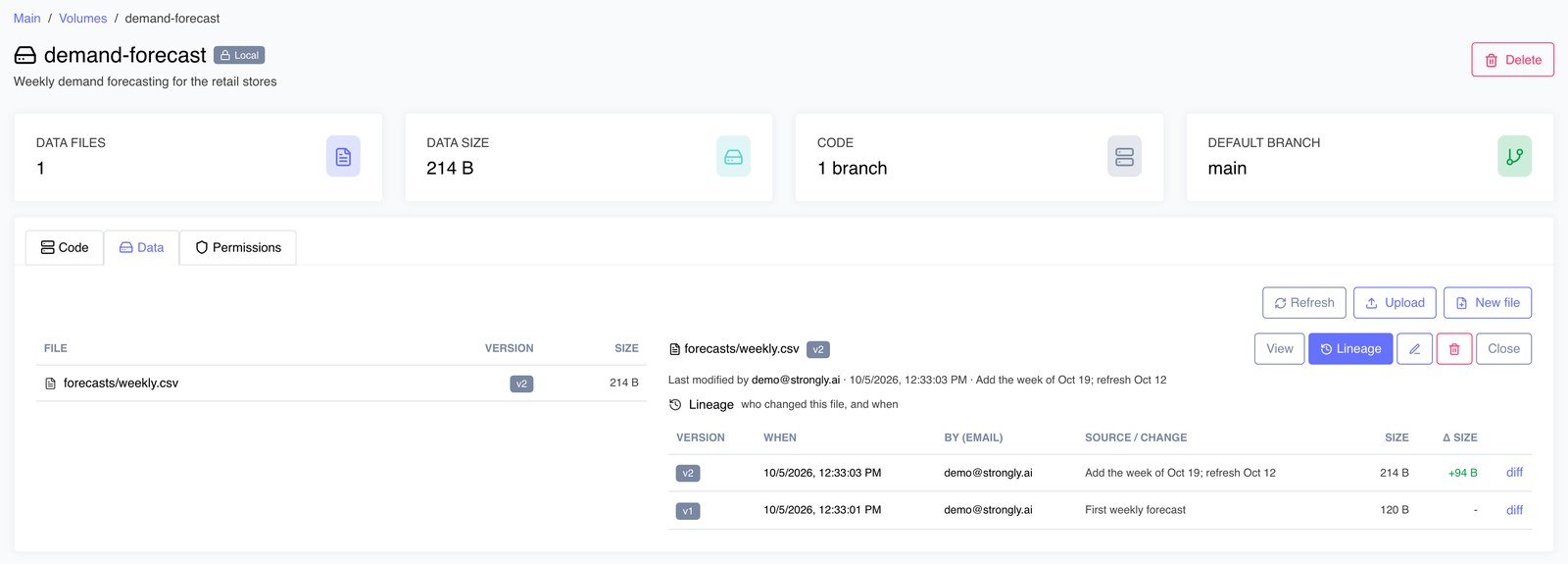
On the Volumes page, open a volume and its Data tab to list its files, each with its current version and size. Open a file to see its content and who last changed it, and when. Lineage lists every version of the file: when it was made, by whom, how, its size and how much it changed. diff on a version shows what changed from the version before it.
Because only what changed is stored, keeping full history is cheap: a small edit to a large file costs about the size of the edit, not another full copy.
When to sync
A workspace is disposable -- delete it and anything not synced is gone. The volume is the durable home of your work: your code lives in its git repo, your data in its version history. Anything you change inside a workspace stays only in that workspace until you sync it back to the volume.
Sync is one button. It saves both halves at once: your project volume's code, and your data in every mounted volume you may write (a shared volume's code is read-only, so Sync never pushes it):
- Code -- commits your changes and pushes them to your project volume's git
repo, on its configured branch (
mainunless the volume was set up with another). A shared volume's code is read-only, so there is nothing of it to push. - Data -- records the files you changed in
data/as new versions.
When it finishes, Sync says what it saved, here a code commit pushed and two data files saved as new versions:
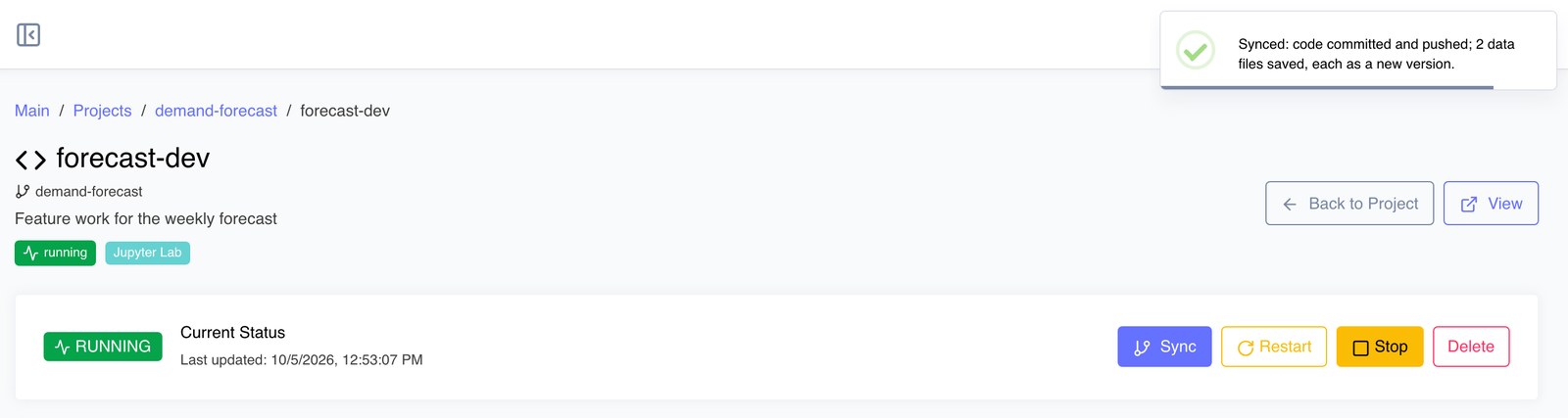
If a volume could not be saved, it names the volume and why instead.
Sync so that you don't lose work and so your work becomes durable, shareable, and reproducible. In particular, sync before you:
- delete a workspace -- deleting it discards everything not synced, code and data alike (stopping, starting and restarting keep it);
- hand work off or share it -- teammates see your code and data only after you sync;
- want a version recorded -- a file's new version exists only once you've synced it;
- finish a chunk of work -- treat sync like "save".
Sync also brings other people's newer data down: after it saves yours,
data/ shows the latest version of every file. To bring others' newer code
down, pull from the workspace (git pull in code/).
When someone else changed the same lines
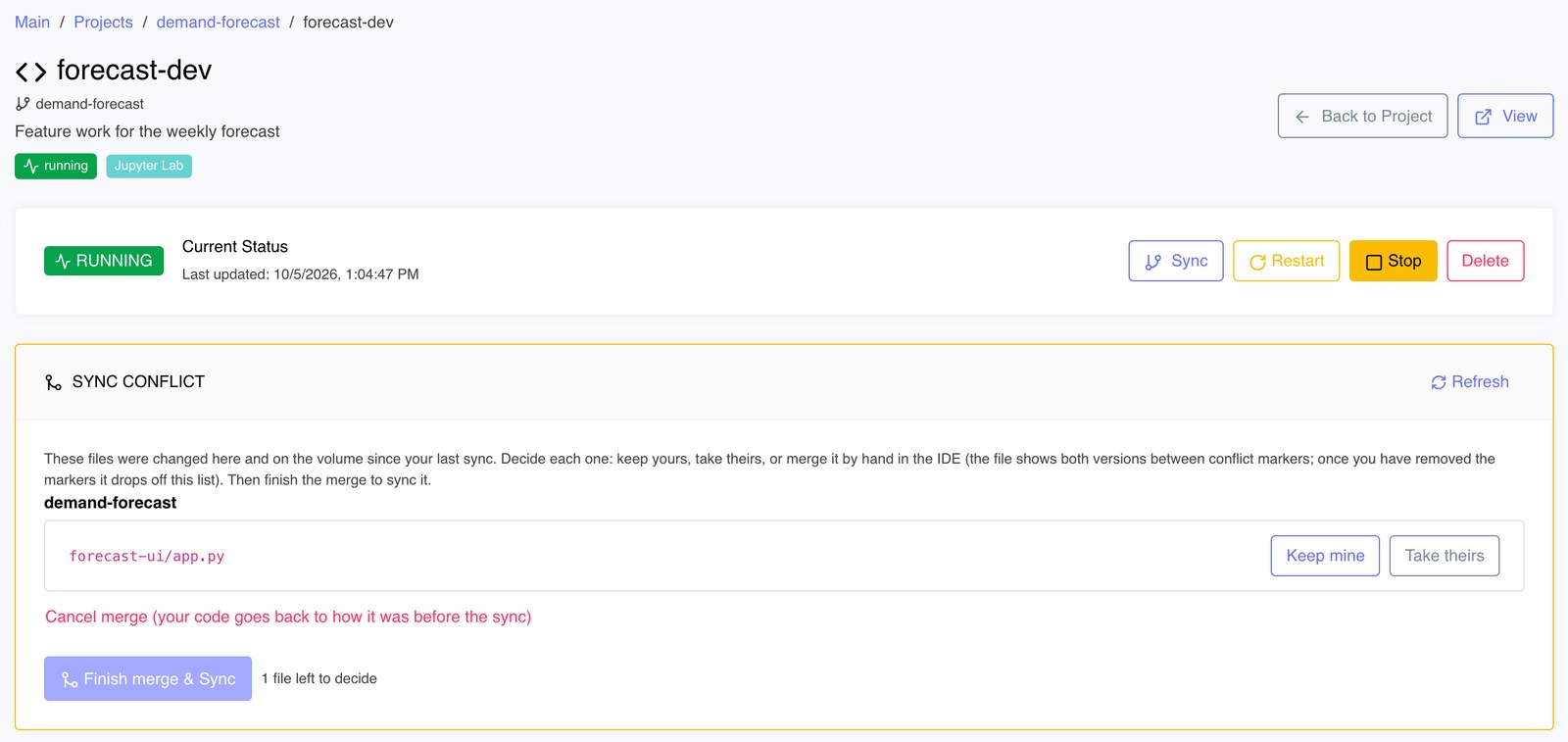
If someone synced changes to the same lines of code since your last sync, your Sync does not overwrite theirs and does not drop yours. As with a pull request on GitHub, you decide how to merge: the workspace page shows a Sync conflict card listing each file changed on both sides:
For each file:
- Keep mine -- use your version of the file;
- Take theirs -- use the version on the volume;
- or merge it by hand in the IDE: the file shows both versions between
conflict markers (
<<<<<<<,=======,>>>>>>>; VS Code's merge editor helps). Edit it to what it should be and remove the markers; after Refresh it drops off the list.
When no files are left, Finish merge & Sync saves the merged code to the volume. Cancel merge puts your code back to how it was before the Sync (your own changes kept, not yet synced). Your data changes are saved by the Sync either way: data has no conflicts, as each file simply gets a new version.
When in doubt, Sync. It's cheap, it never loses history, and it's the difference between "it's on my workspace" and "it's saved."
Sharing
A volume can be shared with other users, for read or for write; it then
appears under /volumes/shared/<volume>/ in their workspaces. A shared project
volume brings its code too, read-only (its code is written only in its own
project's workspaces); the access you share sets whether they may write its
data. Shared code is cloned in each workspace at its start (git); shared data
is the same efficient, versioned filesystem. On a single-tenant installation
sharing also works across organizations: someone in another organization can
read the code and read or write the data from their own workspace, with no extra
credential setup. On a multi-tenant installation a volume is shared only within
its organization.
Concurrent use of a shared volume is safe, as above.
Who can do what to a workspace
A workspace is strictly its owner's to enter and run. Project owners and admins get management rights only:
| Action | Workspace owner | Project owner | Admin | Others |
|---|---|---|---|---|
| See it | ✅ (yours) | ✅ (in your project) | ✅ (all) | ❌ |
| Open / use the IDE | ✅ | ❌ | ❌ | ❌ |
| Start | ✅ | ❌ | ❌ | ❌ |
| Stop | ✅ | ✅ | ✅ | ❌ |
| Delete | ✅ | ✅ | ✅ | ❌ |
A project owner or an admin can see, stop, and delete workspaces they don't own (to manage cost and clean up), but can never open or start someone else's workspace -- entering and running a workspace is private to its owner.
In practice
- Sync to save: it commits + pushes your
code/and records new versions of your changed data files in one step. Sync before you delete a workspace or hand work off -- a workspace is disposable, the volume is what lasts. - Put your scripts in
code/; switch branches withgit checkoutin the workspace terminal (or your IDE's git panel); pull to pick up others' changes. - Read and write datasets and model outputs in
data/like any filesystem: large files are fine, nothing is copied around, and versions are kept for you. - Sync to record a version of each data file you changed; older versions stay readable on the volume's Data tab, with what changed between them.
- Use
/workspacefor throwaway scratch and caches.
Jobs and apps
A job run and an app that mounts volumes use them the same way, and nobody syncs either of them:
code/is read-only: the volume's code as last synced.data/opens at the latest version of each file and is read and write. Every file written there is saved as a new version of that file shortly after it is closed, and anything left when the run ends or the app stops is saved then.
A run mounts its project's volume and the shared volumes chosen for its job. An app
mounts the volumes picked for it: a project's volume that you have not shared at
/volumes/local/<name>, and every shared volume, your own included, at
/volumes/shared/<name>.