Jobs
Run a command from your project on a schedule or on demand. Each run clones your project's code, mounts your volumes, and runs your command with bash from the project's code folder.
Creating a Job
- Open your project and go to the Jobs tab, then click through to the jobs page
- Click Create Job
- Configure:
- Job Name: Job identifier (e.g., "Daily Training")
- Command: The command line each run runs with bash in the project's code folder (shown under the field), with whatever the environment's image has installed (e.g.,
python3 train.py --epochs 3orbash run.sh) - Description: What the job does (optional)
- Environment & Resources: Pick a saved Environment (optionally pinned to a specific version), or choose Custom Configuration and set CPU, Memory, Disk, and GPU. A custom job must set its CPU and memory; no size is assumed. See Sizing a job.
- Use Spot Instances: Runs each run on spot capacity, which is cheaper but can be reclaimed, interrupting the run. Use it for runs you can repeat. Once it is on, Fall back to on-demand when spot capacity is unavailable (checked by default) runs it on on-demand capacity when no spot is available; unchecked, it waits for spot. See Spot Instances.
- Workspace Volume Size: Each run's own working storage (
/workspace), in GB. It starts at 20 GB. - Schedule: Manual, recurring, or one time (see below)
- Services: The add-ons, data sources, AI models, ML models, workflows, feature stores, and agents each run can use (see below)
- Environment Variables: One per line in
KEY=VALUEformat (lines starting with#are ignored)
Sizing a job
The CPU and memory you set are the whole run. Two platform services run beside your command in every run: one that keeps the mounted volumes in step (the project volume and the shared volumes chosen for the job, however many there are) and one that connects the run to the platform. Their share comes out of the size you set, and your command gets the rest.
If the size is too small to hold that share, the run does not start. It appears in the run history as Failed, with a message saying how much the platform services take, for example:
The size set (0.1 CPU, 1Gi memory) is too small: the 2 platform services that run beside your workload (storage for its volumes, a proxy) take 200m CPU and 512Mi of it. Set more than that.
Click Edit on the job, give it more CPU or memory, and run it again. The share is the same however many volumes the run mounts.
GPU runs
Set GPU Count to 1 or more to run on a GPU. GPU Type then appears: leave it on Auto for the most cost-effective GPU available, or pick a type. Each run starts on a GPU machine, which can take a few minutes when none is running, and the GPU's driver is available to your command (for example, nvidia-smi -L lists the GPU the run got).
Schedule Options
| Type | When it runs |
|---|---|
| Manual trigger only | Only when you click Run Now |
| Recurring schedule | Every few minutes, every hour, every day, every week, every month, or on a custom cron expression |
| One time | Once, at the date and time you choose |
The recurring schedule builder supports:
- Every few minutes: every 1, 2, 5, 10, 15, or 30 minutes
- Every hour at minute :00, :15, :30, or :45
- Every day at a chosen time
- Every week on a chosen day at a chosen time
- Every month on a chosen day (1-28) at a chosen time
Times of day are on the hour or a quarter past, half past, or a quarter to (:00, :15, :30, :45). For any other minute, use a custom cron expression.
- Custom cron expression: any standard 5-field expression. The line under the field shows how it is stored; an expression that is not valid (for example minute
61) is refused when you save, with a message naming the field that is out of range.
Times are your local time
A recurring schedule is in your local time. The form names your time zone next to the time fields (for example America/New_York), and the job keeps that time zone. A job set to run every day at 09:00 runs at 09:00 in its time zone all year, before and after daylight saving changes. A custom cron expression is read in the same time zone. If you open a schedule saved in another time zone, the form tells you and keeps the schedule's own time zone.
On the days the clocks change:
| Change | What happens |
|---|---|
| Clocks go forward (for example 02:00 becomes 03:00) | A time of day that does not exist that night runs once, right after the change: a job set for 02:30 runs at 03:30. |
| Clocks go back (for example 02:00 becomes 01:00) | A time of day that happens twice runs once, the first time it comes. |
| Every few minutes or every hour | Keeps its interval in real time: there is no run in the skipped hour, and there are runs in both copies of the repeated hour. |
A one-time run is at the date and time you choose, in your time zone.
The job page shows the schedule, and its Next run in your local time with the UTC time beside it. Right after a schedule is saved, Next run says Being scheduled for a moment. Once a one-time run has happened, it says Done (one-time schedule passed). A scheduled run starts within about a minute of its time. Times missed while the job was paused are not made up.
A run takes a minute or two to start before your command begins: its volumes are mounted and its code is cloned first.
One run at a time
A job never runs twice at once. A scheduled time that comes while the job's previous run is still going is not run, and nothing is added to the job's run history for it. Run Now while a run is going is refused, and the message names the run that is still going.
Services
A job selects its services the way an app does when you deploy it: Add-ons, Data Sources, AI Models, ML Models, Workflows, Feature Stores, and Agents, each picked in its own dialog from the services you have access to. Workflows lists the deployed workflows a run can call. The same buttons appear when you create a workspace. Jobs do not select MCP servers: agents and workflows use them.
Each run gets exactly the selected services in its STRONGLY_SERVICES environment variable, as an app or a workspace with the same selection gets them, connection details included. Nothing you did not select is added. If a selected service is no longer available to the user the run runs as, or a selected workflow can no longer be called, the run does not start and its reason names it.
Who a Run Runs As
A run started with Run Now runs as the user who clicked it. A scheduled run runs as the user who created the job. The run's services, volumes, and costs are that user's.
What the Job Can Access
| Path | Contents |
|---|---|
/volumes/local/<volume name>/code | Your project code as last synced, cloned fresh at the start of each run, read-only. The command runs here. |
/volumes/local/<volume name>/data | Project volume data, read and write. Every run opens the latest version of each file. |
/workspace | The run's own working storage (its workspace volume), removed with the run |
/volumes/shared/<name> | The shared volumes chosen for the job (under Volumes on the create page, or Edit shared volumes on the job's page; none unless chosen), each one the run's user may mount: data/ read and write, and code/ read-only on a project's volume that is shared (a volume created as shared holds data only). A chosen volume the run's user may not mount stops the run, naming it. |
A run reads code/ and writes its results to data/. Every file it writes in data/ is saved to the volume as a new version of that file, shortly after the run closes it, and anything left when the run ends is saved then: there is no Sync step. Writing into code/ fails (it is read-only); use data/ for results and /workspace for scratch files. An app that mounts volumes works the same way.
The create page lists the exact paths for your project. A project needs a volume to run jobs; projects created on the platform get one automatically.
Managing Jobs
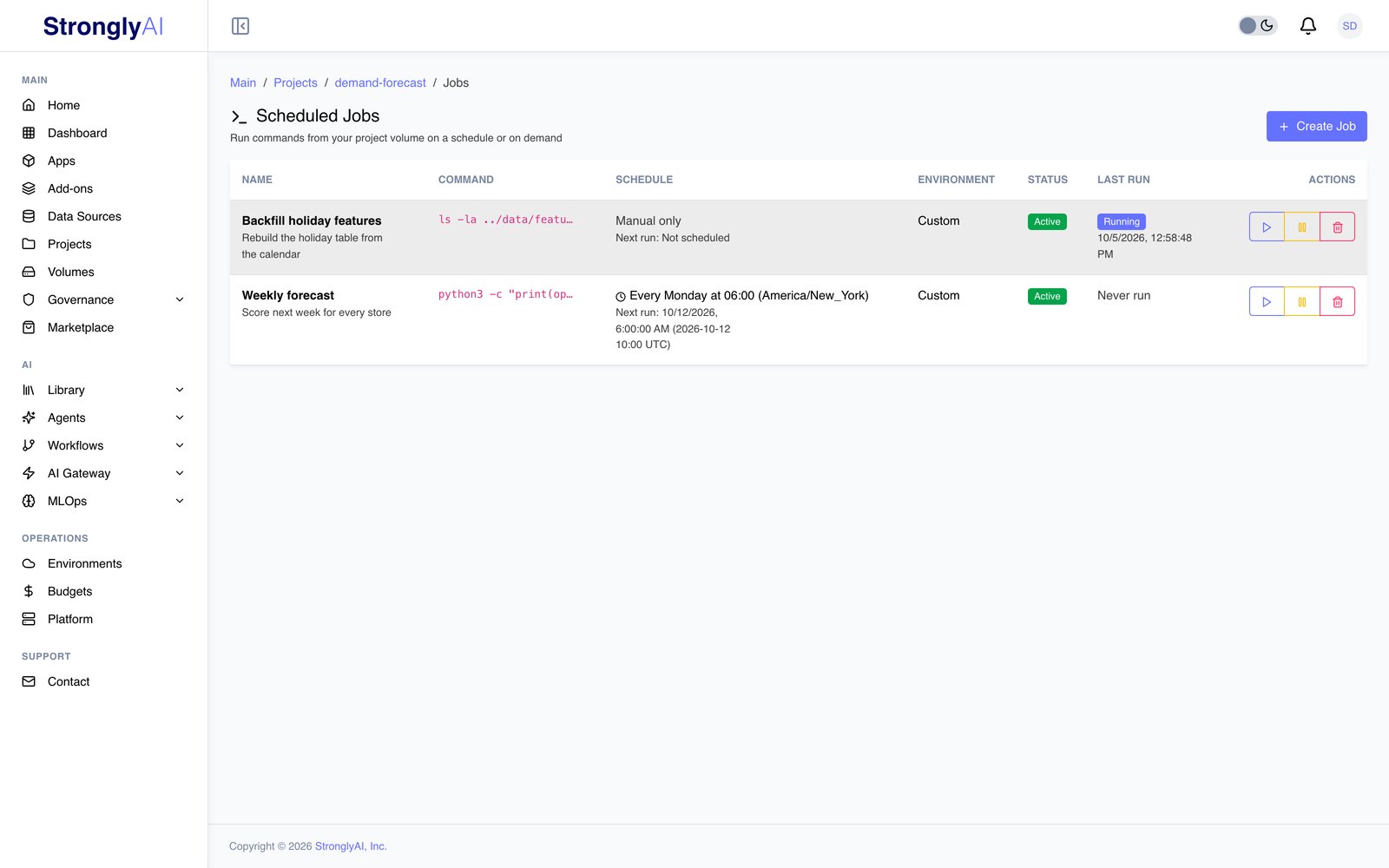
The jobs page lists each job with its command, schedule and next run, environment, status and last run, and its actions: View opens the job, and editors and the project owner also get Run now, Pause or Resume, and Delete. On a job's page, Back is the first of the buttons on the right.
Run Now
Start a run immediately, whatever the schedule.
A run is checked against governance and budgets before it starts. If a governance requirement is pending, or a budget is at its limit, the run does not start. It still appears in the run history as Failed, with the reason shown under its status. This applies to scheduled runs too.
Cancel
A run that is going has a Cancel button in the Executions tab. You are asked to confirm; cancelling stops the run, it is recorded as Cancelled, and its log so far is kept.
Pause/Resume
Scheduled jobs can be paused and resumed without deleting:
- Pause: Stops future scheduled runs but keeps the job configuration
- Resume: Re-enables the schedule
Edit
Edit changes the command, description, environment and resources (CPU, memory, disk and GPU), spot capacity, workspace volume size, services, and environment variables. Edit schedule in the Configuration table changes the schedule. Changes apply from the next run.
Executions
The Executions tab lists every run with:
- Started
- Status (Pending, Running, Succeeded, Failed, Cancelled), with the reason when a run was refused or could not start
- Trigger (scheduled or manual)
- Duration
- Exit code
- Logs: the live tail while a run goes (complete lines; output without a final newline appears when the run ends), and View whole log or Download for the whole log
Delete
Deleting a job removes its runs and their logs. A run that is still going is cancelled first.