Compute Clusters
When a single machine isn't enough, attach a distributed compute cluster to a workspace. The workspace stays your control plane (the notebook or IDE you work in), and the cluster gives it a pool of worker machines to run parallel and out-of-memory workloads. You choose the engine and the size at creation time, connect to it from your notebook in a couple of lines, and it's cleaned up automatically when you stop or delete the workspace.
Choosing an engine
| Engine | Best for | You connect with |
|---|---|---|
| Ray | Python and ML distributed compute, Ray Data, hyperparameter tuning | ray.init(...) |
| Dask | pandas / NumPy-style parallelism and larger-than-memory DataFrames | dask.distributed.Client(...) |
| Spark | Large-scale SQL and ETL | SparkSession.builder.remote(...) |
All three follow the same shape: a coordinator (Ray head / Dask scheduler / Spark connect server) plus a set of worker machines.
Sizing a cluster
When you attach a cluster you set:
| Setting | Description |
|---|---|
| Coordinator | CPU and memory for the head / scheduler / connect server |
| Worker | CPU and memory for each worker, plus an optional GPU count and type |
| Workers | Number of workers to start with |
| Autoscale | Optionally scale the worker count up to a maximum on demand, and back down when idle |
| Metrics dashboards | Ray only. A small Prometheus and Grafana scoped to this cluster for the Ray Dashboard's metrics (see Monitoring). On by default; untick it to run without them. They run only while the cluster runs |
Workers are sized identically to each other. With autoscaling on, the Workers value is the minimum and you set a maximum; the cluster adds workers within a minute or two of work queuing up and releases them a few minutes after it runs out.
The coordinator's size covers everything in it: the engine's own process, plus small platform services beside it (storage for your volumes, and for Ray the autoscaler and the metrics dashboards when they are on). It must leave the engine at least:
| Engine | Needs of its own | Smallest coordinator |
|---|---|---|
| Ray | 1 CPU, 1 GB | 1.1 CPU and 1.25 GB; 1.6 CPU and 1.75 GB with autoscaling; 0.25 CPU and 0.25 GB more with metrics dashboards |
| Dask | 0.5 CPU, 0.5 GB | 0.6 CPU and 0.75 GB |
| Spark | 1 CPU, 1 GB | 1.1 CPU and 1.25 GB |
A smaller coordinator is shown under its fields as you type, with the size that would do, and the workspace is not created until it is raised. The default (2 CPU, 4 GB) fits every engine with every option.
Advanced settings
Turn on Advanced settings at the bottom of the Compute Cluster tab to tune the engine you chose. Every setting is optional: leave it empty to keep the engine's default. The settings shown change with the engine.
| Engine | Setting | What it does |
|---|---|---|
| Ray | Idle time before a worker is removed | With autoscaling on, how long (30 to 3600 seconds) an idle worker stays before it is removed. Ray's default is 60 seconds |
| Ray | How fast workers are added | With autoscaling on: Default adds workers in steps as work queues up, Aggressive adds every needed worker at once, Conservative adds a few at a time |
| Ray | Object store memory per worker | Where Ray keeps shared objects (ray.put, task results), taken from the worker's memory: at most 60% of it. Ray's default is 30% |
| Dask | Threads per worker | How many tasks each worker runs at once (1 to 64). Dask's default is one per CPU |
| Dask | Spill to disk at | When a worker's data reaches this share of its memory (50% to 95%), it writes some to disk instead of running out. Dask's default is 70% |
| Spark | Idle time before an executor is removed | With autoscaling on, how long (30 to 3600 seconds) an idle executor stays before it is removed, including one that holds data from an earlier join or group-by. By default Spark removes an idle executor after 60 seconds, and one holding such data after 2 minutes |
| Spark | Shuffle partitions | How many pieces a join or group-by splits its data into (1 to 10000). Spark's default is 200 |
| Spark | Other Spark settings | Any other Spark setting by name and value, for example spark.sql.adaptive.enabled. Settings for sizing, scaling and the Spark UI come from the fields above and cannot be set here |
A value out of range, or a setting the engine does not offer, is shown under the settings as you type, and the workspace is not created until it is fixed. Switching engine starts the new engine from its defaults. Once the workspace is created, the settings you chose are listed under Advanced settings in the Compute Cluster card on the workspace's Overview.
The cluster's connection details reach the workspace in STRONGLY_SERVICES under cluster. The workspace needs the engine's client library at the cluster's own version, with the same numpy, pandas and pyarrow:
- Jupyter Lab and VS Code workspaces start with it already installed: they run the same Python and libraries as the clusters, so nothing is installed and nothing differs.
- A workspace on an environment you chose (for example Small, Medium or Large, which are plain Python, or your own image) installs it when it starts, which adds a few minutes to each start. If it cannot be installed, the workspace does not start and says why.
Connecting from your notebook
When the cluster is ready, its connection details are injected into the workspace's STRONGLY_SERVICES environment variable under a cluster entry, so you never copy an address by hand:
import os, json

services = json.loads(os.environ["STRONGLY_SERVICES"])
cluster = services["cluster"]

cluster["engine"]     # "ray" | "dask" | "spark"
cluster["connect"]    # the address to connect to
cluster["dashboard"]  # the cluster dashboard URL
Ray
import ray, os, json

cluster = json.loads(os.environ["STRONGLY_SERVICES"])["cluster"]
ray.init(cluster["connect"])          # e.g. ray://<host>:10001

print(ray.cluster_resources())        # see the workers

@ray.remote
def square(x):
    return x * x

print(ray.get([square.remote(i) for i in range(10)]))
Dask
import os, json
from dask.distributed import Client
import dask.array as da

cluster = json.loads(os.environ["STRONGLY_SERVICES"])["cluster"]
client = Client(cluster["connect"])   # e.g. tcp://<host>:8786

x = da.random.random((10000, 10000), chunks=(1000, 1000))
print(x.mean().compute())
Spark
import os, json
from pyspark.sql import SparkSession

cluster = json.loads(os.environ["STRONGLY_SERVICES"])["cluster"]
spark = SparkSession.builder.remote(cluster["connect"]).getOrCreate()   # e.g. sc://<host>:15002

df = spark.range(1_000_000)
print(df.selectExpr("sum(id)").collect())
GPU workers
Give the workers a GPU count and a GPU type (for example NVIDIA T4) and each worker runs on a GPU node with that many GPUs of its own.
Ray schedules a task on a GPU with num_gpus. The Ray workers come with the GPU
driver but no GPU framework, so add the one your code uses to the job's environment
with runtime_env; Ray installs it on the workers before the first task runs (this
takes a minute or two the first time):
import ray, os, json

cluster = json.loads(os.environ["STRONGLY_SERVICES"])["cluster"]
ray.init(cluster["connect"], runtime_env={"pip": ["cupy-cuda12x[ctk]"]})   # or ["torch"]

@ray.remote(num_gpus=1)
def gpu_sum():
    import cupy
    x = cupy.random.rand(2000, 2000)
    return float((x @ x).sum())

print(ray.get(gpu_sum.remote()))
Install a package together with the CUDA libraries it needs: cupy-cuda12x[ctk]
rather than cupy-cuda12x, which expects them on the machine and fails with
"libcurand ... No such file".
Dask GPU workers run the RAPIDS stack (dask-cuda workers, with cuDF and CuPy installed), one worker per GPU. Their numpy is 2.0.2 while the workspace's is 2.1.3, so the client shows a version note for numpy; it is harmless, and arrays move between them as usual.
Monitoring
Open your workspace's details page and go to the Cluster tab to see the cluster's status and the engine's own dashboard (the Ray Dashboard, Dask dashboard, or Spark UI), for live task, worker, and memory views.
A Ray cluster created with metrics dashboards on also shows time-series charts (CPU, memory, tasks, and more) in the Ray Dashboard's Metrics view. Dask and Spark show their metrics in their own dashboards, so the option is offered for Ray only.
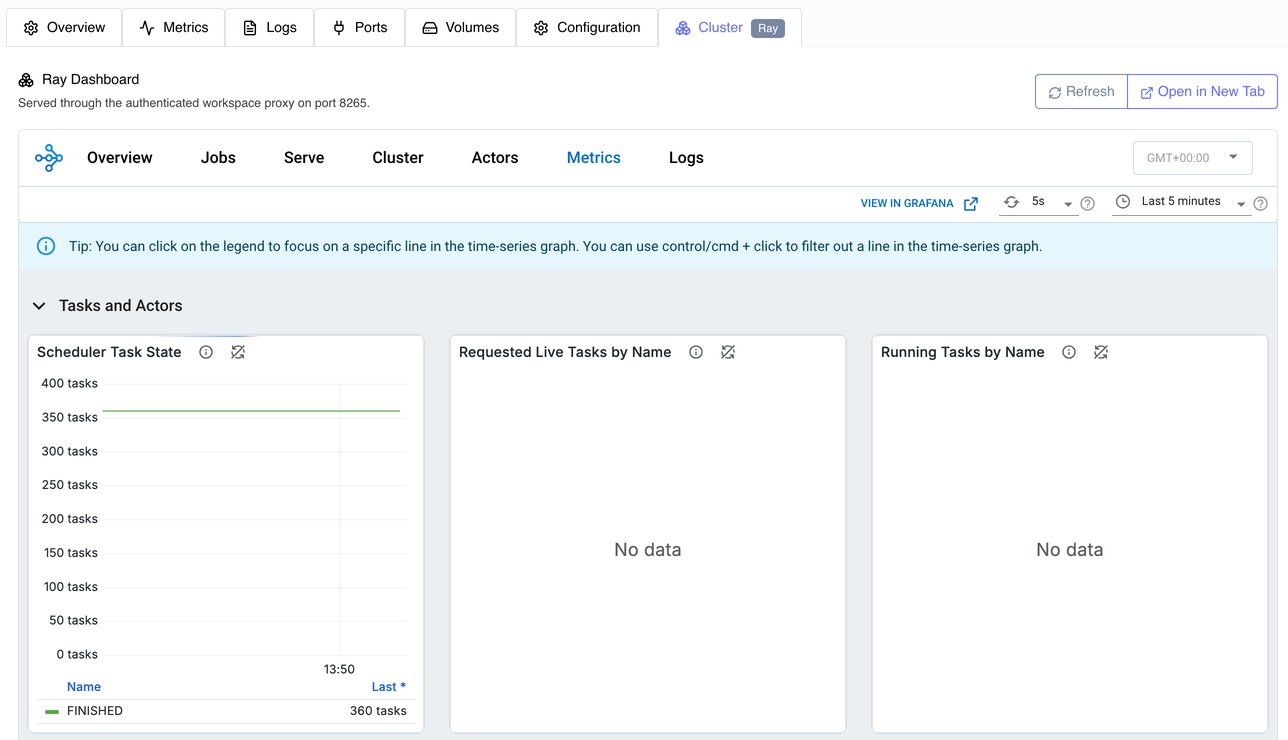
The charts take a few seconds to load the first time you open the Metrics view.
Your files on the cluster
The coordinator and every worker see your workspace's files at the same paths as your notebook, so a task opens a file by the path you already use:
| Path | On the cluster |
|---|---|
/workspace | Your workspace's own /workspace, read and write. A file your notebook writes there is there for every task, and what a task writes there shows up in your notebook. |
/volumes/local/<volume name>/code and /data | Your project's volume, read only, at its latest data |
/volumes/shared/<name>/code and /data | The shared volumes you can mount, read only, at their latest data |
Have tasks write their results under /workspace. A task cannot write to a volume (it gets a read-only file system error): to keep a result in a volume, copy it from /workspace into the volume's data folder in your notebook and sync.
A workspace with a cluster keeps /workspace on shared storage that grows as you use it, so its create form has no /workspace size to set. Each cluster machine also runs a small service for each volume it reads; that share comes out of the size you set for the machine.
Lifecycle and cost
A cluster is tied to the workspace it's attached to:
- Provisioned when the workspace is created and deployed.
- Removed when you stop the workspace, so an idle workspace never pays for cluster machines.
- Recreated when you start the workspace again, with the same sizing.
- Deleted with the workspace. Deleting the workspace removes the cluster and its workers; you don't clean anything up separately.
Because the cluster is removed on stop, the cheapest pattern is to stop the workspace when you're done. Turn on autoscale so the worker pool grows only while there's work and shrinks when idle, and prefer spot instances on the workspace for interruptible, restartable jobs.
Over the API
You can attach a cluster when creating a workspace over the REST API or Python SDK by passing a cluster object (engine, coordinator, worker, workers, optional autoscale, and options). See the Workspaces API reference.