Streaming Workflows
A streaming workflow is a live pipeline. A client opens a session, and audio, text and events flow through the graph continuously until the session ends: a voice agent on a phone line, a chat assistant on a web page, a live transcription feed. Batch workflows, in contrast, take an input, run once and finish.
This page covers building a streaming workflow, giving its nodes a model, connecting named ports, testing it in the builder, deploying it, and using it from apps and workspaces.
Create a streaming workflow
- Open Workflows > Builder and click Create Workflow.
- Click the BATCH pill next to the workflow's status to switch it to STREAMING. You can switch only while the canvas is empty; once a node is on the canvas the type is locked.
- The palette now shows the streaming node set: streaming triggers (WebSocket, WebRTC, Twilio, iPhone), speech, language and voice nodes, routers, memory, tools and responses, plus the model pickers (LLM, Embeddings, Speech to Text, Text to Speech and Streaming Realtime Model) that give streaming nodes their models.
- Click the workflow name to rename it, then drag nodes onto the canvas.
Every streaming workflow needs exactly one trigger (where a session's data comes in) and at least one response (where the workflow's output goes back to the caller), for example WebSocket Trigger and WebSocket Response.
Give a node a model
Nodes that call a model, such as Streaming LLM, Speech to Text (streaming), Text to Speech (streaming), Turn Detection, Translation, Intent Classifier and the LLM judges, have no model setting of their own. They show an AI connector on their bottom edge, and they take their model from a picker node connected to it:
-
Drag the matching picker onto the canvas:
Node needs Picker A chat or language model (Streaming LLM, Turn Detection, Translation, Intent Classifier, Conversation Summarizer, Audio Emotions, Script, LLM judge) LLM A transcription model (streaming Speech to Text, Speaker Diarization) Speech to Text A voice model (streaming Text to Speech) Text to Speech An embedding model (streaming Embed) Embeddings A realtime audio model (Streaming Realtime Agent) Streaming Realtime Model -
Draw a connection from the picker's output handle to the node's AI connector.
-
Open the picker (hover it and click the pencil) and choose the model in AI Model. Only models of the right kind are listed.
Each connector takes one picker. Give each node its own picker so each can use a different model. Turn Detection's connector is optional: without a model it ends a turn at each final transcript, with a model it decides turn ends semantically.
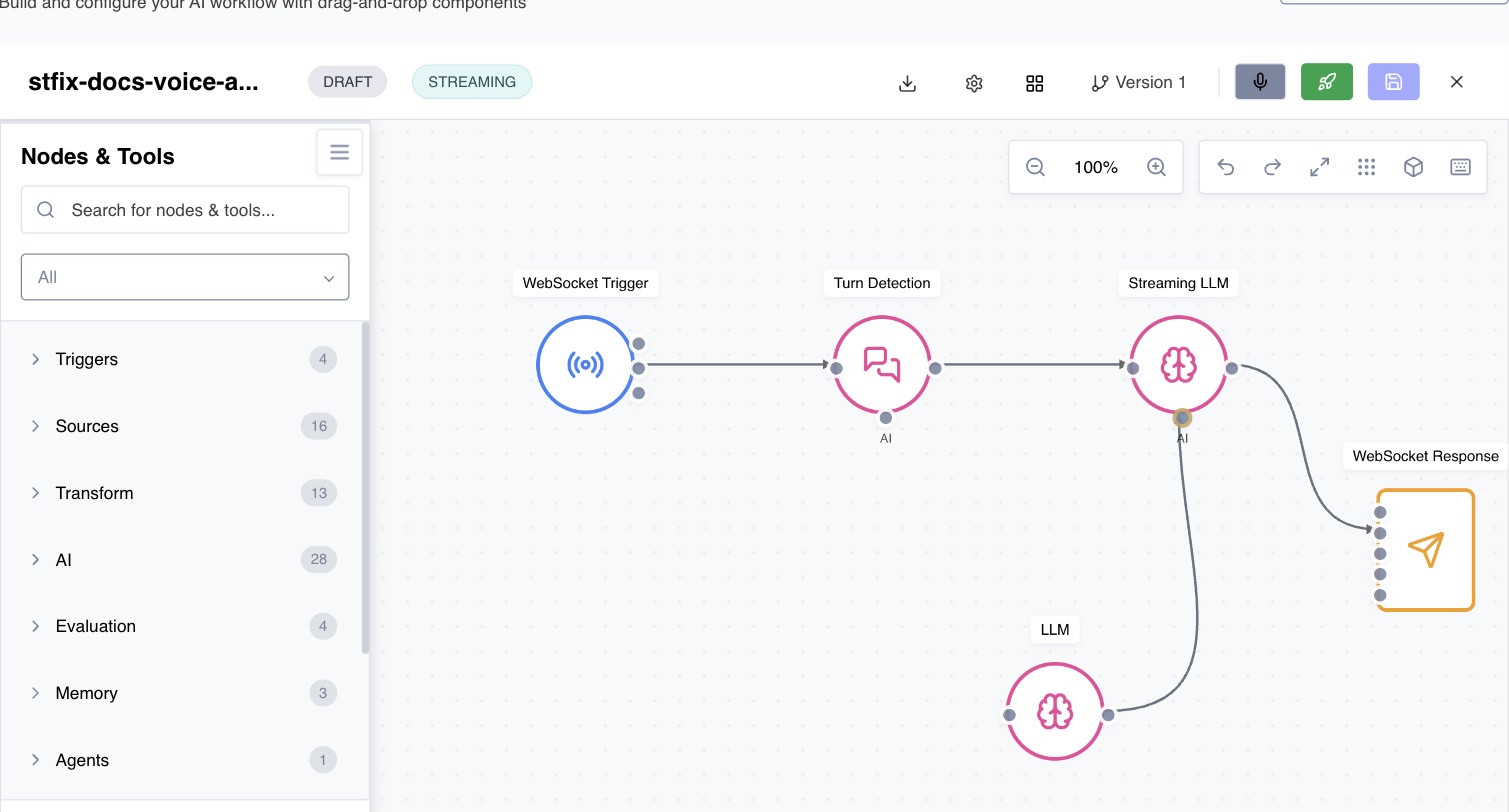
The builder refuses a connection from a node that is not a model picker to an AI connector, and a second picker on a connector that already has one.
Connect named ports
Streaming nodes have named ports instead of one generic input and output. Each port carries specific kinds of frames: a WebSocket Trigger has audio_out, text_out and control_out; a Streaming LLM has request_in and response_out; a WebSocket Response has media_in, text_in, events_in, interrupts_in and turn_end_in. Each port is a separate handle on the node. Hover a handle to see its name.
Draw a connection from an output handle to an input handle. The builder checks that the two ports share a frame type and refuses the connection otherwise (for example, raw text cannot go straight into a Streaming LLM's request_in, which takes a request or a turn end), naming the reason.
A typical text chat agent is:
WebSocket Trigger.text_out → Turn Detection.text_in, Turn Detection.turn_out → Streaming LLM.request_in, Streaming LLM.response_out → WebSocket Response.text_in, with an LLM picker on the Streaming LLM's AI connector.
A voice agent adds speech at each end: the trigger's audio_out goes through Voice Activity Detection and streaming Speech to Text into Turn Detection, and the LLM's response goes through streaming Text to Speech into the response's media_in.
The Ports tab
Open a node and select the Ports tab to see its contract and what is wired to it:
- Connectors lists the node's bottom connectors (AI, Memory, Tools), whether each is required, and the node connected to it.
- Inputs and Outputs list each named port, the frame types it accepts or emits, its description, and each connection with the port at both ends. Change either end of a connection here; the connection is marked bound once both ends are declared ports.
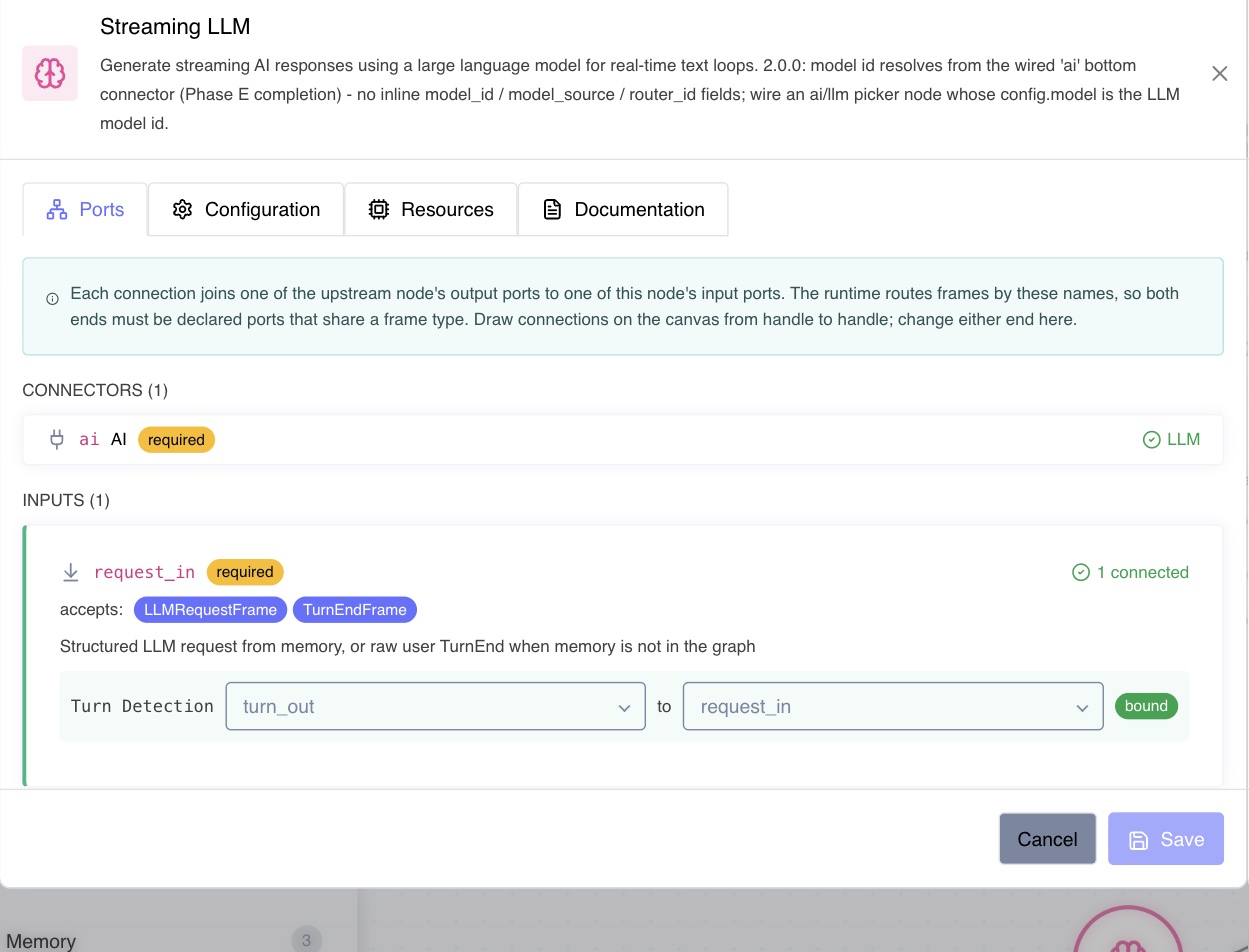
A stored connection whose port a node does not declare (for example one saved before the node's ports changed) is drawn red on the canvas and named. Saving is still allowed; fix the connection in the Ports tab or redraw it.
Routers
Routing nodes send each frame to one of several outputs: Conditional, Switch, LLM Router, Confidence Router and Language Router. Their output ports are the names you give in their configuration (each condition's, case's, rule's or threshold's port, or each language's port), plus a default port for anything no rule takes. Configure the router first; its named ports then appear as handles you can connect.
Test in the builder (Run)
Save the workflow, then click Run (the microphone button) in the builder toolbar:
- The live test panel opens on the right. Click Start Test Session.
- Speak (after allowing the microphone) or type a message. The transcript streams into the panel as the workflow answers.
- Click a node on the canvas during or after the session to see that session's spans for it.
- End the session from the panel when you are done.
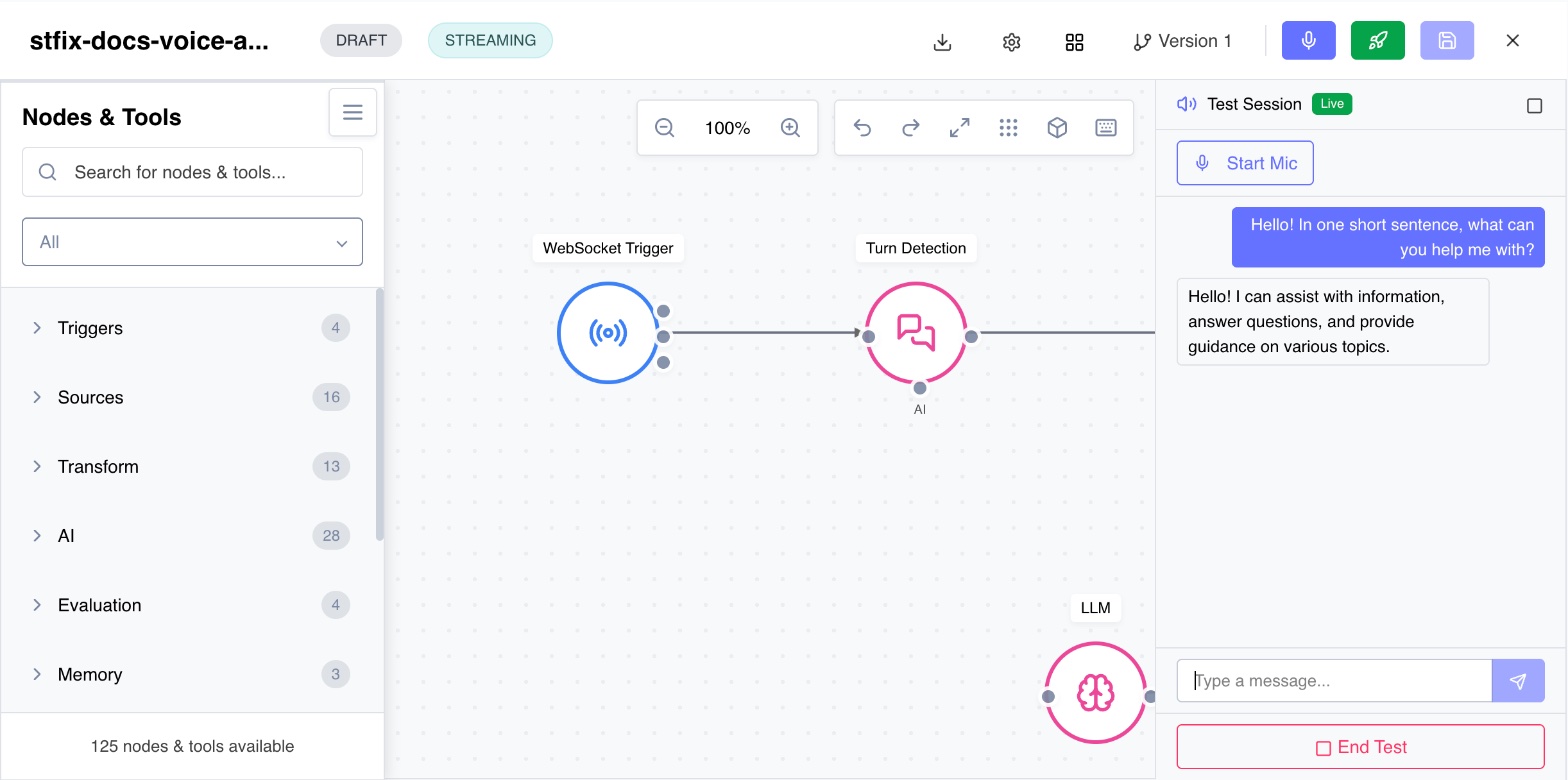
Run always tests what you last saved, on a test worker of your own that starts when you open the builder and stops after you leave it. Save after each change before you run again. A builder test is not a production session and does not use or affect a deployment, even when the workflow is deployed.
Deploy
Click Deploy in the builder toolbar. The builder checks the graph first: one trigger, at least one response, every required input and connector wired, and every connection between declared ports that share a frame type. Problems are listed and block the deploy.
The deploy dialog for a streaming workflow has these settings:
Sessions
| Setting | What it does | Default |
|---|---|---|
| Idle timeout (seconds) | A session with no activity this long is ended (60 to 86400) | 300 |
| Maximum session length (seconds) | A session is ended when it reaches this length (300 to 604800) | 3600 |
| Maximum concurrent sessions | A new session beyond this many is refused; empty means no limit (1 to 10000) | No limit |
Scaling
With Scale out with demand off (the default), the workflow runs on one worker, started by the first session and stopped after the cooldown once the last session ends.
With it on, the workflow runs between a minimum and a maximum number of workers, one worker per the set number of sessions:
| Setting | Range |
|---|---|
| Minimum pods | 0 to 20 (default 0). With 0, every worker stops when there are no sessions, and the next session starts one (it waits for the worker to become ready) |
| Maximum pods | 1 to 50, at least the minimum (default 10) |
| Sessions per pod | 1 to 100 (default 10) |
| Scale-down cooldown (seconds) | 60 to 900 (default 300) |
Pod Resources (CPU, memory, disk and GPUs) size each worker. The dialog starts at 0.5 vCPU, 1 GB of memory and 5 GB of disk.
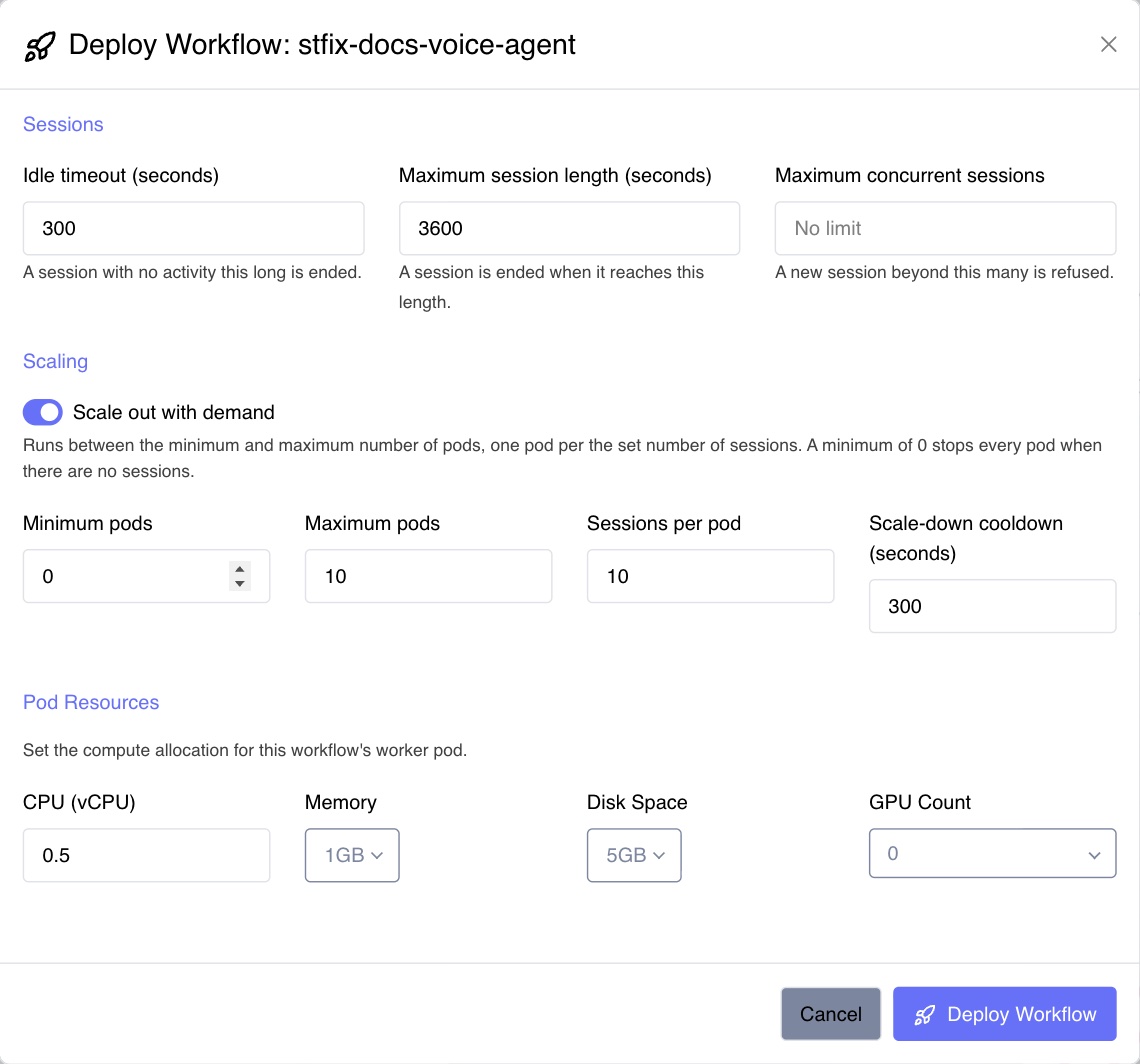
Streaming workflows have no Environment choice: they run on the platform's streaming worker.
A deploy creates a version snapshot of the workflow; sessions run that version until you deploy again. Each deploy keeps the settings you chose, and the dialog opens with them next time. Undeploy ends the deployment and returns the workflow to draft.
Sessions
Each conversation or connection is one session. A session moves through these states: pending, scheduling (waiting for a worker), ready, connecting, active and draining, and ends as ended, failed (the reason is recorded) or orphaned (its worker went away).
A session ends when the caller hangs up or disconnects, when it is idle for the idle timeout, when it reaches the maximum session length, or when you end it. Each session is an execution in Workflows > Monitor. Open it to see the session's status and timing, Node Activity (each node's spans), the Transcript and, when recording is on, the Recording. Errors and handoffs between agents are kept with the session as well and are available through the API.
Production sessions on a deployed workflow are billed to the workflow's owner, the person who deployed it. Builder test sessions are billed to the person running them.
Draft and production sessions
A session is either a draft or a production session.
- Draft: runs the workflow as you last saved it, on your own test worker. Builder runs are drafts, and the API can start one too. Drafts do not use the deployment and are billed to the person who started them as development usage.
- Production: runs the deployed version on the deployment's workers, within its session settings (maximum sessions at once, idle timeout, maximum length). Production sessions are billed to the person who deployed the workflow.
When you start a session through the API and do not choose, a deployed workflow's session is production and an undeployed workflow's is a draft. Apps and workspaces always start production sessions.
Use a streaming workflow as an agent
A deployed streaming workflow is an agent that apps and workspaces can talk to.
- Apps: when you deploy an app, select the streaming workflow under Agents. The app finds it in its service configuration with the address to start sessions. See Using Platform Services.
- Workspaces: a project workspace lists the agents you can use in the same way. See Workspaces.
To talk to it, the app or workspace starts a session for the workflow, then connects to the WebSocket address the session returns and exchanges frames over it. A caller inside the platform gets an internal WebSocket address it can reach directly, plus a public address to hand to a browser or phone carrier. The session runs as the workflow's production deployment.
From outside the platform, use the Streaming Workflows API or the Python SDK with an API key.
Marketplace templates
The Marketplace has ready-made streaming workflows (voice agents, moderation, alerting on live data). Installing one creates a streaming workflow with its nodes laid out and wired, which you can open in the builder, give models through its pickers, and deploy. A template can come with session settings (idle timeout, maximum session length, maximum sessions at once); they fill the deploy dialog the first time you deploy, and you can change them there.