User Management
Manage users, roles, organizations, and security with multi-factor authentication, account locking, session management, and SOC 2 compliant password policies.
Understanding User Roles
The platform defines three roles. Every user has exactly one, assigned by administrators, and the role determines which menu items and features the user can access.
| Role | Access Level | Best For |
|---|---|---|
| Admin | Full platform access plus the Admin section (Users, FinOps, Compute) | Platform administrators, IT managers |
| Developer | All platform features except the Admin section | Software engineers, data scientists, ML engineers |
| App | A locked, simplified experience: My Apps -- the applications shared with them (default for new users) | Business users, stakeholders |
In addition, admins can grant reviewer privileges to a user, which adds the Governance review pages (Solutions, Policies, Reviews) to their menu. The User Management page shows Admins, Developers, Reviewers, and App Users counts at the top.
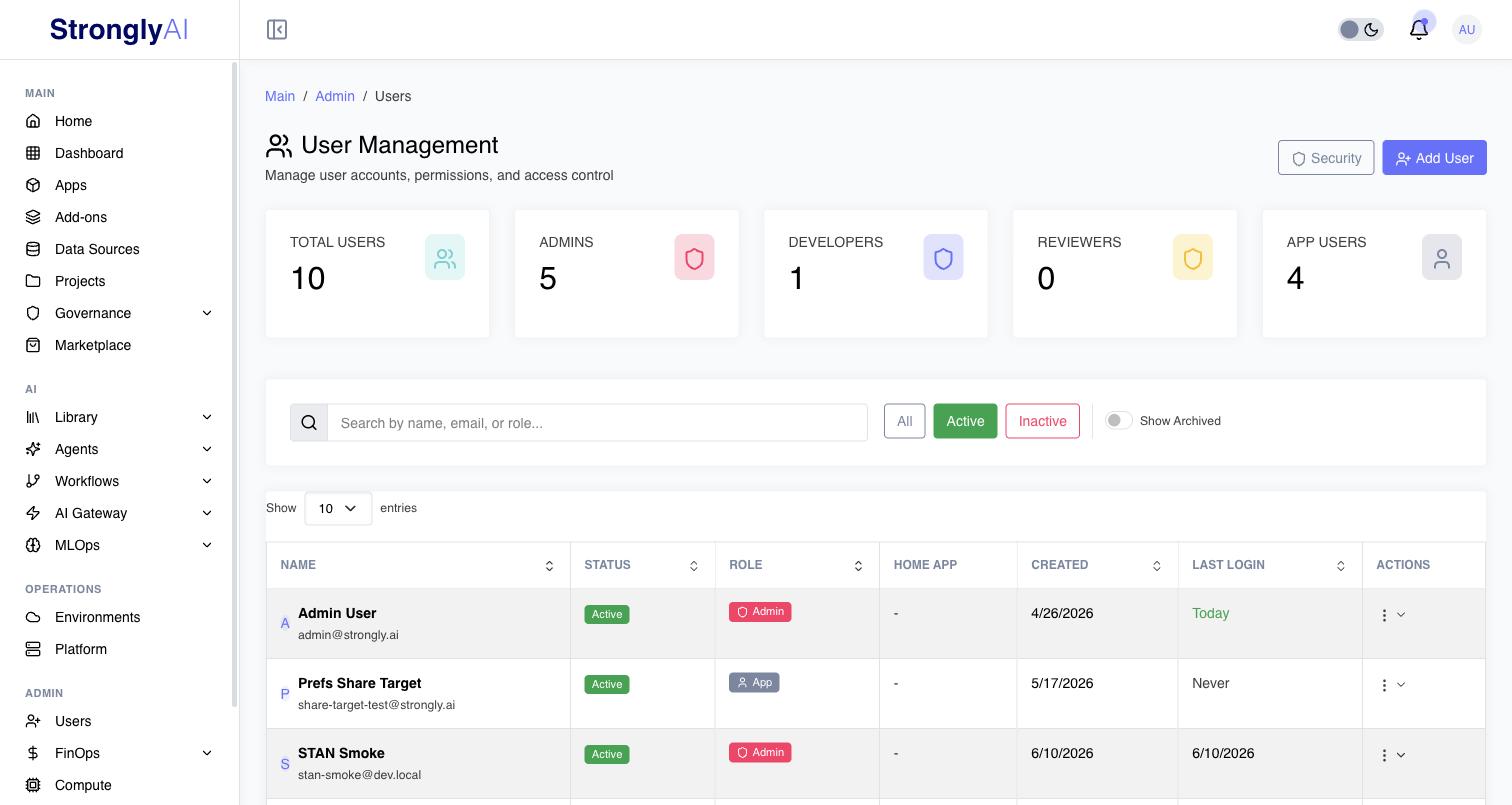
For detailed role permissions, see Roles.
How to Create Users (Admin Only)
Step 1: Navigate to User Management
- Click Users in the ADMIN section of the sidebar
- Click the Add User button
Step 2: Enter User Information
Required Information:
- Email Address: User's email for login and notifications
- Full Name: Display name shown throughout the UI
Optional:
- Send Welcome Email: When enabled and MAIL_URL is configured, sends an email with a password reset link that expires in 24 hours
Step 3: What Happens After Creation
- A temporary password is generated automatically
- The user is assigned the default app role
- A Default Platform API key (
sk-prod-...) is created with wildcard scopes for REST API access and workspace injection - If email sending is enabled, the user receives a welcome email with a link to set their password
- If email sending is disabled, the temporary password is returned to the admin
- Platform admins are notified about the new user registration
Self-Registration
In SaaS mode (multi-tenant), users can register themselves:
- With invitation: A user receives an invitation token via email, registers with a matching email address, and joins the inviting organization
- With new organization: A user registers and creates their own organization in one step, becoming the organization owner
- Via Google OAuth: In SaaS mode, Google SSO users are auto-activated and a solo organization is created for them
In single-tenant mode, self-registered users have active: false and require admin approval before they can log in.
Multi-Factor Authentication (MFA)
The platform supports two MFA methods with backup codes for account recovery.
Supported MFA Methods
| Method | How It Works |
|---|---|
| Authenticator App | Uses TOTP (Time-based One-Time Password) with apps like Google Authenticator, Authy, or 1Password. A QR code is generated during setup containing the secret key. |
| Email Verification | A 6-digit code is sent to the user's registered email address. Codes expire after 10 minutes. |
Setting Up MFA (Individual Users)
- Navigate to your profile MFA settings
- Choose Authenticator App or Email method
- For authenticator: scan the QR code with your authenticator app, then enter the 6-digit code to verify
- For email: request a verification code, check your email, enter the code
- On successful verification, 10 backup codes are generated
- Save the backup codes securely -- this is the only time they are displayed
Backup Codes
- 10 single-use backup codes are generated during MFA setup
- Each code is an 8-character uppercase alphanumeric string
- Codes are securely hashed before storage (plain text codes are never stored)
- Each backup code can only be used once; after use it is consumed and removed
- The system tracks how many backup codes have been used
MFA Login Flow
When MFA is enabled for a user, the login process works as follows:
- User enters email and password
- Server validates credentials but rejects the login with
mfa-requirederror - Client displays the MFA verification modal
- User enters their TOTP code, email code, or backup code
- The verification method sets a one-time
mfaSessionVerifiedtimestamp on the user document - Client retries login with the same credentials
- Server sees the verified timestamp (valid for 60 seconds) and allows the login
- The verification timestamp is cleared immediately after use
Enforcing MFA for All Users (Admin Only)
- Navigate to MFA Settings in the ADMIN section of the sidebar
- Toggle MFA Enabled to allow MFA platform-wide
- Toggle MFA Enforced to require all users to set up MFA
- Set a grace period in days (default: 7 days) -- users have this many days after enforcement begins to set up MFA
- Choose which methods to allow: Authenticator App, Email, or both
- When enforcement is active, users without MFA are redirected to the MFA setup page after login (enforced by the MFA Enforcement Guard component)
Users cannot disable MFA while enforcement is active.
MFA Rate Limiting
All MFA verification endpoints are rate-limited to prevent brute force attacks:
- 5 attempts per email per operation within a 5-minute window
- After exceeding the limit, the user is blocked for 15 minutes
- Rate limits are tracked per operation type (TOTP verification, email code verification, backup code verification)
Session Management (SOC 2 Compliant)
Concurrent Session Limiting
- Maximum 5 concurrent sessions per user
- When a new session is created and the limit is reached, the oldest session is automatically revoked
- Each session tracks: IP address, user agent, device info (browser + OS), creation time, and last activity time
Session Operations
Users can manage their sessions:
- List sessions: View all active sessions with device information, with the current session marked
- Revoke session: Terminate a specific session by removing its login token
- Revoke all sessions: Terminate all sessions except the current one (or all including current)
- Session heartbeat: Client periodically sends heartbeat to update last activity timestamp
Server-Side Idle Timeout
- Sessions idle for more than 60 minutes are automatically terminated
- The server checks for idle sessions every 5 minutes
- Expired sessions are removed and a security event is logged
- On the login page, users see a message: "You have been logged out due to 60 minutes of inactivity"
Session Cleanup
- Sessions are automatically cleaned up on logout
- All session events are logged to the audit system
Account Locking (Brute Force Protection)
Account locking provides automated protection against credential stuffing and brute force attacks.
How It Works
| Setting | Value |
|---|---|
| Failed attempts before lock | 5 |
| Attempt tracking window | 15 minutes |
| Initial lockout duration | 30 minutes |
| Progressive lockout | Enabled -- lockout duration doubles with each successive lock within 24 hours |
| Maximum lockout duration | 24 hours |
Lockout Behavior
- Failed login attempts are recorded with email, IP address, reason, and user agent
- When 5 failed attempts occur within 15 minutes, the account is locked
- Locked accounts receive an error message: "Account is locked due to too many failed login attempts. Please try again in X minutes or contact support."
- On successful login, all failed attempt records for that email are cleared
- IP addresses from failed attempts are collected and stored with the lock record
Admin Account Management
Admins can manage locked accounts:
- Check lock status: View whether an account is currently locked and when it will unlock
- Unlock account: Manually unlock an account with an optional reason
- View lock history: See the last 10 lock events for any email address, including IP addresses involved
Password Policy (SOC 2 Compliant)
Requirements
All passwords must meet these criteria:
- Minimum 8 characters
- At least one uppercase letter
- At least one lowercase letter
- At least one number
- At least one special character
- Not on the common passwords blocklist (includes "password", "admin", "qwerty", platform-specific terms like "strongly", etc.)
Password History
- The system stores hashes of the last 5 passwords per user
- Users cannot reuse any of their last 5 passwords
- Passwords are securely hashed before storage
Password Expiration
- Passwords expire after 90 days
- On login, if the password is expired, the
passwordExpiredflag is set on the user document - The UI prompts the user to change their expired password
- After changing the password, the expired flag is cleared
API Key Management
REST API Keys
Every user has API keys for programmatic access to the platform and workspace deployments. Keys follow the sk-prod-... format and authenticate via the X-API-Key header.
- Default Platform Key: Automatically created when a user account is created (with
*wildcard scopes). This key is injected into workspaces as theSTRONGLY_API_KEYenvironment variable. - Custom keys: Users can create additional scoped keys via Profile > Security > API Keys or the REST API.
- Rotate: Keys can be rotated (old key revoked, new key with same permissions). Rotating the Default Platform Key automatically updates the user profile.
- Revoke: Custom keys can be revoked permanently. The Default Platform Key cannot be revoked -- use rotate instead.
- Workspace use: Workspaces receive the user's Default Platform Key as
STRONGLY_API_KEY. After rotating, restart running workspaces to pick up the new key.
HuggingFace Token
Users can store a HuggingFace API token for model search and fine-tuning:
- Tokens are encrypted before storage
- Users can set, update, check, and retrieve their token
- The token is used to search HuggingFace models directly from the platform
GitHub SSH Keys
Users can manage SSH keys for Git repository access:
- Generate: Create Ed25519 SSH key pairs directly in the platform
- Import: Add existing SSH key pairs (public + private key)
- Test: Test GitHub connectivity with a stored SSH key
- Private keys are encrypted before storage
- Keys include label, public key, cryptographic fingerprint, and usage tracking
User Profile Management
Self-Service Profile Updates
Users can update their own profile:
- Name: Update display name
- Photo: Upload or set profile photo (base64 or URL)
Admin User Management
Admins can perform these actions on user accounts:
| Action | Description |
|---|---|
| Update profile | Change name, email, active/archived status |
| Toggle admin role | Grant or revoke admin role (cannot modify own admin status) |
| Toggle developer role | Grant or revoke developer role |
| Archive user | Opens the asset-aware archive modal. Admin reviews owned resources and chooses to transfer, delete, or leave them. See User Lifecycle & Offboarding |
| Unarchive user | Reactivates the user and removes the archived flag. Transferred or deleted resources are not restored |
| Reset password | Generates a password reset token and sends a reset email (if MAIL_URL is configured) |
Account States
| State | Can Log In | Description |
|---|---|---|
| Active | Yes | Normal account |
| Inactive (pending approval) | No | New user in single-tenant mode awaiting admin activation |
| Archived | No | Account disabled by admin, all sessions terminated |
| Locked | No | Temporarily locked due to failed login attempts |
Security Headers (SOC 2 Compliant)
The platform applies security headers to all HTTP responses:
- X-Content-Type-Options:
nosniff-- prevents MIME sniffing - X-Frame-Options:
DENY-- prevents clickjacking - Strict-Transport-Security: 1 year with subdomains -- forces HTTPS
- Referrer-Policy:
strict-origin-when-cross-origin - Content-Security-Policy: Restricts script, style, font, image, and connection sources
Audit Logging
All security-related events are recorded in the audit log system:
- MFA login attempts (success, failure, backup code usage)
- Account lock and unlock events
- Session creation, revocation, and idle expiration
- Password changes
Audit logs are archived to S3 on a scheduled basis for long-term retention.
Enable MFA enforcement for all users, conduct quarterly access reviews, and archive accounts within 24 hours of employee departure. For enterprise deployments with Okta or Azure AD, enable Directory Sync to automate user deprovisioning. Always keep at least one admin account with password login as a fallback.