How to Connect a Data Source
This guide walks you through the process of creating and configuring a data source connection.
Step 1: Navigate to Data Sources
- Click Data Sources in the main navigation
- Click the Add Data Source button
Step 2: Select Data Source Type
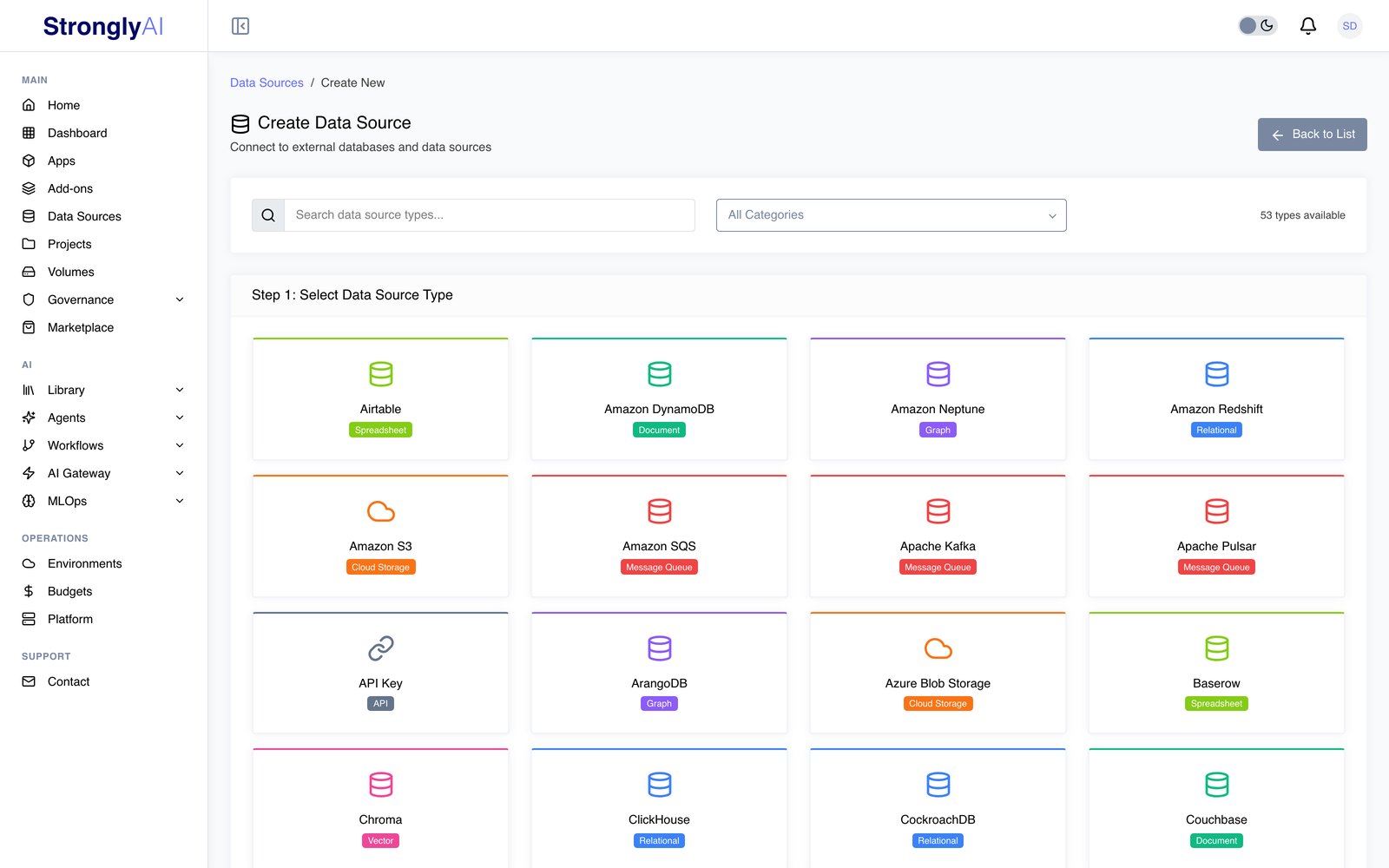
Browse the 52 supported data source types organized across 9 categories -- the picker shows them as tiles with a search box and category filter:
- Relational -- MySQL, PostgreSQL, MSSQL, Oracle, Redshift, Snowflake, BigQuery, CockroachDB, CrateDB, TimescaleDB, QuestDB, ClickHouse, SingleStore, Greenplum, Supabase (a Supabase project's PostgreSQL database)
- Document/NoSQL -- MongoDB, Elasticsearch, DynamoDB, Firestore, CouchDB, Couchbase
- Key-Value/Cache -- Redis, Memcached
- Graph -- Neo4j, Amazon Neptune, ArangoDB, TigerGraph
- Vector -- Milvus, Pinecone, Weaviate, Qdrant, Chroma, pgvector, Vespa, Marqo
- Multi-Model -- SurrealDB
- Spreadsheet -- Airtable, Google Sheets, Baserow, NocoDB, SeaTable, Grist
- Cloud Storage -- Amazon S3, Google Cloud Storage, MinIO, Azure Blob Storage
- Message Queue -- RabbitMQ, Apache Kafka, Amazon SQS, Apache Pulsar, MQTT broker
Use the category dropdown filter or search box to quickly find your data source type. Types are displayed in a paginated card grid (20 per page), sorted alphabetically.
Step 3: Configure Basic Information
After selecting a type, you are taken to the configuration form.
Required Fields
- Data source label: A unique identifier in kebab-case format (e.g.,
prod-mysql-db). This is auto-formatted as you type -- only lowercase letters, numbers, and hyphens are allowed. This value is used as both the internalnameandlabelfields. - Description: Optional free-text description of the data source's purpose (max 1000 characters).
- Tags: Optional labels for organization (e.g., production, analytics, customer-data). Type a tag and press Enter or click Add.
Use descriptive kebab-case names like prod-postgres or analytics-snowflake to easily identify your data sources. The name must match the pattern ^[a-z0-9]+(-[a-z0-9]+)*$. Names must be unique per user within their organization scope.
Step 4: Enter Connection Credentials
Credentials vary by type. The form dynamically renders the correct fields based on the selected type. See the specific configuration guides for detailed information:
- PostgreSQL Configuration
- MySQL Configuration
- MongoDB Configuration
- Snowflake Configuration
- BigQuery Configuration
- Amazon S3 Configuration
- Redis Configuration
Kafka and MQTT
A Kafka cluster or MQTT broker you run outside the platform is a data source; one the platform runs for you is an add-on (Apache Kafka, MQTT). Workflow nodes (batch and streaming) and marketplace templates take either: their Connection Type (or the install form) offers both.
- Apache Kafka: the brokers (
host:port, comma-separated), a client id, the SASL mechanism (none, PLAIN, SCRAM-SHA-256 or SCRAM-SHA-512) with its username and password, and Use SSL/TLS. - MQTT broker: the host and port (1883, or 8883 over TLS), an optional username and password, and Use TLS. With TLS you can add the broker's CA Certificate (when its certificate is not signed by a public authority) and a Client Certificate with its Client Private Key (for brokers that authenticate devices by certificate, such as AWS IoT Core and Azure IoT Hub), all as PEM text.
Step 5: Test Connection (Optional)
Before saving, you can test your connection:
- Click the Test Connection button
- The platform creates a temporary data source, tests it, then removes it
- If successful, you will see a "Connection test successful!" message
- If it fails, the error message indicates the issue (authentication, network, etc.)
Note that clicking Create Data Source also automatically tests the connection. The data source status will be set to connected if the test succeeds, or error if it fails. The data source is still saved either way.
Connection Testing by Type
The platform uses different strategies depending on the data source type:
| Test Strategy | Types | What It Does |
|---|---|---|
| PostgreSQL driver | PostgreSQL, CockroachDB, Greenplum, Supabase, TimescaleDB, CrateDB, QuestDB, Redshift, pgvector | Connects over the PostgreSQL wire protocol and runs a test query; pgvector also checks the vector extension is installed |
| MySQL driver | MySQL, SingleStore | Connects over the MySQL wire protocol and runs a test query |
| Native driver | MongoDB, Redis, Oracle, MSSQL, Snowflake, BigQuery, Neo4j, Elasticsearch, Firestore, ArangoDB, Azure Blob, GCS, RabbitMQ, Kafka | Connects with the database's own client and runs a read-only check |
| Bucket access | S3, MinIO | Lists the configured bucket (or, with no bucket, checks that the keys authenticate) |
| HTTP API | ClickHouse, Pinecone, Weaviate, Qdrant, Chroma, Milvus, Vespa, Marqo, CouchDB, Couchbase, TigerGraph, Neptune, SurrealDB, Pulsar, Airtable, Google Sheets, Baserow, NocoDB, SeaTable, Grist | Calls the service's health, status or listing endpoint with your credentials |
| AWS STS validation | DynamoDB, SQS | Validates the AWS keys with GetCallerIdentity |
| TCP reachability | Memcached | Opens the server's port (Memcached's text protocol has no sign-in) |
| MQTT sign-in | MQTT broker | Opens the broker's port (TLS when Use TLS is on, with the CA and client certificates you gave), signs in with the username and password, and reports the broker's answer. Nothing is published or subscribed |
| API key check | API Key | Calls the service the key is for |
Step 6: Save
Click Create Data Source to save. The connection is now available for use in workflows. After creation, you will be redirected to the data source details page.
Post-Creation: Permissions
After creating a data source, you can configure who can access it:
Access Control Options
- Private (default): Only you can access this data source
- Allow All Users: All users in your organization can use this connection
- Specific Users: Share with individual users by adding them to the allowed users list
Permissions are managed on the data source details page using the datasources.updatePermissions, datasources.share, and datasources.unshare methods. In multi-tenant mode, you can only share with users in your own organization.
Be careful when granting access to production data sources. Always follow your organization's security policies.
Post-Creation: Schema Discovery
After creating a data source, you can discover its schema/metadata:
- Navigate to the data source details page
- Click Refresh Metadata to fetch tables, schemas, databases, collections, or buckets
- For supported databases, you can also fetch column-level details for individual tables
Schema Discovery Support
| Support Level | Types | What It Returns |
|---|---|---|
| Full native connector | MySQL, PostgreSQL, MongoDB, Redis, S3, MinIO, Snowflake, BigQuery, Oracle, Redshift, Neo4j | Tables, schemas, databases, size, row counts |
| PostgreSQL-compatible | CockroachDB, CrateDB, TimescaleDB, Greenplum, pgvector, QuestDB | Uses PostgreSQL metadata queries |
| MySQL-compatible | SingleStore | Uses MySQL metadata queries |
| Placeholder/HTTP | Elasticsearch, DynamoDB, Firestore, and others | Returns empty metadata (not yet implemented) |
| None | API key, MQTT broker | An MQTT broker keeps no catalogue of its topics, so there is nothing to discover |
Column-Level Metadata
Column-level metadata (column names, types, nullability, keys, defaults) can be fetched for individual tables for the following types: MySQL, PostgreSQL, Oracle, Redshift, Snowflake, BigQuery, and MongoDB.
Common Connection Issues
Authentication Failures
- Verify username and password are correct
- Check if user has necessary database permissions
- Ensure IP whitelist includes the platform's IP addresses
Network Errors
- Verify hostname and port are correct
- Check firewall rules allow connections from the platform
- Ensure VPN or network connectivity is established
SSL/TLS Issues
- Enable SSL/TLS if required by your database
- Verify certificate validity
- Check if self-signed certificates need special configuration
Next Steps
- Learn how to use data sources in workflows
- Explore specific database configurations
- Set up workflows that use your data sources