Projects & Workspaces
A project is where a piece of work lives. It holds the project's code and data, the workspaces people develop in, the jobs that run on a schedule or on demand, a board for tracking tasks, and the people who work on it with you.
| Part | What it is |
|---|---|
| Project volume | The project's own code and data, created with the project. Every workspace and job in the project mounts it. See Volumes. |
| Workspace | A browser-based development environment (Jupyter Lab, VS Code, RStudio or your own IDE) sized to the compute you choose. See Workspaces. |
| Job | A command that runs in the project on a schedule or when you press Run Now. See Jobs. |
| Board | A task board for the project's work: cards with labels, assignees and due dates. |
| Collaborators | The people you share the project with, each as an Editor or a Viewer. |
The Projects page
Click Projects in the sidebar. The cards at the top count your projects, your workspaces (with how many are running and how many are in error) and your jobs (the same). The table lists each project with its status, its workspaces and jobs, and when it was last opened.
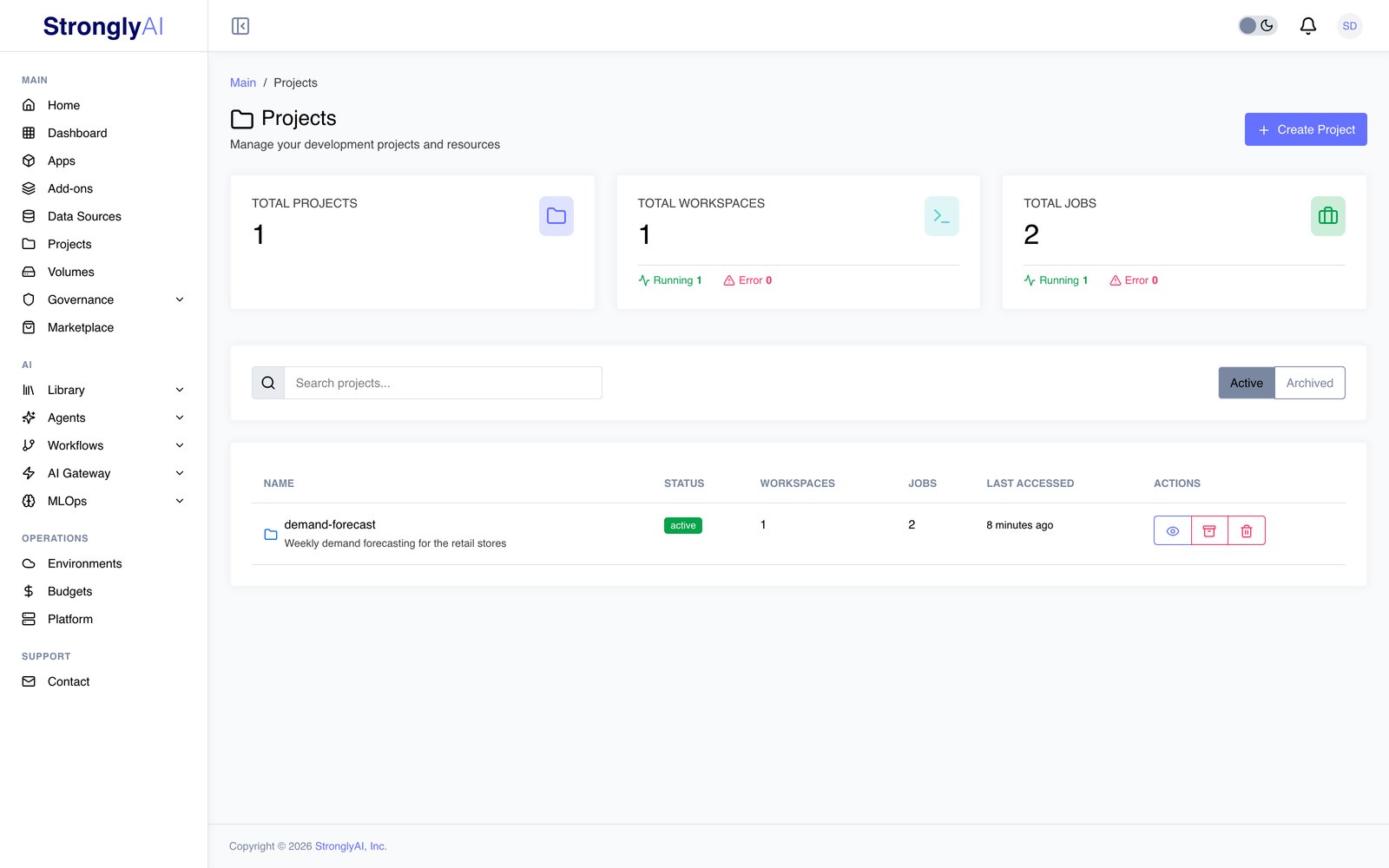
From a project's row you can open it, archive or restore it, and delete it. The Active and Archived buttons switch the table between your active and your archived projects.
Creating a project
- On the Projects page, click Create Project.
- Enter a Project Name and a Description.
- Choose where the project's code lives, its Project Filesystem:
- Strongly Filesystem: the platform hosts the project's git repository for you. Nothing to set up.
- GitHub: the project's code is an existing GitHub repository. Enter its Repository URL in SSH form (for example
git@github.com:acme/forecasting.git), the Branch to work on, and the SSH Key that may read and push to it. Add the key under Profile > Integrations first (its public and private halves); the repository's deploy key or your GitHub account must accept it, with write access. Each collaborator uses their own key; see GitHub projects. An HTTPS URL is refused with a message asking for the SSH form, and only your own keys are offered.
- Optionally add Tags to group projects (for example
forecasting, finance). - Click Create Project.
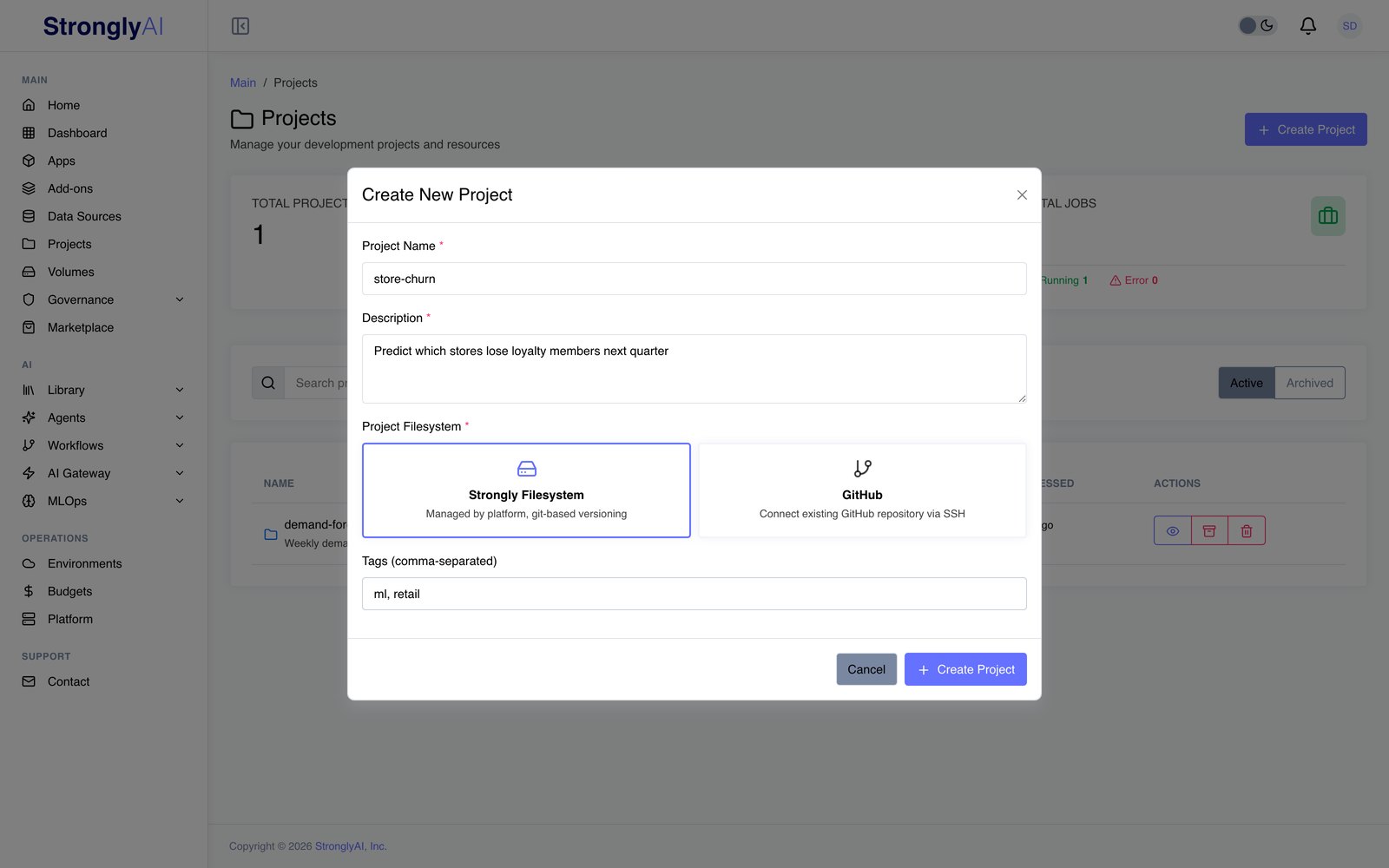
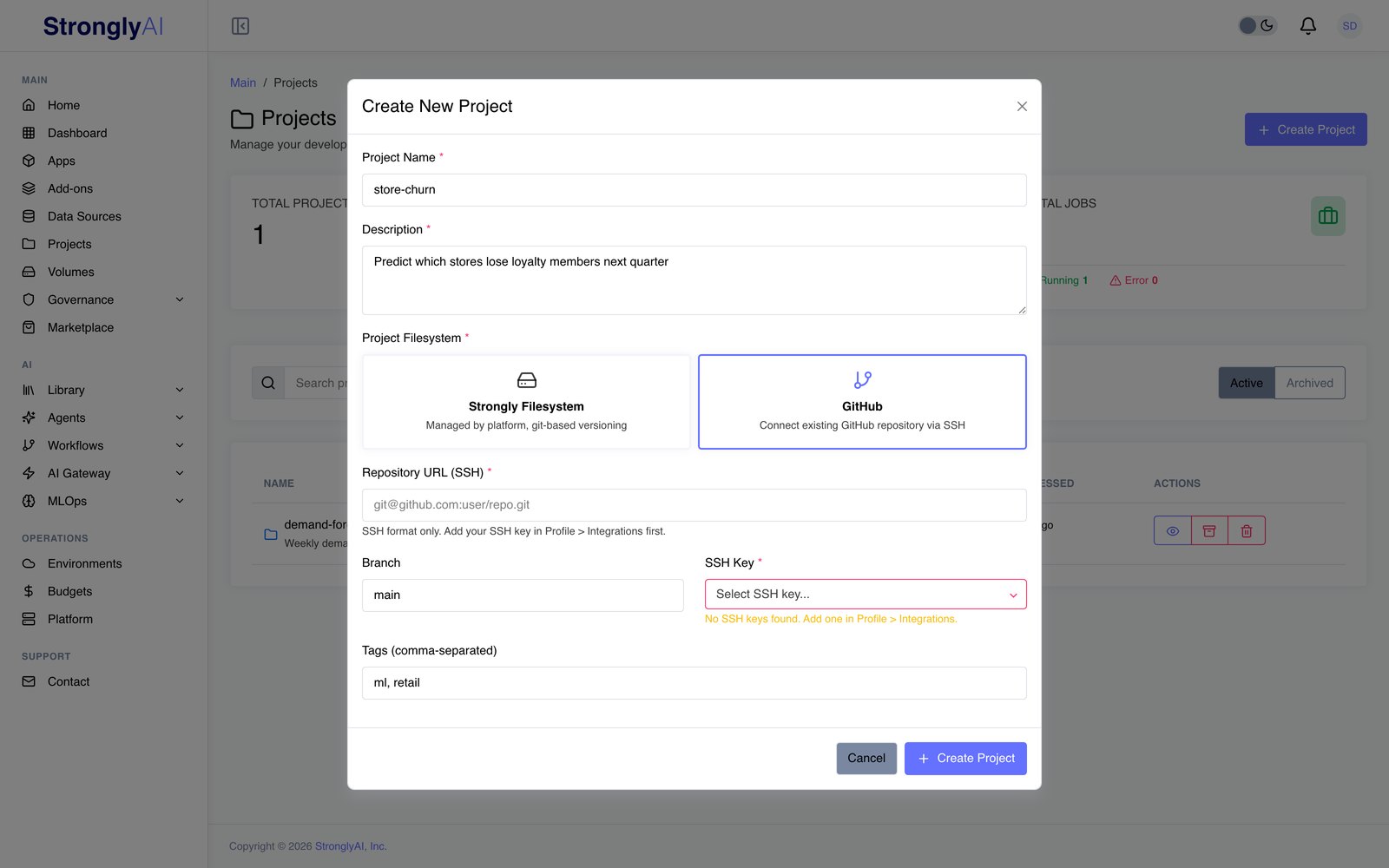
The filesystem cannot be changed after the project is created. A project's name must be unique, ignoring case, among your organization's projects and volumes.
Choosing the Strongly filesystem or GitHub
Both give you the same workspaces, jobs, data and Sync; they differ in where the code's git repository lives and who can reach it.
| Strongly filesystem | GitHub | |
|---|---|---|
| Where the code lives | A git repository the platform hosts | Your existing GitHub repository |
| Setup | None | An SSH key under Profile > Integrations, for each collaborator, with write access to the repository |
| Who can work on it | People you share the project or volume with | People you share the project with and who have their own write access on GitHub |
| Outside the platform | The code is reached through the platform | Your usual GitHub workflow: pull requests, reviews, CI, other tools all see the commits |
| Deploying an app | Volume source: build straight from the synced code | GitHub Repo source: build from the repository and branch |
Choose the Strongly filesystem for new work that lives on the platform, and for teams that do not use GitHub: nothing to set up, and sharing is done on the platform. Choose GitHub when the code already lives there or must stay there (your organization reviews and ships from GitHub, or it is shared with people and systems outside the platform).
Creating a project also creates:
- The project volume, holding the project's code (a git repository, from GitHub or hosted by the platform) and its data. In every workspace of the project it mounts at
/volumes/local/<name>/codeand/volumes/local/<name>/data, where<name>is the project's name at creation: renaming the project later does not move it, and the project's Volumes tab always shows the exact path. - A README, shown on the project's Overview tab and edited under Settings > README.md, saying where the volume mounts.
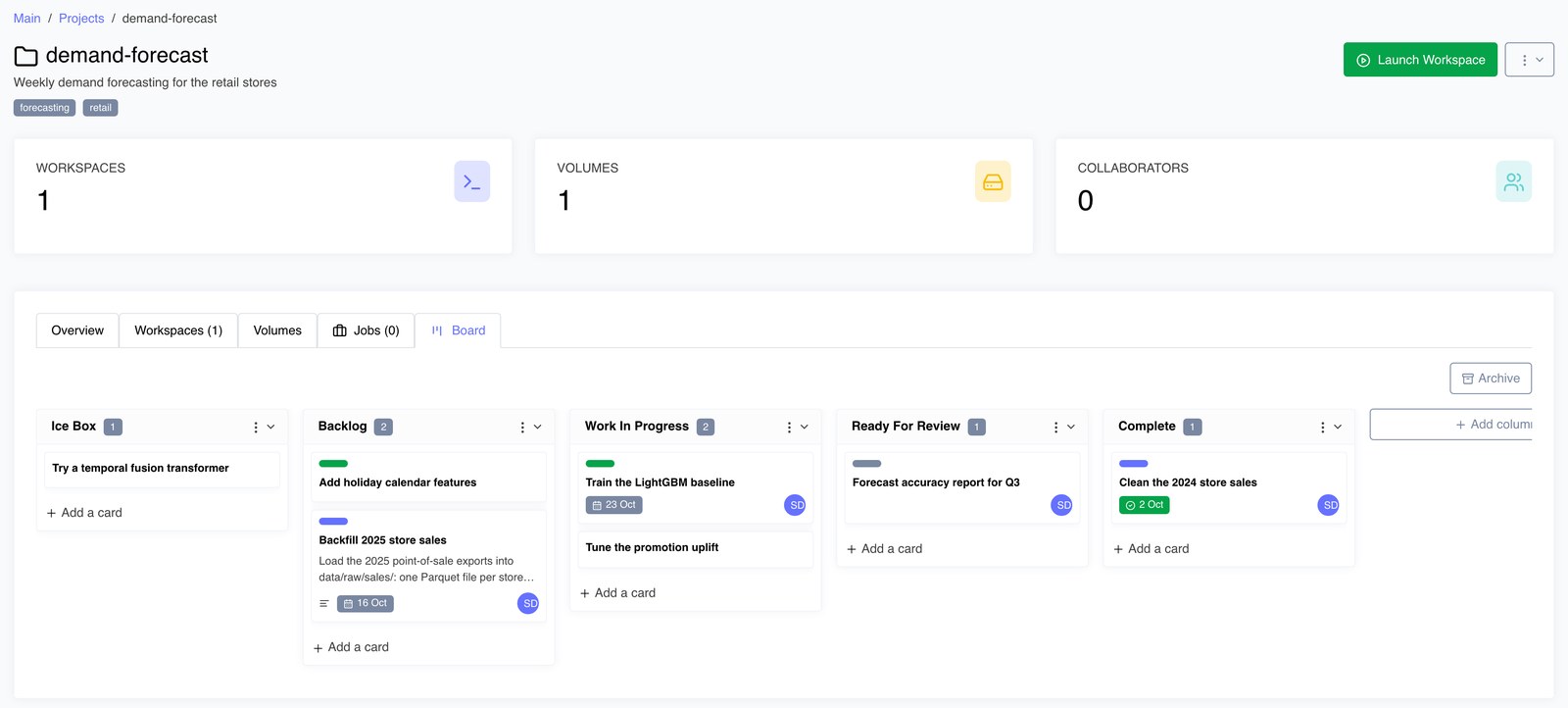
- The project board, with the columns Ice Box, Backlog, Work In Progress, Ready For Review and Complete.
Inside a project
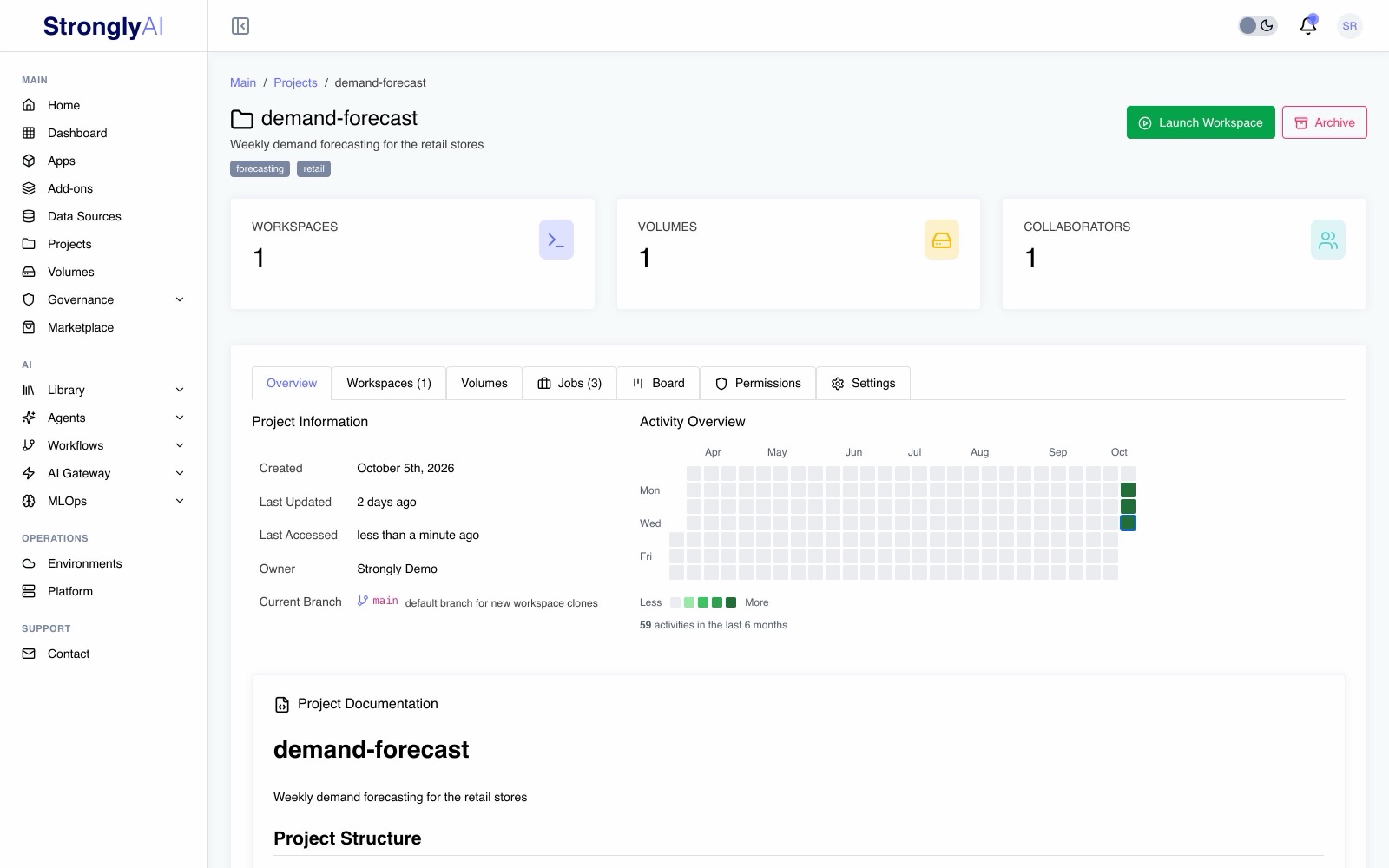
Open a project from the Projects page. Under its name and tags, three cards count its Workspaces (yours, or every one if you own the project), its Volumes (the project volume; shared volumes are chosen per workspace and job), and its Collaborators. Its tabs:
| Tab | What you do there |
|---|---|
| Overview | See when the project was created, last updated and last opened, its owner, the branch its code is on, its recent activity, and its README. |
| Workspaces | See the project's workspaces you can reach, launch a new one, and open, start, stop or delete them. |
| Volumes | See the project volume, which every workspace and job in the project mounts. Shared volumes are not listed here: they are chosen for each workspace (on the Volumes tab when you launch it) and each job (on its form), and mount at /volumes/shared/<name>. |
| Jobs | See the project's jobs with their last run, and create, run and manage jobs. |
| Board | Track the project's tasks. |
| Permissions | (Editors and the owner.) Collaborators and their roles, the project's visibility, and reassigning the project to a new owner. |
| Settings | (Editors and the owner.) General: the project's name, description and tags; Save applies them. README.md: the project's documentation in Markdown; Save README applies it and the Overview tab shows it. File System: the filesystem type (set when the project is created), and for GitHub the repository and branch. |
Archive, at the top right of the page beside Launch Workspace, archives the project (see Archiving, restoring and deleting).
GitHub projects
In a GitHub project, /volumes/local/<name>/code in a workspace is a clone of the repository on the project's branch. You work on it like any git working tree. Sync on the workspace commits your changes and pushes them to GitHub. You can also use git yourself, in the terminal or your IDE's git panel: git pull brings down changes others pushed to GitHub, and git push sends your commits to it.
Everyone works on GitHub as themselves. The project's owner connects the repository when creating the project; after that, each person's workspaces and jobs reach GitHub with that person's own access, and every commit they push reaches GitHub as them. To use a GitHub project, add an SSH key under Profile > Integrations that GitHub accepts for the repository, with write access.
Each time a workspace starts (and each time a job runs), the platform checks that its owner may write to the repository. If they may not, it does not start, and says so: ask the repository's owner for access, or add a key GitHub accepts. Your keys are never placed in your workspace, so nothing in it can read them. If GitHub refuses a push (someone pushed to the branch since you last pulled, or the branch is protected), git shows GitHub's reason: pull, then push again.
If the clone fails (the key was removed from GitHub, or the branch no longer exists), the workspace's Logs tab says why. Fix the key or branch and start the workspace again.
The project board
The Board tab is a task board for the project. A new board has the columns Ice Box, Backlog, Work In Progress, Ready For Review and Complete.
-
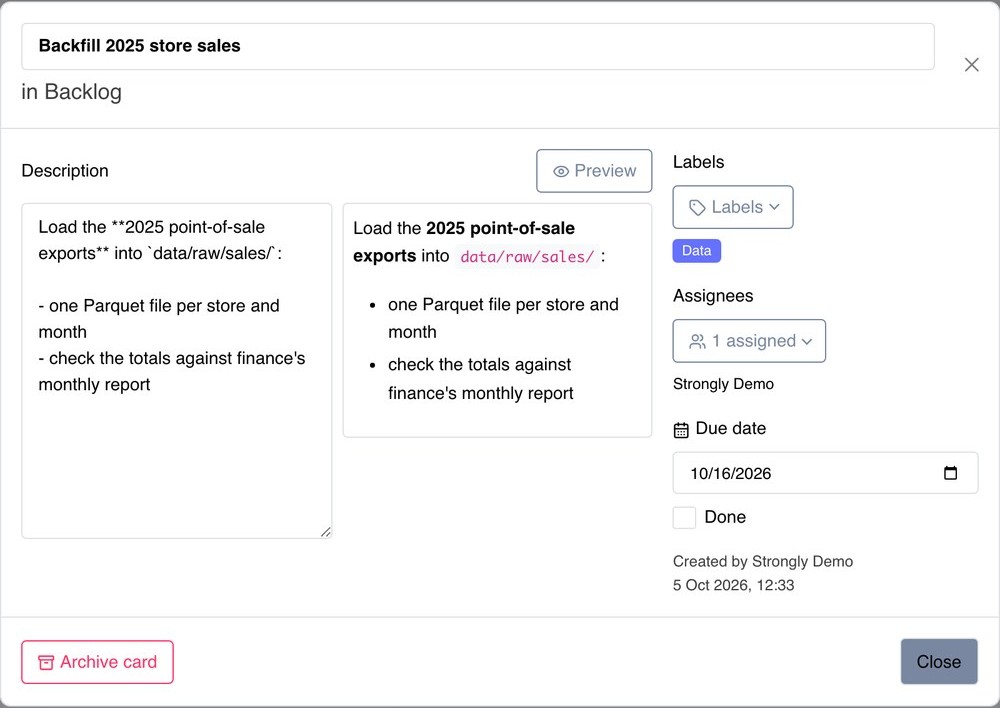
Cards: click Add a card under a column, type a title, and press Enter or Add card. Open a card to give it a description (Markdown, with a Preview), labels, assignees from the project's members, and a due date. Done can be ticked once a card has a due date; the date then shows green. The title, description and due date save shortly after you stop typing; labels, assignees and Done save as you choose them.
-
Working together: the board updates live for everyone on the project: cards, columns and labels others add, move or change appear without a refresh, including in a card you have open. A field you are editing is never overwritten by someone else's change; if two people change the same field, the one saved last stays. The Archive list is read when you open it, so reopen it to see cards archived since.
-
Moving cards: drag a card to another place or column. With the keyboard, focus a card, press Space to pick it up, move it with the arrow keys, and press Space again to drop it.
-
Columns: Add column above the board, beside Archive; a column's menu renames or removes it. Removing a column archives its cards (the confirmation says how many); nothing is deleted.
-
Labels: the card's Labels menu ticks labels on and off, creates a label with a name and a colour, and removes a label from the board (after a confirmation, which also takes it off every card carrying it).
-
Archive: Archive card on a card, or removing its column, moves it to the board's Archive, which lists each archived card with the column it came from, who archived it and when. Restore to puts it back in the column you choose.
Collaborators and roles
Share a project from its Permissions tab: search for a user by name or email, pick them, choose a role, and click Add Collaborator. On a multi-tenant platform you can add only members of your own organization. People who only use apps (app users) cannot be added to a project, and someone on a project cannot be made an app user until they are removed from it (see Roles).
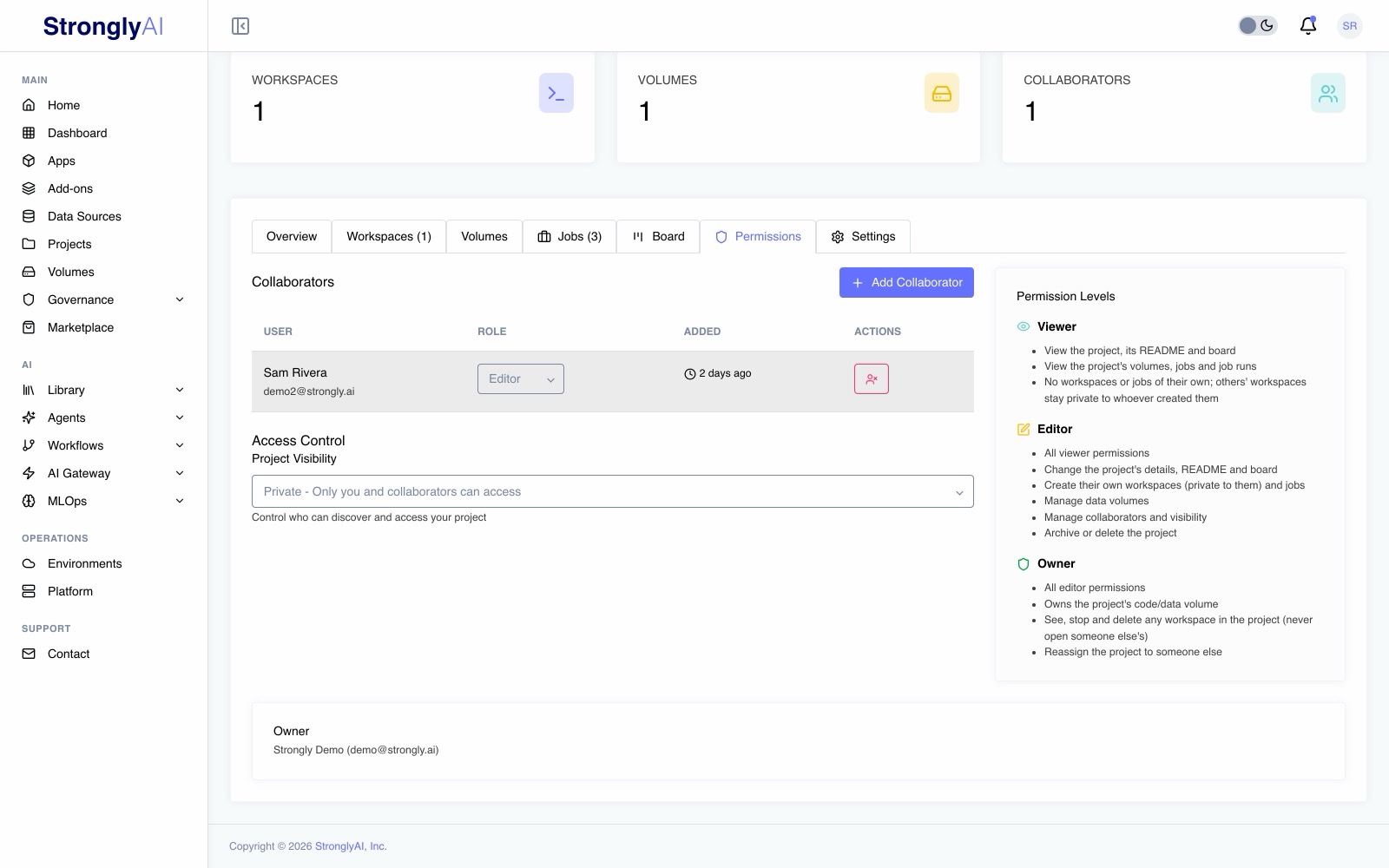
| Viewer | Editor | Owner | |
|---|---|---|---|
| See the project, its README, board, volumes, jobs and job runs | ✅ | ✅ | ✅ |
| Change the project's details, README and board | ✅ | ✅ | |
| Create their own workspaces and jobs | ✅ | ✅ | |
| Add, change and remove collaborators; change visibility | ✅ | ✅ | |
| Archive, restore or delete the project | ✅ | ✅ | |
| See, stop and delete any workspace in the project | ✅ | ||
| Reassign the project to a new owner | ✅ |
A workspace is always private to the person who created it. Collaborators see and use their own workspaces in the project; the project owner can see, stop and delete anyone's workspace in the project (to manage cost and clean up) but can never open or start it. Platform administrators can do everything an owner can, in every project. See Who can do what to a workspace.
Changing a collaborator's role takes effect immediately.
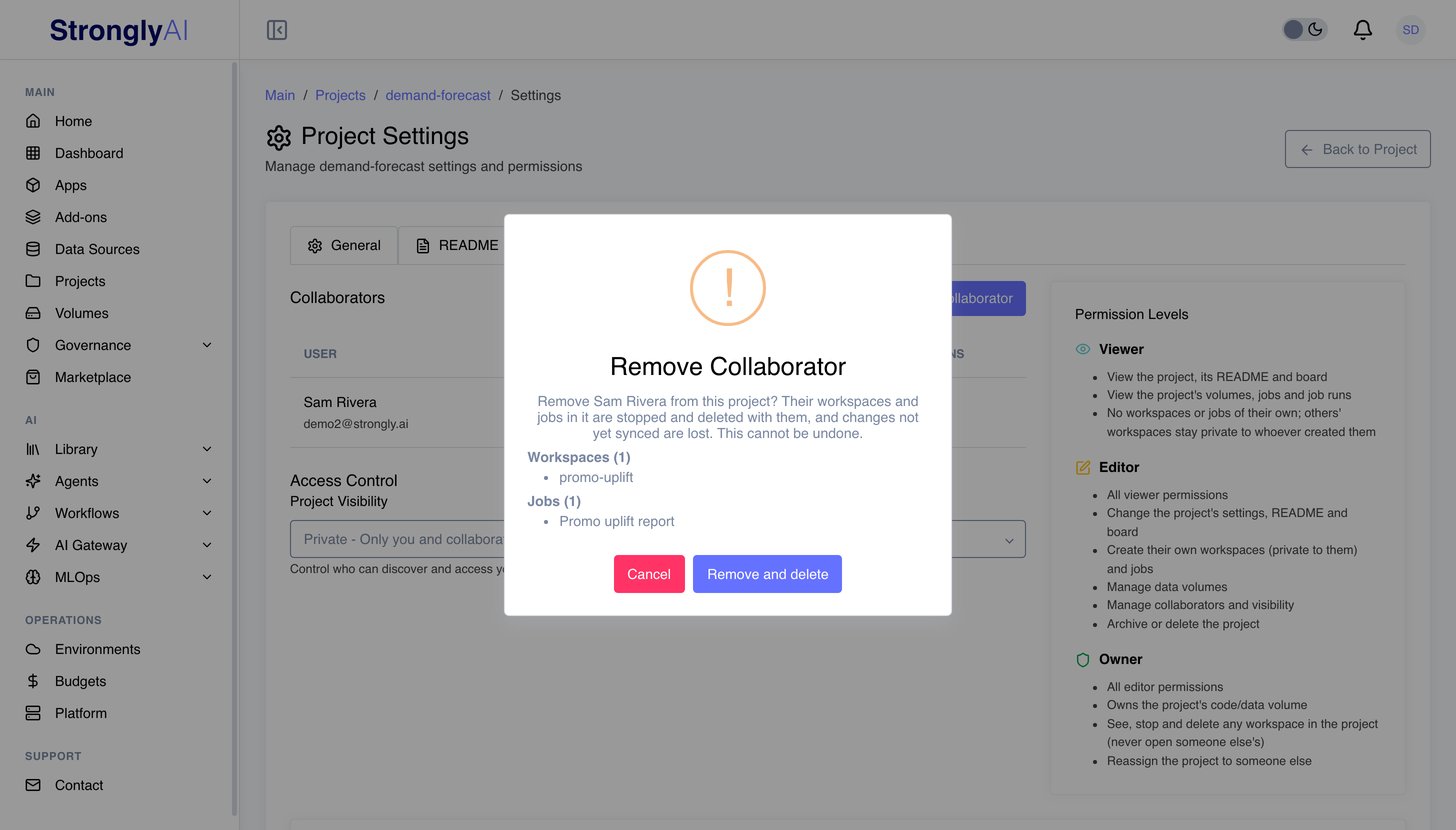
Removing a collaborator also stops and deletes their workspaces and jobs in the project, with each workspace's /workspace volume and each job's run history. The confirmation lists them by name first, so you can ask them to sync work they want to keep. If something still uses one of their workspaces (an agent, for example), the removal is refused and nothing is deleted.
Reassign owner (owner and administrators) gives the project to another user. They own the project and its code and data volume from then on and can reassign it again; the previous owner stays on the project as an Editor. Each workspace stays with whoever created it.
Visibility
On the Permissions tab, Project Visibility is either:
- Private: only you and your collaborators can find and open the project.
- All users: every user (on a multi-tenant platform, every member of your organization) can find the project and use it as a viewer would. Allowing all users asks you to confirm first.
Archiving, restoring and deleting
Archive, at the top right of the project's page, makes a project read-only and moves it to the Archived list of the Projects page. Stop the project's workspaces and let its running jobs finish first: archiving is refused while any are running. Restore brings an archived project back exactly as it was.
Delete removes the project permanently. Its workspaces (running ones are shut down), its jobs (running ones are stopped), their run history, the board and the activity are deleted with it. The dialog asks what happens to the project volume, and you must choose:
- Delete volume: its code and data are removed permanently.
- Keep volume: the volume leaves the project and becomes a shared volume owned by the project owner. Its code and data are kept, it appears under Volumes, and it mounts at
/volumes/shared/<name>wherever shared volumes are mounted, with its code read-only from then on (code is written only in a project's own volume). Keeping is refused if the owner already has a shared volume with the same name; rename one of them first.
A project cannot be deleted while something else still uses it; the dialog names what does. Delete volume is also refused, before anything is deleted, while the volume is used by something that is not part of the project, such as an app deployed from it: the dialog names it, and you can delete that first or choose Keep volume.
Stopping workspaces automatically
Workspaces do not stop on their own when idle: a workspace runs until you stop it. To stop and start workspaces on a timetable (for example every evening and weekend), use a FinOps schedule.
Working with projects over the API
Everything on these pages (projects, collaborators, the board, workspaces, volumes and jobs) is available over the REST API and the Python SDK. See the REST API references for projects, project boards, workspaces, volumes and jobs, and the Python SDK's projects, project boards, workspaces, volumes and jobs.