Platform
Comprehensive Kubernetes cluster management through an intuitive web interface. The Platform page is accessible from the sidebar under OPERATIONS and provides full cluster visibility and control without requiring kubectl.
Architecture
The platform provides comprehensive Kubernetes resource management through REST APIs for all resource operations. Key capabilities include:
- Adaptive polling: Session-aware polling that increases frequency when users are actively viewing a resource page
- Background processing: Background job processing for long-running operations
- Metrics collection: Resource utilization metrics gathered from the Kubernetes metrics API
- Multi-organization support: Organization context ensures users see only their namespace's resources
How to Access the Platform Dashboard
- Click Platform in the OPERATIONS section of the sidebar (available to admin and developer roles)
- The Platform Dashboard ("operational command center") shows:
- Cluster Status (healthy indicator)
- Nodes (count and ready state)
- Pods (count with running/failed breakdown) plus a Pods Overview table and Pod Status Summary
- Events (recent warnings with a Recent Events feed)
- Header actions: Open Browser and Apply YAML
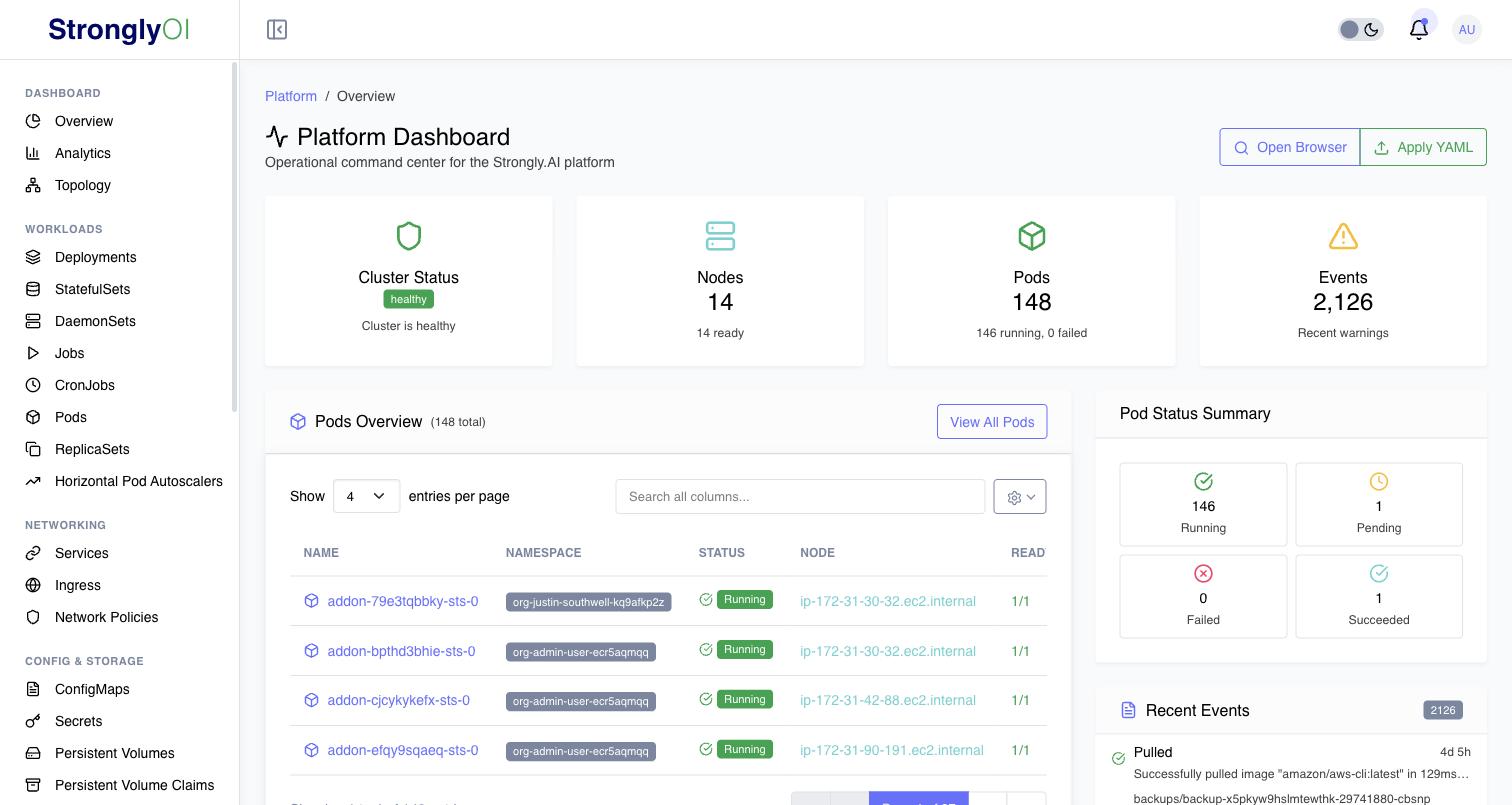
The Platform console has its own sidebar: Dashboard (Overview, Analytics, Topology), Workloads (Deployments, StatefulSets, DaemonSets, Jobs, CronJobs, Pods, ReplicaSets, Horizontal Pod Autoscalers), Networking (Services, Ingress, Network Policies), Config & Storage (ConfigMaps, Secrets, Persistent Volumes, Persistent Volume Claims, Storage Classes), Administration (Namespaces, Nodes), and Monitoring (Events).
Managing Workloads
The workloads section manages the following Kubernetes resource types:
Deployments
Full lifecycle management for deployments:
- List: View all deployments with replica status, filtering by namespace
- Details: View a deployment's pods, metrics, revision history, and YAML
- Scale: Adjust replica count up or down
- Restart: Trigger a rolling restart of all pods
- Pause/Resume: Pause and resume rollouts
- Rollback: Revert to a previous revision
- Update image: Change the container image for a deployment
- Create: Create new deployments from the UI
- Edit: Patch deployment configuration
- Delete: Remove a deployment and its pods
- Apply YAML: Apply a YAML manifest to update a deployment
StatefulSets
Full management for stateful applications:
- List/Details: View with pod ordering and volume claim information
- Scale: Scale up or down with ordered pod management
- Restart: Trigger rolling restart
- Update image: Change container image
- Create/Edit/Delete: Full CRUD operations
- Pod ordering: View pod sequence and management policy
- Network identity: View stable network identities for pods
- Volume claims: View and manage volume claim templates, storage allocation, and storage class usage
- Version management: View versions, version details, and restore to previous versions
- Update strategy: Configure update strategy and partition
- Service association: Manage headless service association
- Overview: Combined overview with identity persistence information
DaemonSets
Manage pods that run on every node:
- List/Details: View DaemonSets with node coverage
- Node coverage: View which nodes are running DaemonSet pods (basic and complete views)
- Update image: Change container image
- Restart: Trigger rolling restart
- Create/Edit/Delete: Full CRUD operations
Jobs
Manage batch processing workloads:
- List/Details: View jobs with completion status
- Pods: View pods associated with a job
- Events: View job lifecycle events
- Logs: View logs from job pods
- Restart: Re-run a completed or failed job
- Suspend/Resume: Pause and resume active jobs
- Create/Edit/Delete: Full CRUD operations
CronJobs
Manage scheduled recurring tasks:
- List/Details: View CronJobs with schedule and last execution
- Jobs: View child jobs created by the CronJob
- Trigger: Manually trigger a CronJob run
- Suspend/Resume: Pause and resume the schedule
- Events: View CronJob lifecycle events
- Create/Edit/Delete: Full CRUD operations
ReplicaSets
View and manage ReplicaSets (typically managed by Deployments):
- List/Details: View ReplicaSets with replica counts
- Pods: View pods owned by a ReplicaSet
- Scale: Adjust replica count
- Events: View lifecycle events
- Delete: Remove a ReplicaSet
Horizontal Pod Autoscalers (HPA)
Manage automatic scaling:
- List/Details: View HPAs with current/desired replicas and metrics
- Metrics history: View historical scaling metrics
- Scaling events: View past scaling decisions
- Create/Edit/Delete: Full CRUD operations
Pods
Comprehensive pod management:
- List: View all pods with status, namespace filtering, and status counts
- Details: Full pod information including status, conditions, and resource usage
- Logs: Stream or download pod logs with container selection, tail lines, since-time, follow mode, and previous container logs
- Terminal/Shell: Execute interactive shell commands in pod containers
- Exec: Run one-off commands in containers
- Metrics: View CPU and memory usage for individual pods
- Events: View pod lifecycle events
- Containers: List and inspect individual container statuses
- Environment: View environment variables
- Volumes: View, browse, and manage pod volumes with capacity information
- Files: Browse, download, upload, edit, and delete files inside containers
- Labels/Annotations: Add, modify, or remove pod labels and annotations
- YAML: View and edit pod YAML definition
- Port forwarding: Create and manage port-forward sessions to pods
- Ephemeral containers: Add, list, and remove debug containers
- Create: Create pods from scratch or from templates
- Bulk delete: Delete multiple pods at once
- Restart: Delete and recreate a pod
Networking & Ingress
Services
Manage Kubernetes services:
- List/Details: View services with type (ClusterIP, NodePort, LoadBalancer), ports, and selectors
- Endpoints: View backend pod IPs and port mappings
- Traffic: View traffic metrics for a service
- Related resources: View related deployments, pods, and ingresses
- Test endpoint: Test connectivity to service endpoints
- Test all endpoints: Bulk connectivity testing
- Create/Edit/Delete: Full CRUD operations
- Patch: Apply partial updates to service configuration
Ingresses
Manage HTTP/HTTPS routing:
- List/Details: View ingresses with host rules, paths, and TLS configuration
- Rules: View detailed routing rules
- Backend services: View and validate backend service health
- Status: View ingress load balancer status
- YAML: View and edit ingress YAML
- Ingress classes: List available ingress classes
- Create/Edit/Delete: Full CRUD operations
Network Policies
Control pod-to-pod communication:
- List/Details: View network policies with ingress/egress rules
- Affected pods: See which pods are targeted by a policy
- Test connectivity: Test whether traffic is allowed between pods
- Visualization: View network policy topology as a graph
- Impact analysis: Analyze the impact of a policy on cluster traffic (single, bulk, and cluster-wide)
- Rule builder suggestions: Get AI-assisted suggestions for network policy rules
- Validate rules: Validate policy rules before applying
- Test scenarios: Create, run, and manage test scenarios for policies
- Templates: Use pre-built network policy templates
- Preview: Preview policy effects before applying
- Clone: Duplicate an existing policy
- Create/Edit/Delete: Full CRUD operations
Configuration & Secrets
ConfigMaps
Manage configuration data:
- List/Details: View ConfigMaps with key-value pairs by namespace
- Usage: See which pods and deployments reference a ConfigMap
- Delete: Remove ConfigMaps
Secrets
Manage sensitive data (admin access recommended):
- List/Details: View secrets with types (Opaque, TLS, Docker registry, etc.)
- Data: View individual secret values (base64-encoded, with decode option)
- Usage: See which pods reference a secret
- Delete: Remove secrets
Storage Management
Persistent Volumes (PV)
Manage cluster-wide storage:
- List/Details: View PVs with capacity, access modes, storage class, status, and reclaim policy
- Delete: Remove persistent volumes
Persistent Volume Claims (PVC)
Manage namespace-scoped storage requests:
- List/Details: View PVCs with requested size, bound status, and storage class
- Usage: See storage utilization metrics
- Expand: Resize PVCs (if storage class supports expansion)
- Expansion history: View past resize operations
- Validate: Validate PVC configurations before creating
- Validate expansion: Check if a PVC expansion is possible
- Edit/Delete: Modify or remove PVCs
Volume Snapshots
Manage storage snapshots:
- Volume snapshot classes: List, create, view, and delete snapshot classes
- Volume snapshots: List, create, view, and delete snapshots by namespace
- Restore: Restore a PVC from a snapshot
- Snapshot support: Check if the cluster supports volume snapshots
- Statistics: View snapshot usage statistics
Cluster Administration
Nodes
Full node lifecycle management:
- List: View all nodes with status, capacity, utilization, and instance type
- Details: View node-level metrics, conditions, and configuration
- Metrics: View CPU, memory, and disk usage per node
- Pods: View pods running on a specific node
- YAML: View node YAML definition
- Cordon/Uncordon: Mark nodes as schedulable or unschedulable
- Drain: Safely evict all pods from a node for maintenance
- Reboot: Reboot a node
- Labels: Add, modify, or remove node labels
- Annotations: Add, modify, or remove node annotations
- Taints: Manage node taints for pod scheduling control
- Conditions: View node conditions (Ready, MemoryPressure, DiskPressure, PIDPressure)
- Health check: Run a comprehensive node health check
- Delete: Remove a node from the cluster
Namespaces
View and manage cluster namespaces:
- List: View all namespaces with resource counts
- Admin namespaces: View namespaces with additional administrative information
Cluster Health
- Health endpoint: Check overall cluster health status
- Components: View cluster component statuses (API server, scheduler, controller manager, etcd)
- Capabilities: View cluster capabilities and supported API versions
- Resources: View cluster-wide resource summary
- Storage info: View storage classes and provisioner information
- Storage recommendations: Get AI-assisted storage configuration recommendations
- Service recommendations: Get AI-assisted service type recommendations
Additional Features
RBAC Management
Manage Kubernetes role-based access control:
- Roles: List, create, update, and delete namespace-scoped roles
- RoleBindings: List, create, update, and delete role bindings
- Access review: Check if a subject has specific permissions
Pod Disruption Budgets (PDB)
Manage availability during voluntary disruptions:
- List/Details: View PDBs with min-available and max-unavailable settings
- Status: View current PDB disruption status
- StatefulSet validation: Validate PDB configuration for StatefulSets
- Create/Edit/Delete: Full CRUD operations
YAML Operations
Direct YAML management:
- Apply: Apply YAML manifests to the cluster
- Validate: Validate YAML before applying
- Diff: Compare current resource state with proposed YAML
- Export: Export resource definitions as YAML
Global Search
Search across all Kubernetes resources:
- Search by name, label, annotation, or namespace
- Results include resource type, namespace, and status
- Quick navigation to resource details
Resource Relationships
Visualize resource dependencies:
- View parent-child relationships between resources
- Trace ownership chains (Deployment > ReplicaSet > Pod)
- Identify orphaned resources
Cluster Topology
Visualize cluster layout:
- View node-to-pod distribution
- Visualize network topology
- Map resources across availability zones
Capacity Planning
Analyze cluster capacity:
- Capacity analysis: View current capacity utilization and headroom
- Recommendations: Get AI-assisted capacity planning recommendations
Caching System
The platform includes an optional caching layer for improved performance:
How It Works
- Cache storage: Kubernetes resource data is cached for faster retrieval
- Adaptive polling: Polling frequency adjusts based on user activity:
- Fast polling: When users are actively viewing a resource page
- Slow polling: When no active sessions are viewing a resource type
- Session tracking: Each user's page views are tracked to determine which resources need fast polling
- Heartbeat: Clients send periodic heartbeats (every 60 seconds) to keep sessions alive
- Page exit: When users navigate away, the session is ended and polling may slow down
Cache Endpoints
| Endpoint | Purpose |
|---|---|
POST /cache/page-access | Notify backend that a user accessed a resource page |
POST /cache/heartbeat | Keep session alive for continued fast polling |
POST /cache/page-exit | Notify backend that user left a page |
POST /cache/force-update | Force immediate cache refresh (concurrency-limited, deduplicated) |
Performance Features
- Concurrency limiting: Up to 50 concurrent cache updates to prevent overload
- Deduplication: Prevents duplicate cache updates for the same resource type
- Background updates: Cache updates run as background tasks, not blocking API responses
Use the Platform interface for interactive troubleshooting and one-off operations. For automation and GitOps workflows, use kubectl and infrastructure-as-code tools. The Platform UI is designed to complement, not replace, CLI-based workflows.