FinOps & Cost Management
Track platform costs, manage budgets with threshold enforcement, schedule resource auto-stop/start, organize resources into groups, and analyze cost trends with forecasting and anomaly detection.
Overview
The FinOps module provides cost management for the Strongly AI platform. Every cost figure comes from one hourly cost record of what each workload costs to run: its own compute and storage, the idle capacity of the nodes it ran on, and its share of shared platform services. Budgets are charged from the same record, so the FinOps pages, budgets, STAN, and the REST API always agree. See Where the figures come from. A workload's usage always belongs to the user who deployed it, not to whoever uses or triggers it. See Who usage belongs to.
Core Capabilities
- Cost Dashboard -- Platform-wide spend, month to date, active resources, alerts, efficiency, the cost trend, cost by resource type and by organization, top cost drivers, a day by hour heatmap, active budgets, and a three-month forecast
- Cost Explorer -- Cost over time and a breakdown by resource type, organization, user, or resource, with a CSV export. See Cost Analysis & Exports
- Budgets -- Spending limits at platform, organization, user, resource group, resource type, specific resource, or tag scope, with alert and pause thresholds and launch checks. See Budgets
- Resource Groups -- Organize platform resources (apps, workflows, add-ons, workspaces, projects, volumes, models, and jobs) into groups that a budget or a schedule covers as one
- Resource Schedules -- Stop and start apps, add-ons, workspaces, and self-hosted models at set times to cut off-hours cost. See Resource Schedules
- Cost Forecasting -- A trend line fit to the last 90 days of daily cost and projected forward, with 95% prediction bounds
- Anomaly Detection -- Resources whose cost on the last whole day moved sharply from their usual day
- Executions -- Execution usage in SEU by category, with a CSV export
Where to find it
FinOps lives in the sidebar under Admin > FinOps (platform administrators), with five pages: Dashboard, Cost Explorer, Budgets, Schedules, and Executions. Resource Groups open from the Resource Groups button on the Budgets page. The FinOps pages appear only when the FinOps feature is enabled on the platform.
An organization's owners and admins manage their own organization's budgets from Budgets in the sidebar, and other members see the budgets that cover them in the Your budgets card on their dashboard. Anyone can get the cost figures they are allowed to see from STAN or the REST API (see Who can see cost figures).
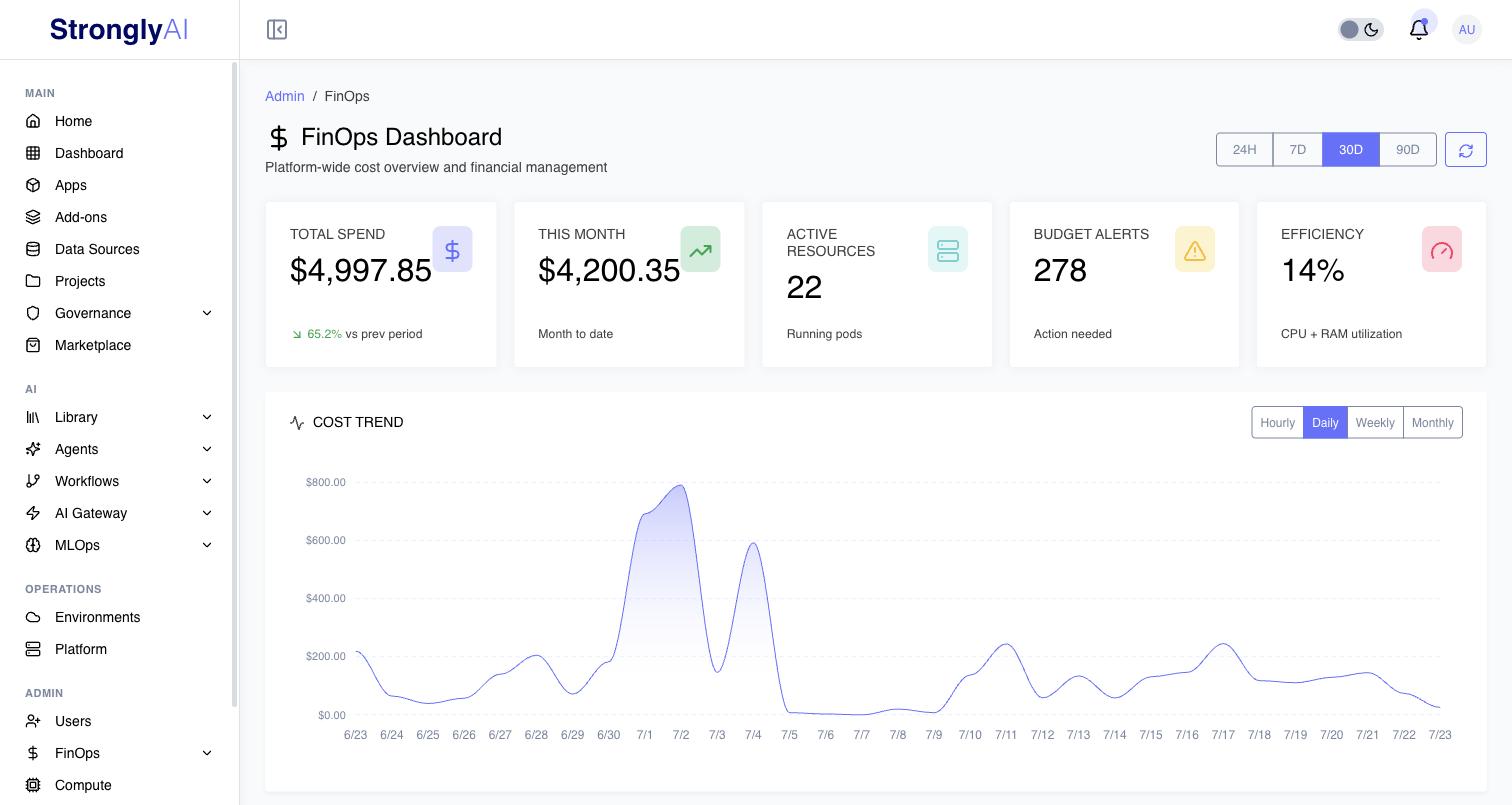
Cost Dashboard
Open Admin > FinOps. Pick a time range (24H, 7D, 30D, or 90D) at the top of the page.
Summary cards
| Card | What it shows |
|---|---|
| Total Spend | Cost for the time range, with the change against the previous period of the same length |
| This Month | Spend so far this calendar month, from the 1st at 00:00 UTC |
| Active Resources | Tenant resources that had cost in the time range |
| Alerts | Exhausted budgets plus cost anomalies. Click it to open Budgets |
| Efficiency | The CPU and memory workloads used, as a percent of what they requested |
Charts and lists
| Section | What it shows |
|---|---|
| Cost Trend | Cost per Hourly, Daily, Weekly, or Monthly point |
| Cost by Resource Type | The range's cost split by resource type |
| Cost by Organization | The range's cost split by organization |
| Top Cost Drivers | The eight most expensive resources, with their compute, storage, and network cost, change, and efficiency. View All opens the Cost Explorer |
| Cost Heatmap (Day x Hour) | Cost by day of the week and hour of the day |
| Active Budgets | Up to five enabled budgets, with how much of each is used. Manage opens Budgets |
| Resource Efficiency | CPU, memory, and overall efficiency |
| Cost Forecast (3 Month) | The projected cost per week for the next 90 days, with the monthly growth rate and a confidence level |
Refreshing the figures
The dashboard's figures are computed ahead of time and recomputed every hour; the Updated label shows when. The refresh button recomputes the selected time range right away. If cost data collection falls more than two hours behind, the dashboard shows a Cost data collection is behind banner. See Data freshness.
Resource Groups
Resource Groups organize platform resources into named sets that a budget or a schedule can cover as one.
Supported Resource Types
| Type | Description |
|---|---|
app | Deployed applications |
workflow | Workflow definitions |
addon | Platform add-ons |
workspace | Workspaces |
project | Projects |
volume | Volumes |
fine_tuning | Fine-tuning jobs |
self_hosted_model | Self-hosted model deployments |
ml_model | ML model registry entries |
automl | AutoML jobs |
A budget with the Resource Group scope counts the spend of all of the group's resources. A schedule with the Resource Group scope stops and starts only the group's apps, add-ons, workspaces, and self-hosted models.
Creating a Resource Group
- Open Admin > FinOps > Budgets and click Resource Groups
- Click Create Resource Group
- Enter a name and an optional description
- Click Create resource group
- On the group's page, pick a Type and a Resource under Member Resources, then click Add resource. Repeat for each resource
Managing Resources in Groups
From a group's page you can add and remove resources, edit its name and description, and delete it. From the list you can archive a group and restore it. Search and a status filter (All, Active, Archived) help find groups as the list grows.
- The same resource cannot be added to a group twice.
- A group cannot be deleted while a budget is scoped to it. The message names the budgets to delete or re-scope first.
- Only active groups can be picked for a schedule.
Access Control
- The Resource Groups pages are for platform administrators, who see and manage every group.
- Through STAN and the REST API, people see and manage the groups they own. On a multi-tenant platform, an organization's owners and admins also reach every group in their organization, and never another organization's.
Analyzing Cost Trends
Use the Cost Explorer to analyze cost over time and find what drives it: pick a time range, a grouping (Resource Type, Organization, User, or Resource), and filters, then read the Cost Over Time chart and the Cost Breakdown table. See Cost Explorer.
- Forecast: the Dashboard's Cost Forecast (3 Month) card, or the daily projection from STAN or the REST API. See Cost forecast.
- Anomalies: the Dashboard's Alerts card counts them; ask STAN or use the REST API for the list. See Cost anomalies.
- Rightsizing: the Efficiency column in the Cost Explorer, or rightsizing savings from STAN or the REST API. See Rightsizing savings.
Best Practices
Organize Resources
- Create resource groups aligned with teams, projects, or environments
- Use consistent naming conventions for groups
- Regularly review group membership as resources are added or removed
Monitor Proactively
- Review the cost dashboard weekly
- Set up budgets with threshold alerts before costs become a problem
- Use resource schedules to automatically control non-production costs
- Review the Executions page's SEU usage alongside infrastructure cost
Optimize Costs
- Apply resource schedules to stop development resources during off-hours
- Check the Efficiency column and rightsizing savings, and lower the requests of resources that use much less than they ask for
- Use resource groups to track costs by team or project
- Set budgets at multiple scope levels for layered cost control
The quickest win is a resource schedule for development resources. With the schedule defaults (stop at 18:00, start at 08:00, Monday to Friday), the resources it covers run 50 of the week's 168 hours.